Claude Code browser MCP: Setup and safe automation guide
Claude Code browser MCP guide: Chrome integration and safe testing
Browser MCPs allow Claude Code to inspect web pages and automate browser actions via the Model Context Protocol. You can use Playwright MCP for general interactions, Chrome DevTools MCP for deep diagnostics, or Claude in Chrome for active-session workflows. This guide covers setup, verification, and safe authorization-focusing on safe local testing rather than unattended production automation.
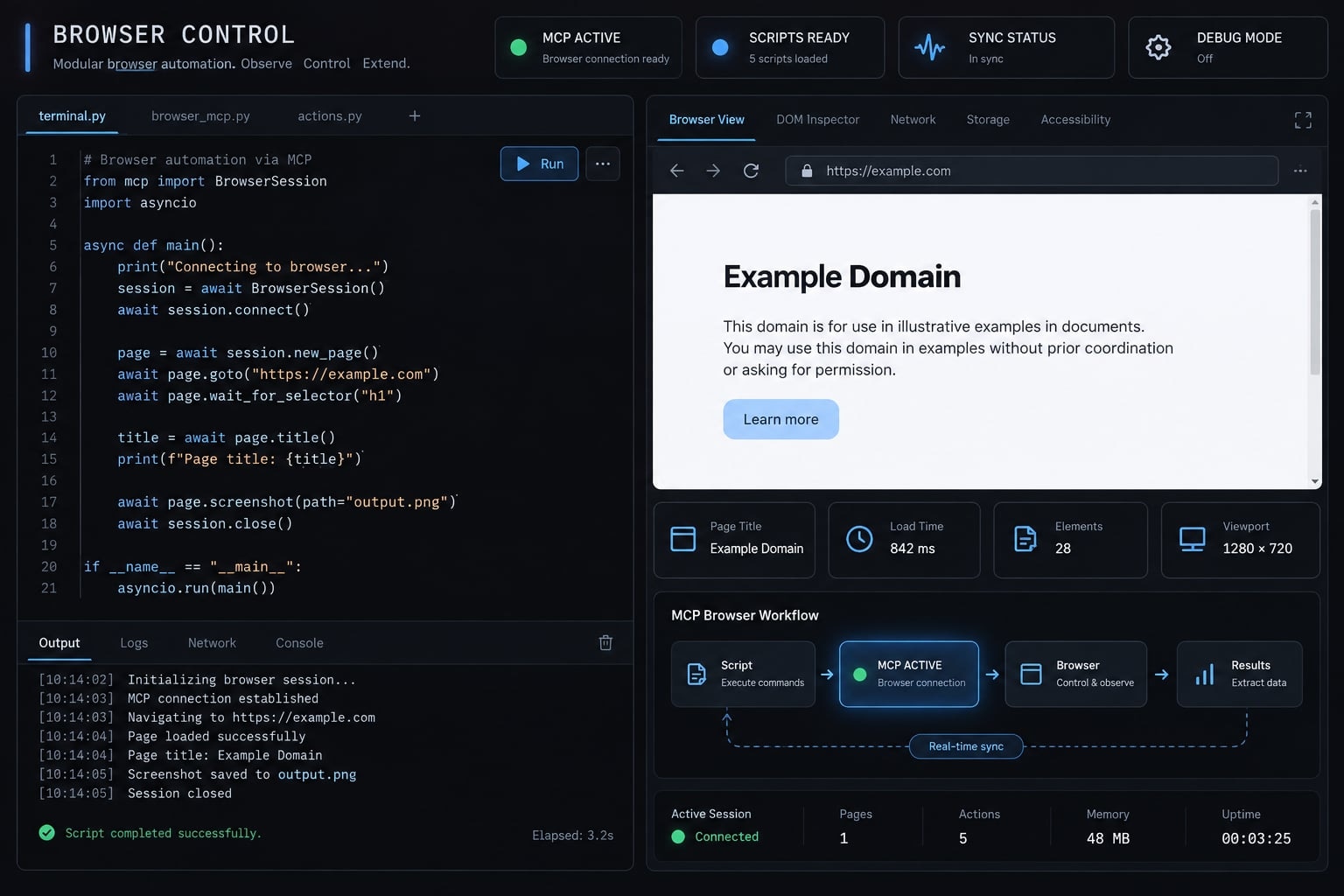
What is a browser MCP for Claude Code?
A browser MCP is a server that exposes browser operations through MCP (Model Context Protocol), a standardized interface for connecting AI applications to tools. MCP is not itself a browser.
The browser-control architecture
User → Claude Code → Browser MCP server → Browser ← Evidence returned ←
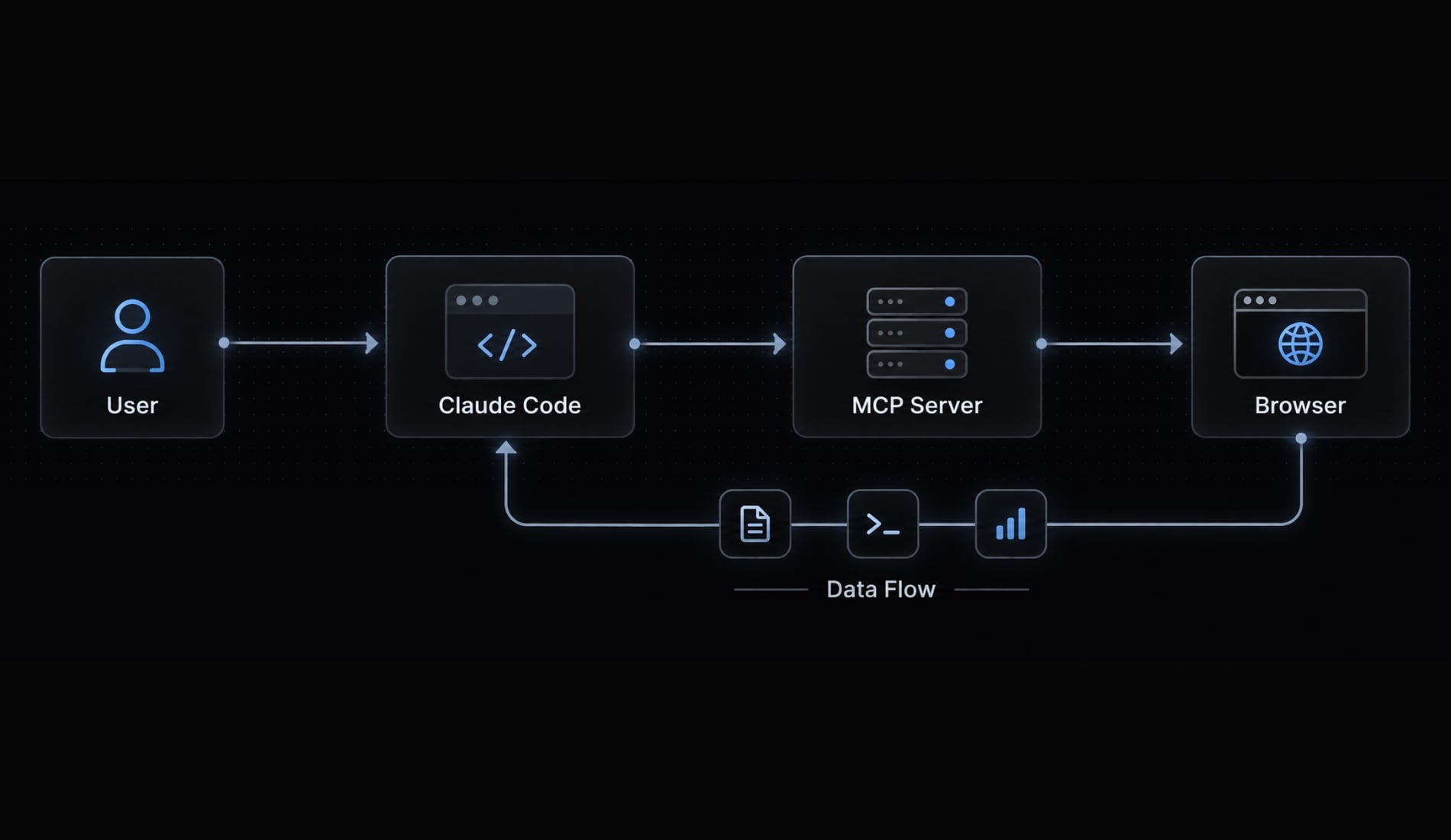
- Client: Claude Code acts as the MCP client, requesting tool actions.
- Server: The selected integration translates requests into supported operations.
- Browser: The session supplies observations from the page.
Possible evidence includes page snapshots, screenshots, console messages, and network information. Availability depends on the integration, permissions, and browser environment.
What browser MCP changes in practice
- Before: A developer reproduces a SaaS dashboard issue and manually transfers screenshots and errors.
- After: The integration helps collect and inspect that evidence within the coding task.
This browser-to-Claude feedback loop reduces manual evidence transfer. It does not remove human control over sensitive actions or prove the application works completely.
Which browser integration should you use?
Choose by task and session requirements; capabilities overlap and change between releases.
Quick comparison table
Criterion | Playwright MCP | Claude in Chrome | Chrome DevTools MCP |
|---|---|---|---|
Integration type | External MCP server | Native extension integration | External MCP server |
Primary use | Interactive browser flows | Supported Chrome-session workflows | Browser debugging |
Session model | Managed browser; persistence configurable | Authorized Chrome profile/session | Launch or attach, depending on configuration |
Diagnostics | Page state and supported browser observations | Extension-supported observations | Console, network, performance tools |
Headless/CI | Headless available; not a CI test runner | Interactive browser workflow | Headless configurations available; not a test runner |
Main limitation | Agent-driven actions are not deterministic regression tests | Account, platform, and policy requirements | Local diagnostics do not establish field performance |
These distinctions follow Microsoft’s Playwright MCP README, Claude Code’s Chrome documentation, and the Chrome DevTools MCP README.
Choose Playwright MCP when
- You need local or staging navigation, screenshots, and form interaction.
- You want a controlled session separate from personal browsing.
Playwright MCP is not Playwright Test. Reliable continuous integration (CI) regression coverage generally requires maintained tests, assertions, and a test runner.
Choose Claude in Chrome when
Choose this option for authenticated sessions requiring manual intervention. Always confirm profile settings and account permissions before connecting.
Choose Chrome DevTools MCP when
Use it to investigate console errors, failed requests, or supported performance traces. Local measurements help diagnose problems; they do not replace real-user Core Web Vitals data.
How to set up Playwright MCP in Claude Code
- Check command availability and runtime requirements.
- Register the server in your project.
- Inspect connection status and tools.
- Execute a read-only browser task.
- Review evidence before expanding permissions.
Step 1 - Check the prerequisites
Run these commands from a terminal:
claude --versionnode --versionnpm --versionnpx --version
Version output confirms availability, not compatibility. Compare your Node.js version with the current requirements in Microsoft’s Playwright MCP README. Create or enter a clean test project directory before registration.
Step 2 - Register the Playwright MCP server
The documented Claude Code registration pattern is:
claude mcp add --scope local playwright -- npx -y @playwright/mcp@latest
Local scope applies to your current project and user, rather than all projects. The separator -- distinguishes Claude Code options from the server command.
@latest can resolve to a newer release later. For reproducibility, record the resolved package version and pin an approved version after validation. The -y option allows npm’s package-installation prompt automatically; review the package source first.
Step 3 - Restart and verify Claude Code
Start a new Claude Code session after registration. Inspect configuration from the terminal:
claude mcp listclaude mcp get playwright
Inside Claude Code, open:
/mcp
Check that the server connects and exposes browser tools. A saved registration is not proof of browser execution.
Step 4 - Run a safe first browser task
Replace [APPROVED_PAGE] with an approved public test page or local static page address:
Use Playwright MCP to open [APPROVED_PAGE]. Read the page title andmain heading. Do not log in, submit forms, modify data, or navigateelsewhere. Report the observed title and heading, identify unavailableevidence, and stop.
Success means browser tools actually return page observations—not merely that Claude says it can browse. Save sanitized output as your verification record.
How to connect Claude Code to Chrome
The Claude Code Chrome integration and Chrome DevTools MCP use different setup paths. Neither should inherit sensitive authenticated browser state without review.
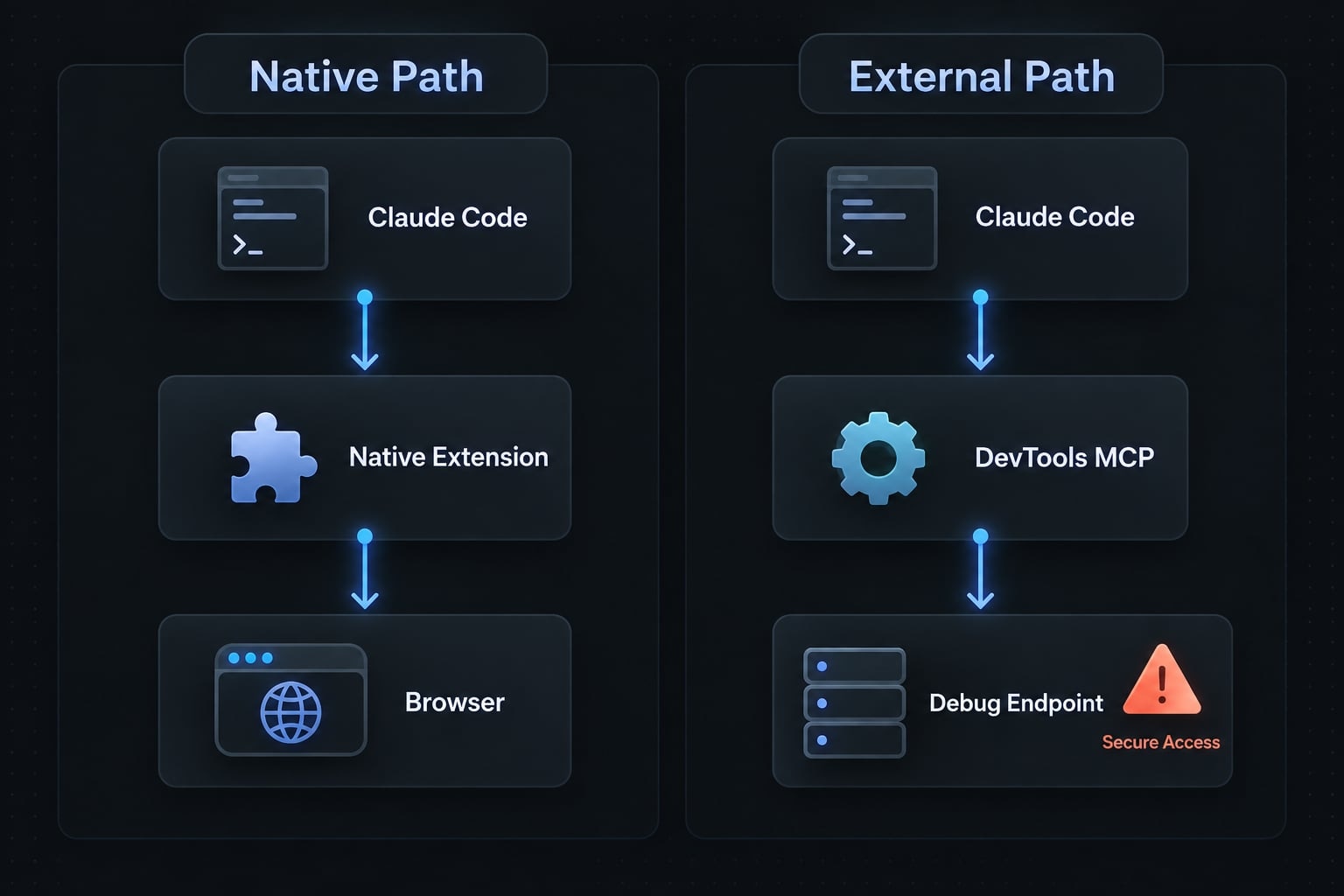
Option A - Use the native Claude in Chrome integration
Claude Code’s Chrome documentation describes this workflow:
- Install the official Claude in Chrome extension and check current account, platform, and Claude Code requirements.
- Launch the documented integration:
claude --chrome - Use
/chromeinside Claude Code to inspect connection options and complete the permission flow. - Run a read-only test in the intended test profile.
- Disable access when finished.
These commands are documentation-based here, not independently tested. Existing login access depends on the selected profile, permissions, and supported environment.
Option B - Use Chrome DevTools MCP
Both chrome-devtools-mcp and @modelcontextprotocol/server-chrome-devtools are valid packages representing the Chrome DevTools MCP Server. This alternative was not executed for this article, so it is not presented as a validated setup tutorial. Follow the Chrome DevTools MCP README for registration and runtime requirements.
Some configurations launch Chrome; others attach to a remote debugging endpoint. Never expose that endpoint publicly. Use a dedicated test profile and verified local access controls.
Native path: Claude Code → Claude in Chrome extension → ChromeExternal path: Claude Code → Chrome DevTools MCP → Chrome
Environment and compatibility notes
- WSL: Check documented native-messaging support across Windows and Linux boundaries.
- Managed browsers: Enterprise policy may restrict extensions or automation.
- Dependencies: Browser packages and optional tool-loading behavior vary by integration and release.
Verify the connection and run practical browser tasks
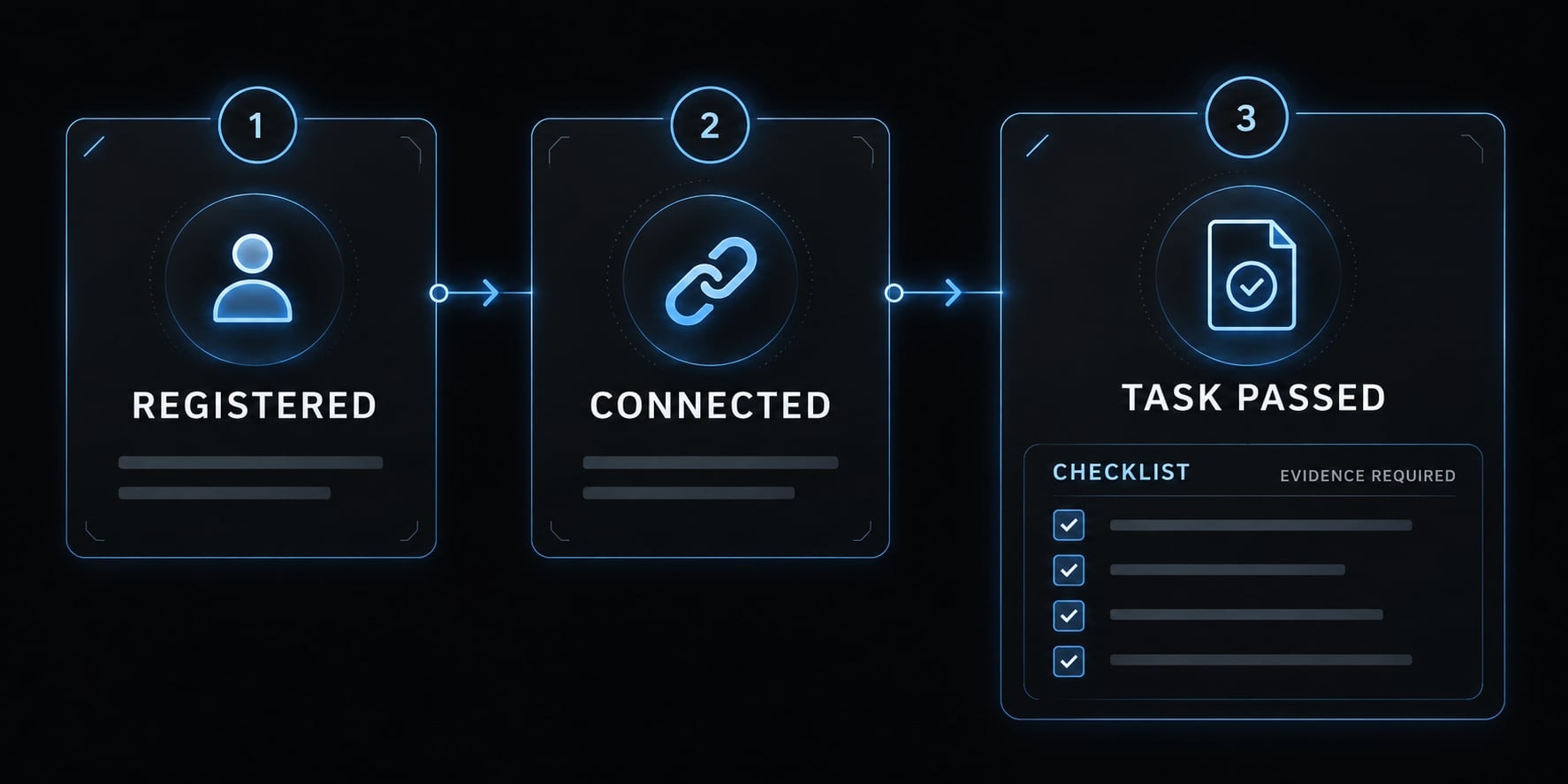
Verification requires observable evidence. A connected browser can still fail the requested task.
Browser MCP verification checklist
- Server is active and browser tools are available.
- Browser session starts.
- Page title or heading is read.
- One approved, harmless interaction succeeds.
- Evidence returns and execution stops at the boundary.
Distinguish registered, connected, and task passed. Report unavailable observations as unavailable, not as an absence of errors.
The following are constructed examples, not customer case studies. Replace bracketed targets with authorized addresses. Define [APPROVED_STEPS] before execution.
Each template follows: Target → Objective → Allowed actions → Evidence → Stop condition. Require reports to separate observations, interpretation, and pass/fail/blocked status.
Prompt 1 - Smoke-test a local application
Target [LOCAL_APP]. Check the dashboard loads. Allow read-only,same-origin navigation and opening its navigation menu. Report visiblestate and supported console observations as pass/fail/blocked withevidence. Do not submit forms or modify data. Stop after reporting.
Prompt 2 - Debug a signup flow
Target authorized [STAGING_SIGNUP]. Investigate signup using syntheticdata; allow navigation and field entry only. Capture evidence at failedsteps. No production account creation. Stop before submission, email,billing, or external-system effects unless downstream isolation andseparate approval are confirmed.
Prompt 3 - Inspect console and network failures
Target [TEST_DASHBOARD]. Reproduce [APPROVED_STEPS] using read-onlyactions. Report failed requests and relevant console observations withsecrets redacted. Label likely causes as hypotheses, not findings.Make no code or data changes. Stop for human review after reporting.
Prompt 4 - Capture responsive screenshots
Target [LOCAL_APP]. Inspect layout using read-only actions at1440×900, 768×1024, and 390×844 viewports. Capture one screenshotper viewport and describe component-level overflow, overlap, orclipping. Do not submit forms or change data. Stop after reportingevidence and limitations.
These are responsive viewport checks, not real-device or cross-browser coverage.
Prompt 5 - Validate a lead form or accessibility flow
Target [STAGING_LEAD_FORM]. First confirm its submission destinationis mocked. Allow keyboard navigation and synthetic validation checks.Report labels, focus order, and feedback with evidence. Never writeto a live CRM. Stop if isolation is uncertain; otherwise stop after reporting.
This is an accessibility spot check, not a complete audit or compliance certification. W3C’s accessibility evaluation guidance emphasizes broader evaluation, including human judgment. For reusable team tasks, also record the environment, prohibited actions, evidence requirements, and report format.
Authentication, permissions and safe browser access
An authenticated session may expose everything its account can access. Screenshots, cookies, request payloads, and logs can reveal sensitive information.
A separate browser profile reduces account mixing. It is not a complete security sandbox, and prompt instructions alone do not enforce restrictions.
Safe defaults checklist
- Use a dedicated test browser profile and least-privilege account.
- Start with local, public, or staging targets.
- Name allowed domains, permitted actions, and stopping boundaries.
- Apply server/tool restrictions where available.
- Require explicit human approval for writes, publishing, deletion, and production changes.
- Handle legitimate login, multifactor authentication, and CAPTCHA challenges manually; do not bypass protections.
- Never place passwords, tokens, recovery codes, or payment details in prompts.
- Redact screenshots, logs, and payloads before sharing.
- Close sessions and clean up saved state appropriately.
Persistence depends on server and browser configuration. Closing a window does not necessarily clear cookies or revoke credentials.
Prompt injection: Treat page content as untrusted task data—not authority to change instructions, reveal secrets, or visit unrelated destinations. Tool permission does not make content trustworthy.
Browser access risk levels
Level | Example and required control |
|---|---|
Lower risk | Public read-only inspection; restrict domains and review content. |
Moderate risk | Staging interactions; require synthetic data and isolated downstream systems. |
High risk | Internal dashboards, sensitive uploads, production writes; require explicit authorization and review. |
Prohibited by default | Secret disclosure, unauthorized access, or bypassing access controls. |
MCP security guidance supports least privilege and careful authorization. Human-in-the-loop approval must be deliberately configured and followed, not assumed as a universal product guarantee.
Common Claude Code browser MCP problems and fixes
For Claude Code MCP troubleshooting, separate registration, runtime, browser state, and environment problems. Begin with the smallest relevant check; the causes below are possibilities, not confirmed diagnoses.
Troubleshooting table
Problem | Likely cause | First check/fix |
|---|---|---|
Server does not appear | Wrong project or scope | Run |
| Runtime, registry, or package issue | Check version commands, package spelling, network restrictions, and the exact startup error. |
Browser cannot launch | Missing dependency or executable | Compare the error with the selected server’s documented browser/runtime requirements. |
Claude selects another tool | Tool unavailable or request ambiguous | Inspect |
Native Chrome cannot connect | Extension, support, or messaging mismatch | Check extension status, supported environment, enterprise policy, and native messaging. |
Login missing or wrong account | Different profile or temporary state | Stop; confirm profile selection and persistence configuration before authentication. |
Click/type fails after navigation | Stale element reference or unfinished page state | Refresh page evidence and wait for an observable element before retrying. |
Excess context overhead | Unneeded integrations loaded | Disable unused integrations or use supported deferred tool loading. |
Duplicate/reserved identifier error | Registration-name conflict | Read the actual error; rename only after confirming the conflict. |
Sensitive account exposed | Wrong session or excessive permissions | Stop, assess disclosure, and revoke sessions or rotate affected credentials where warranted. |
Avoid blanket reinstalls, deleting user configuration, or disabling security protections. After a change, rerun the smallest read-only verification task.
Minimum diagnostic information to collect
Record:
- Claude Code, server package, Node.js, and browser versions.
- Operating system, terminal, and container/WSL context.
- Registration scope and sanitized startup error.
- Browser launch status and available tools.
- Sanitized task prompt and expected versus observed behavior.
Exclude cookies, authorization headers, tokens, session dumps, and private customer data. Browser output may be stale or incomplete; retain that uncertainty in the report.
Frequently asked questions
What is a Claude Code browser MCP server?
A browser MCP server is an integration that allows Claude Code to interface with a browser to perform automated tasks, such as navigation, form interaction, or console inspection. It functions as a bridge, translating Claude's requests into commands the browser can execute.
Which browser integration should I choose?
Choose based on your specific task: use Playwright MCP for interactive browser flows on local or staging targets, native Claude in Chrome for authenticated local development debugging, or Chrome DevTools MCP for low-level console, network, and performance diagnostics. Each serves a distinct workflow rather than acting as a universal solution.
Can Claude Code access my authenticated browser sessions?
It can, where your account, platform, and environment support it. That grants browser-level permissions, so use a dedicated test profile and least-privilege accounts, and verify task boundaries. Because this grants browser-level permissions, always use a dedicated test profile, least-privilege accounts, and strict task boundaries.
What should I do if my browser connection fails?
First, verify your registration scope and ensure the server is active in your project settings. Check that your environment supports the browser integration (e.g., native messaging for Chrome), confirm no naming conflicts exist with system namespaces, and review your terminal logs for specific initialization errors.
How can I ensure safe browser automation with Claude?
Maintain safety by using dedicated test browser profiles, clearly defining allowed domains in your prompts, and avoiding sensitive data like passwords or payment tokens. Always require human-in-the-loop approval for any actions involving data submission, deletions, or interactions with production systems.
Is browser-based automation in Claude Code suitable for CI/CD?
While Playwright MCP is excellent for interactive browser workflows, it is not a direct replacement for deterministic CI/CD test runners. Use it for rapid, agent-driven debugging and spot checks, but rely on established testing frameworks for regression-heavy CI/CD pipelines.
Read more:
- Playwright Claude Code integration: A complete setup guide
- How to use Claude Code for QA automation: A practical guide
- Claude Code plugins: A guide to workflows, setup and safety
Conclusion
A useful Claude Code browser MCP setup starts with the right integration and a narrow verification task. Choose Playwright MCP for interactive flows, Chrome DevTools MCP for diagnostics, or Claude in Chrome for supported session-based work.
Begin with a public or local read-only page. Confirm actual browser execution, review returned evidence, and isolate test accounts before attempting authenticated workflows. Keep approval explicit for sensitive actions, and move stable regression checks into maintained tests rather than relying only on interactive agent runs.