How to save a Claude Code conversation: Export and resume
How to save a Claude Code conversation: Export, resume and back up sessions effectively
Claude Code CLI automatically saves your session history locally, allowing you to seamlessly pick up where you left off. However, automatic persistence is not a substitute for a true backup. To keep a readable copy of your discussion, select an earlier session, or safely preserve work before changing environments, you need to know how to export and resume your sessions using native commands like /export, claude --continue and claude --resume.
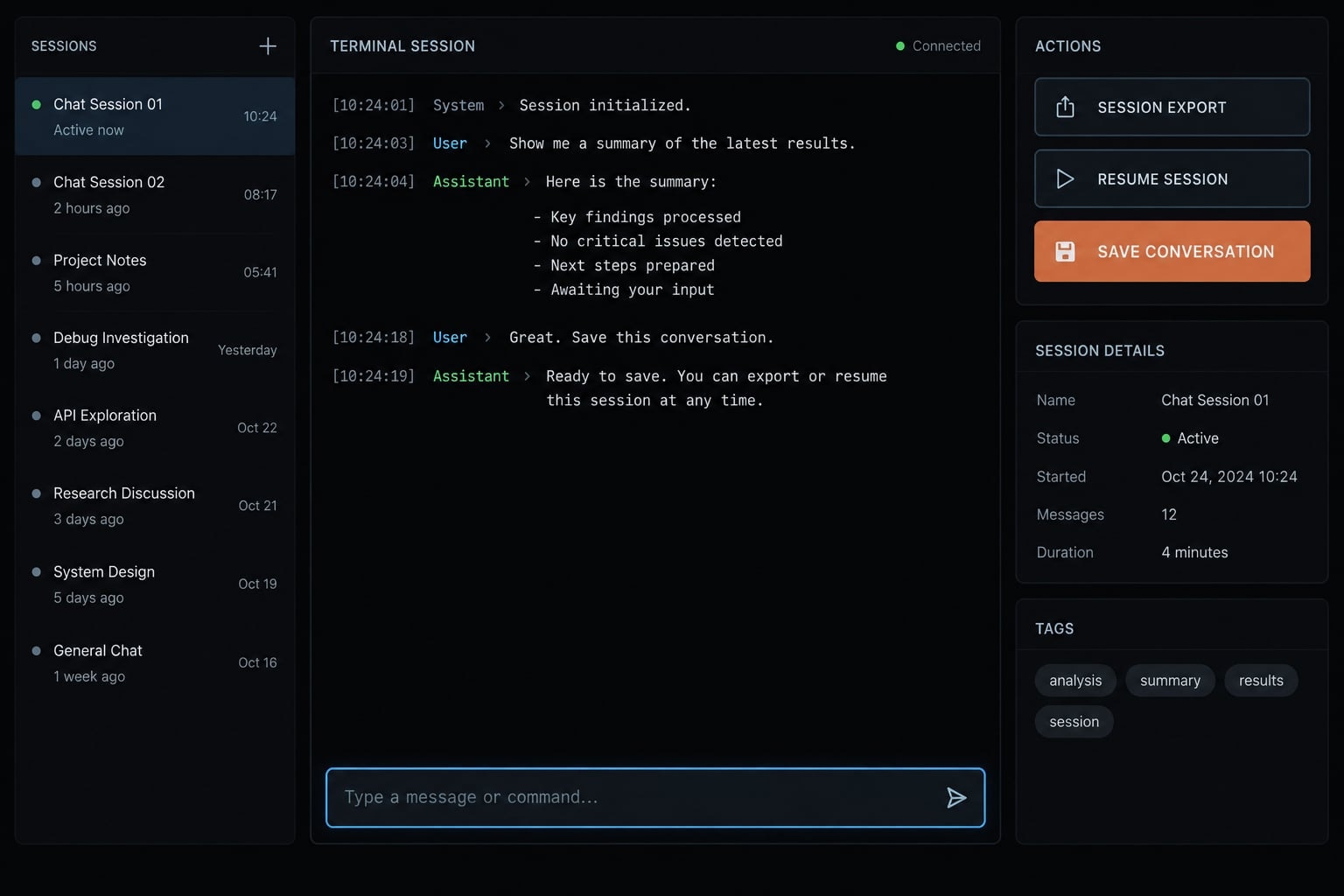
Claude Code save conversation commands
There is no single universal “save” action. These Claude Code commands address different goals: Reading, continuing, finding, and preserving conversations.
User goal | Command or method | Result |
|---|---|---|
Keep ordinary session history | Automatic during normal persistent CLI use | Local records support later retrieval. |
Create a readable copy | Inside Claude Code: | Export the current conversation. |
Continue recent work | Terminal: | Continue the latest session in the current directory. |
Select earlier work | Terminal: | Open the session picker. |
Switch conversations | Inside Claude Code: | Select a saved session. |
Name the current session | Inside Claude Code: | Give the session a recognizable name. |
Preserve raw records | Back up the relevant local transcript files | Keep an independent copy of stored records. |
Which command should most users choose?
- Read or share: Export.
- Continue recent work: Continue.
- Choose earlier work: Resume.
- Preserve raw records: Transcript backup.
Does Claude Code save conversations automatically?
Yes, normal persistent CLI sessions save conversation history locally without a manual save button. Exiting normally does not, by itself, remove that history. Returning from the same project directory helps you locate the applicable session, although storage settings, cleanup, and the environment affect what remains available.
What automatic saving preserves
Local session storage can include:
- Recorded conversational exchanges.
- Recorded tool activity and results.
- Session metadata used for identification and continuation.
Do not assume every tool result is retained in full.
What automatic saving does not guarantee
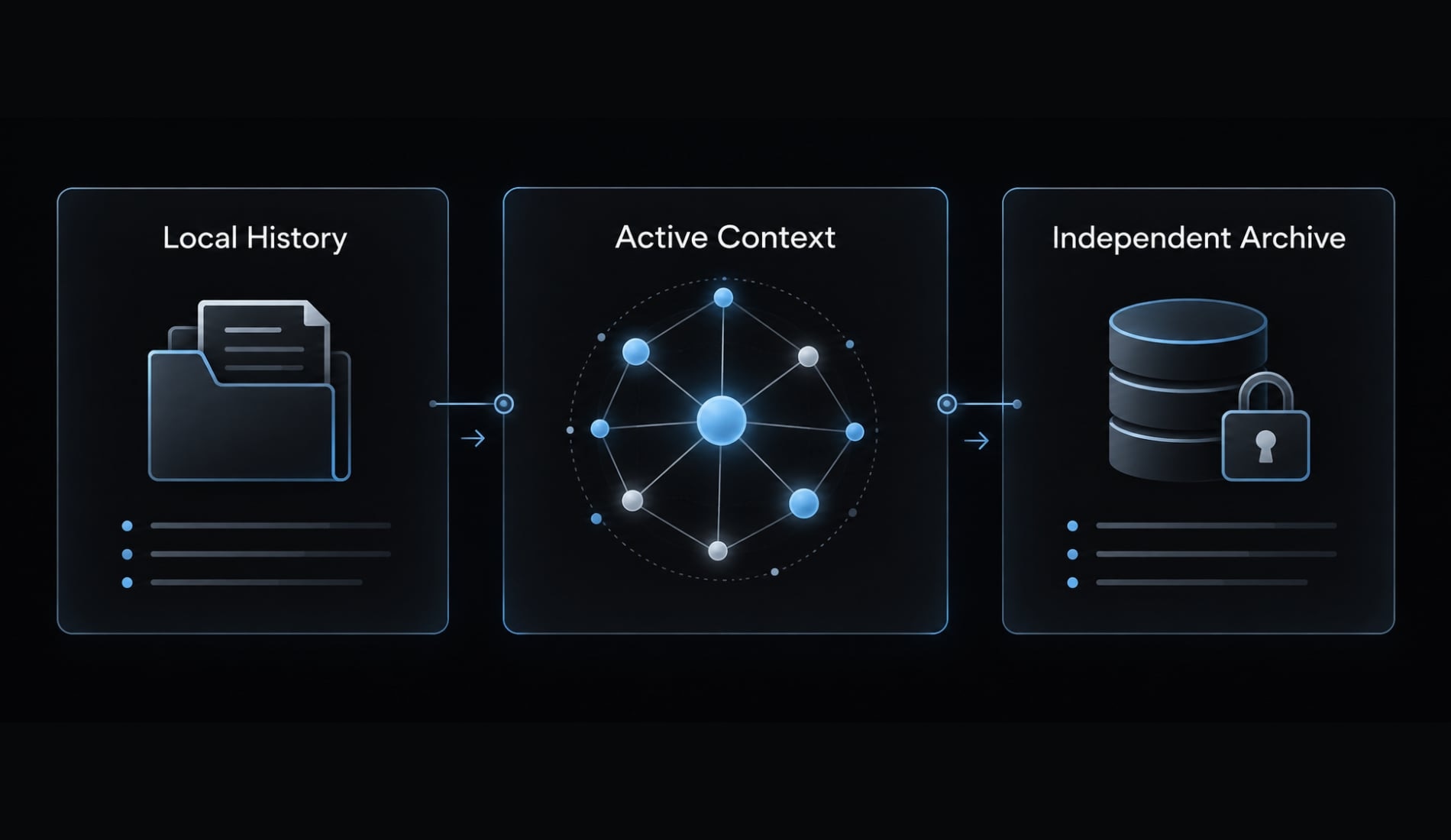
Stored history is different from the context window: The limited information available to the model while responding. Older material may be summarized rather than remain fully active. Automatic saving also does not guarantee permanent retention, cross-device access, identical history across interfaces, or a ready-to-share document.
Anthropic’s Claude Code settings documentation describes retention-related controls. Local files also do not mean Claude Code processes everything offline or locally; service-side data handling is a separate consideration.
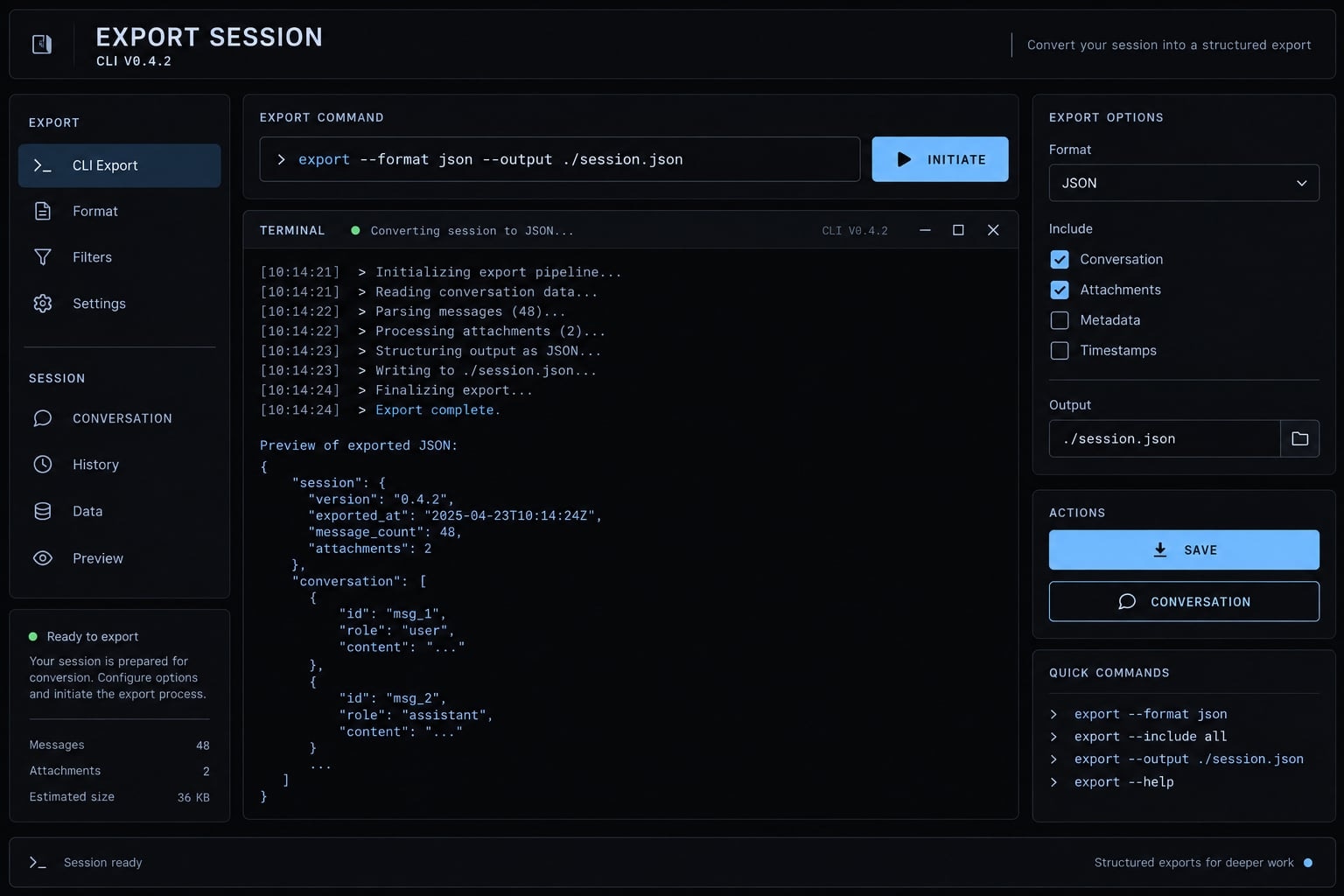
How to export the current Claude Code conversation
Use /export inside Claude Code to create a readable representation of the current conversation. The export is separate from the working session.
Export a full conversation
- Open the intended session: Confirm that it contains the discussion you want to preserve.
- Enter the export command: At the Claude Code prompt, not your shell prompt.
- Choose an offered destination: Follow the interface to save a file or copy the transcript to the clipboard.
- Open or paste the result: Check that it contains the intended conversation and important decisions.
- Store the reviewed copy in an approved private location.
Inside an active Claude Code session:
/export
Confirm success by inspecting the output, not merely by seeing the command finish. Check the beginning, the latest exchanges, and any tool output needed for the handoff.
For instance, an API auth debugging transcript should cover the suspected root cause, proposed changes, test outcomes, and open questions. This serves as an example handoff scenario, not an actual customer result.
A conversation export is not a forensic record of every internal event. Inspect its coverage, and do not infer its actual format solely from a filename extension.
Copy only a recent response
For a short handoff, selecting and copying the relevant response may be sufficient. That captures only the selected material, not the preceding discussion, supporting tool activity, or a resumable session record.
How to resume a saved Claude Code conversation
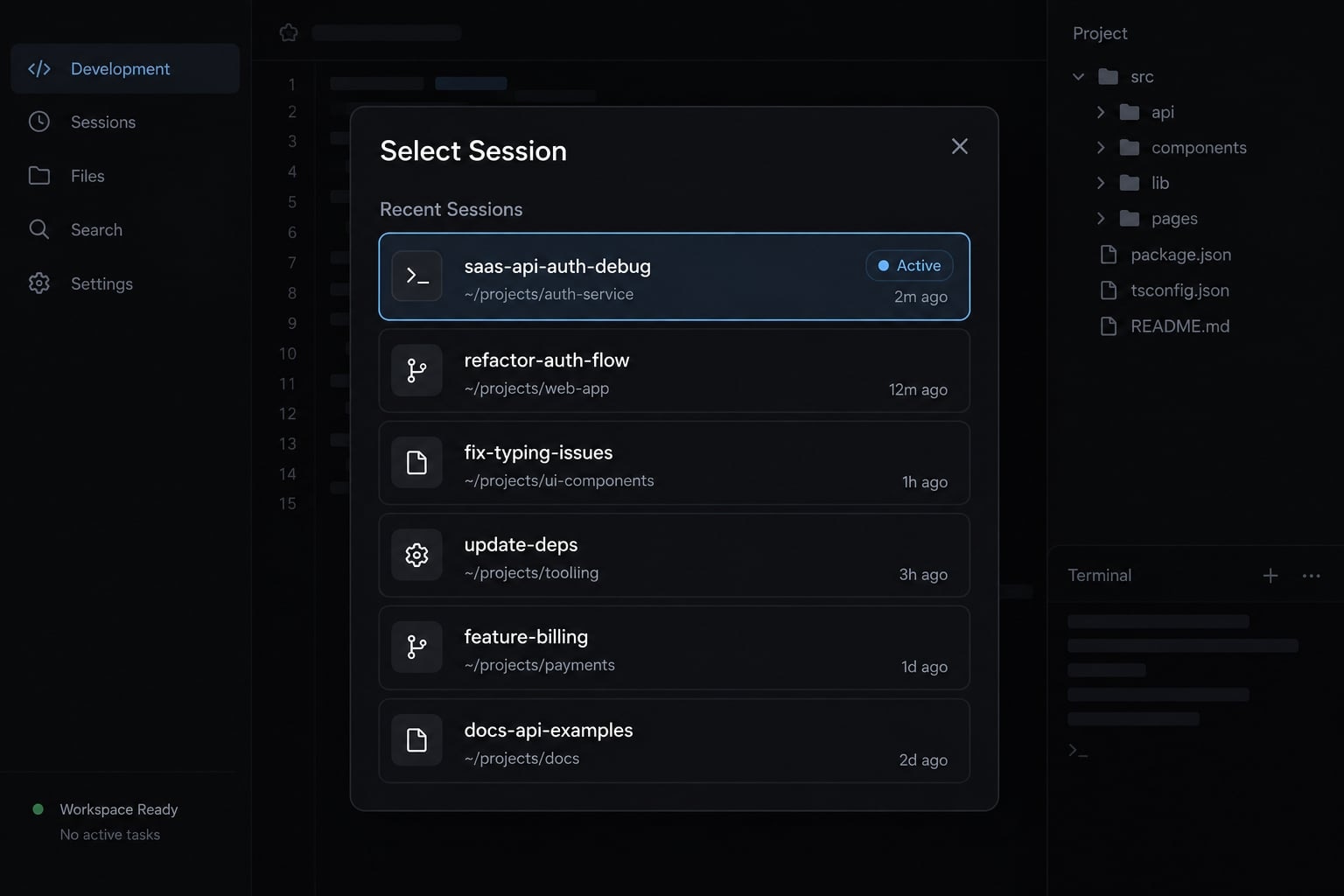
Continue chooses recent work; resume lets you choose the conversation. Start in the original project location to reduce ambiguity.
Resume the most recent session
- Open a terminal.
- Change to the original project directory.
- Run the continuation command.
Run this in your terminal:
cd /path/to/projectclaude --continue
Replace /path/to/project with your actual directory. This continues the most recent applicable session in that directory, not necessarily your latest conversation anywhere on the machine.
Choose or switch to an earlier session
To choose a saved conversation from your terminal:
claude --resume
To select another conversation from inside an active Claude Code session:
/resume
Use the session picker to locate and select the intended conversation. Follow the controls shown in your installed version rather than relying on shortcuts from a different release.
A session missing from the initial list is not necessarily deleted. Check project scope and available filters before looking for raw files.
Resume a specific named session
For a session previously named saas-api-auth-debug, run this in your terminal:
claude --resume saas-api-auth-debug
Descriptive, distinct names reduce confusion when several debugging sessions begin with similar prompts. If the name is ambiguous, use the picker to confirm the right conversation.
When you resume a Claude Code session after exit, you recover conversational continuity—not a historical execution environment. Resuming does not roll back source files, reinstall dependencies, or recreate running services.
Before continuing authentication debugging, confirm the current branch, working-tree changes, and test environment.
Where Claude Code stores conversation history
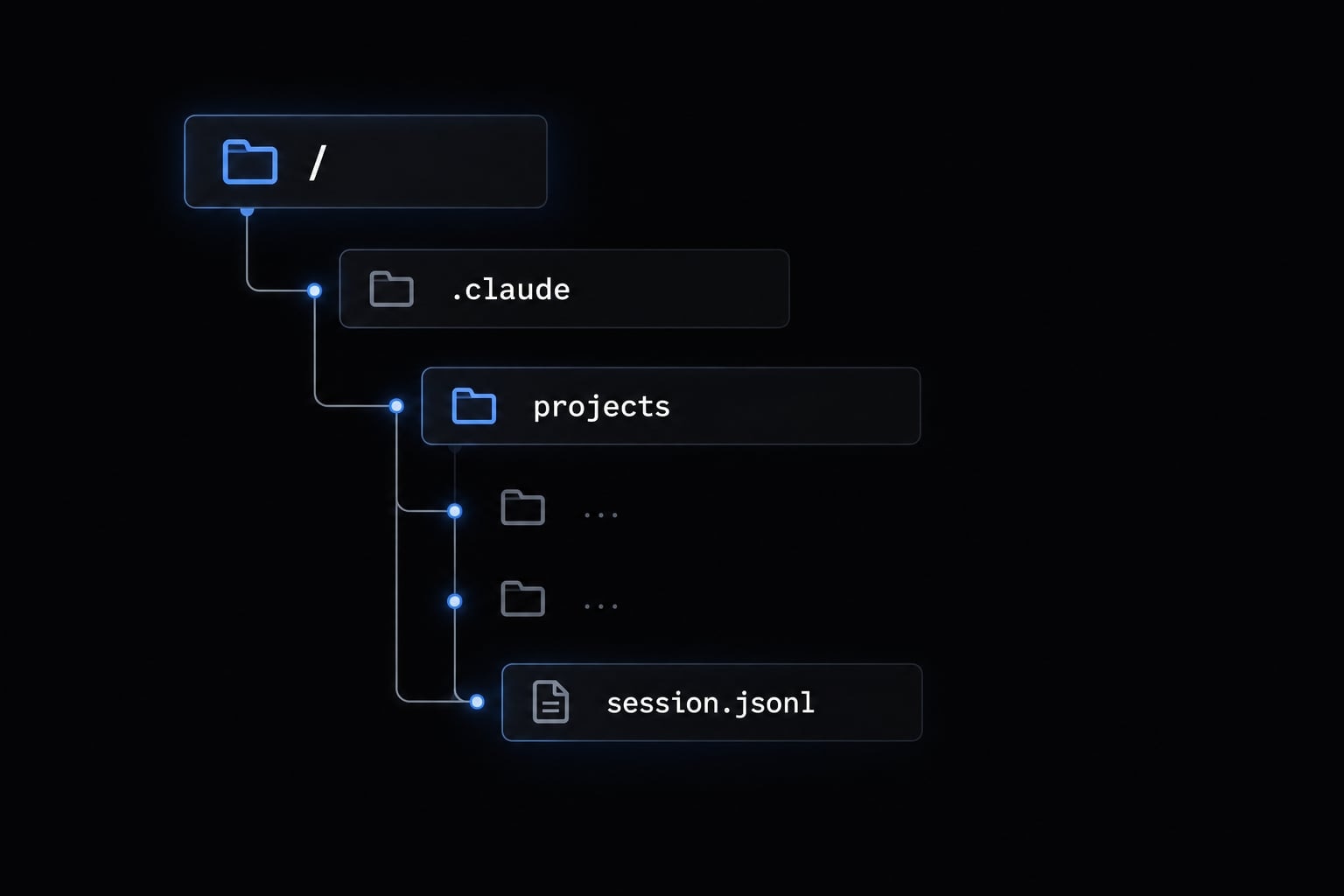
The default Claude Code transcript location is beneath the local Claude Code configuration directory. A schematic path is:
~/.claude/projects/<project-directory>/<session-id>.jsonl
Here, ~ means the relevant user’s home directory. The project component represents an encoded directory identifier, not necessarily the literal repository name.
JSONL transcript files contain structured JSON records, one per line. They are machine-oriented records, not ordinary readable exports.
Custom configuration locations can change the base path. Containers, remote hosts, and WSL also have their own filesystem locations; inspect the environment where Claude Code actually ran.
Why a saved session may not appear
Possible causes include a different directory or worktree, user, machine, runtime environment, interface, persistence mode, picker filter, or cleanup activity.
Recovery checks
- Confirm the original project and environment.
- Open the resume picker.
- Inspect its available filters.
- Search for the known session name.
- Check the configured transcript location.
- Try supported session-ID selection or consult an existing backup.
- Compare installed-version behavior with official documentation.
Copy raw records before manipulating them. Never edit the only original transcript to attempt session recovery. If every copy has been deleted, these checks cannot guarantee recovery.
Save vs. Export vs. Resume vs. Compact vs. Back up
Choose by preservation outcome, not just convenience. Session persistence, readable documentation, and independent archives solve different problems.
Action | Purpose | Best for | Main limitation |
|---|---|---|---|
Automatic saving | Record the session | Routine continuity | Subject to storage and cleanup conditions |
Export | Create readable content | Review and handoffs | Not necessarily resumable state |
Continue | Reopen recent work | Returning quickly | May not select your intended session |
Resume | Select saved work | Earlier conversations | Requires accessible saved records |
Summarize active context | Context window management | Creates no independent backup | |
Raw transcript backup | Preserve stored records | Retention and recovery preparation | One file may not be sufficient for restoration |
Independent archive | Keep governed copies | Long-term reference | Not automatically active model memory |
Inside a session, /compact summarizes context; it is not a full backup. Likewise, a readable export or individual JSONL file is not a guaranteed restoration package.
Use a consistent project-feature-task pattern:
saas-api-auth-debugbilling-service-migrationadmin-dashboard-query-review
Inside Claude Code:
/rename saas-api-auth-debug
Naming improves discovery. It does not create another copy or change your retention policy.
How to preserve and share important sessions safely
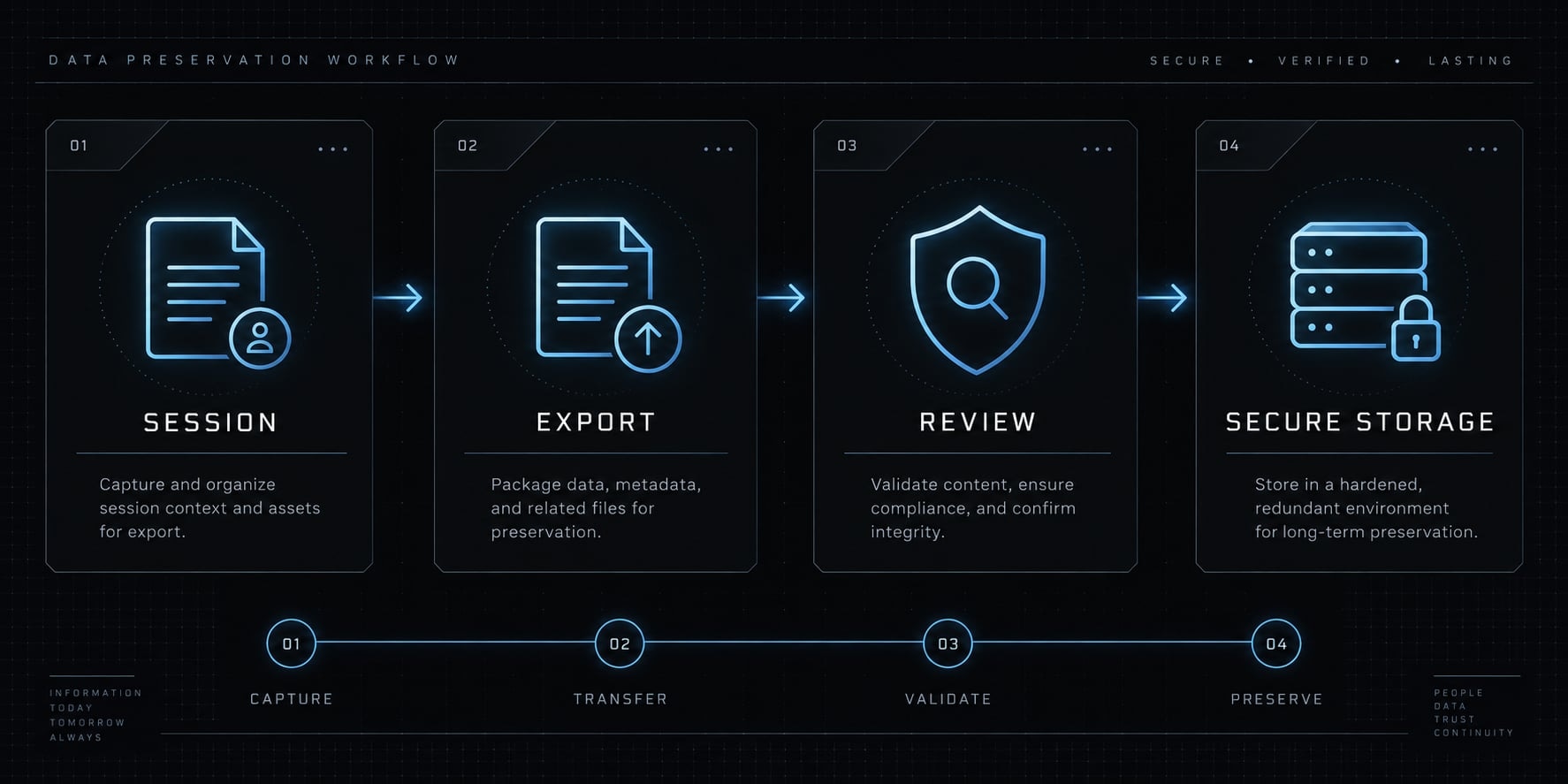
To back up Claude Code chat logs, separate the protected internal original from the sanitized sharing copy.
- Name the session before closing the task.
- Export important discussion and decisions.
- Preserve raw files when recovery or recordkeeping requires them.
- Store records privately with access controls and retention rules.
- Automate only when volume justifies maintaining the process.
Pre-sharing security checklist
- Remove credentials, API keys, and tokens.
- Review proprietary code and architecture.
- Remove unauthorized customer or regulated data.
- Review local paths, internal URLs, and repository details.
- Inspect tool output and environment information.
- Prevent accidental commits to public repositories.
- Follow organizational classification and transcript retention rules.
If a credential was exposed, revoke or rotate it. Redacting the transcript alone does not resolve the exposure.
Optional workflow standardization
Make session naming, export review, and handoff notes part of your existing engineering checklist. Native Claude Code methods are sufficient; no additional product is required.
Frequently asked questions
How does Claude Code save my conversation automatically?
Claude Code stores your conversation history continuously as you work. Claude Code records conversational exchanges, tool activity, and session metadata locally as you work. However, not all tool output is retained in full within the JSONL file within your local project directory at ~/.claude/projects/. This ensures your progress persists even if you exit the CLI or clear the terminal.
What is the difference between claude --continue and claude --resume?
claude --continue instantly reopens your most recent conversation in the current project directory. In contrast, claude --resume opens an interactive session picker, allowing you to browse, preview, and select from a list of your historical conversations based on timestamps or session names.
Why might a previous session not appear in the session picker?
If a session is missing, verify that you are in the correct project directory or worktree. Claude Code filters history based on the project path. Additionally, ensure you are using the same environment or user account where the session was initially created, as sessions are stored locally within specific configuration directories.
Does /compact delete my conversation history?
No. The /compact command is designed to manage your active context window by summarizing previous interactions, not to archive or delete them. Your full conversation remains in the local transcript file, subject to your retention and cleanup settings in the project's local JSONL transcript file, which can be referenced or resumed even after compaction occurs.
How do I share a Claude Code conversation safely?
To share a session, export it to a file using /export <filename.md>. Before sharing, perform a security review to redact sensitive information such as API keys, internal network paths, proprietary code snippets, or customer data. Always share the resulting file through secure, approved organizational channels rather than public platforms.
Read more:
- Claude Code rollback: How to undo changes using /rewind
- Compact Claude Code: How to optimize context and stop drift
- Claude Code memory guide: How to organize persistent context
Conclusion
Saving a Claude Code conversation starts with choosing the right outcome. Use /export for a readable transcript, claude --continue for recent work, and claude --resume when you need a particular saved session. Name important conversations so they remain easy to identify.
For longer-term preservation, keep independent copies under appropriate access and retention controls. Review every sharing copy for secrets, source code, and customer information. Remember that /compact is not a full backup, and resuming does not restore an earlier filesystem state. Adopt the preservation and security checklist above for your next engineering handoff.