Fix Claude Code error editing file: Quick troubleshooting guide
Claude Code error editing file: Fast fixes, common causes, and what to do next
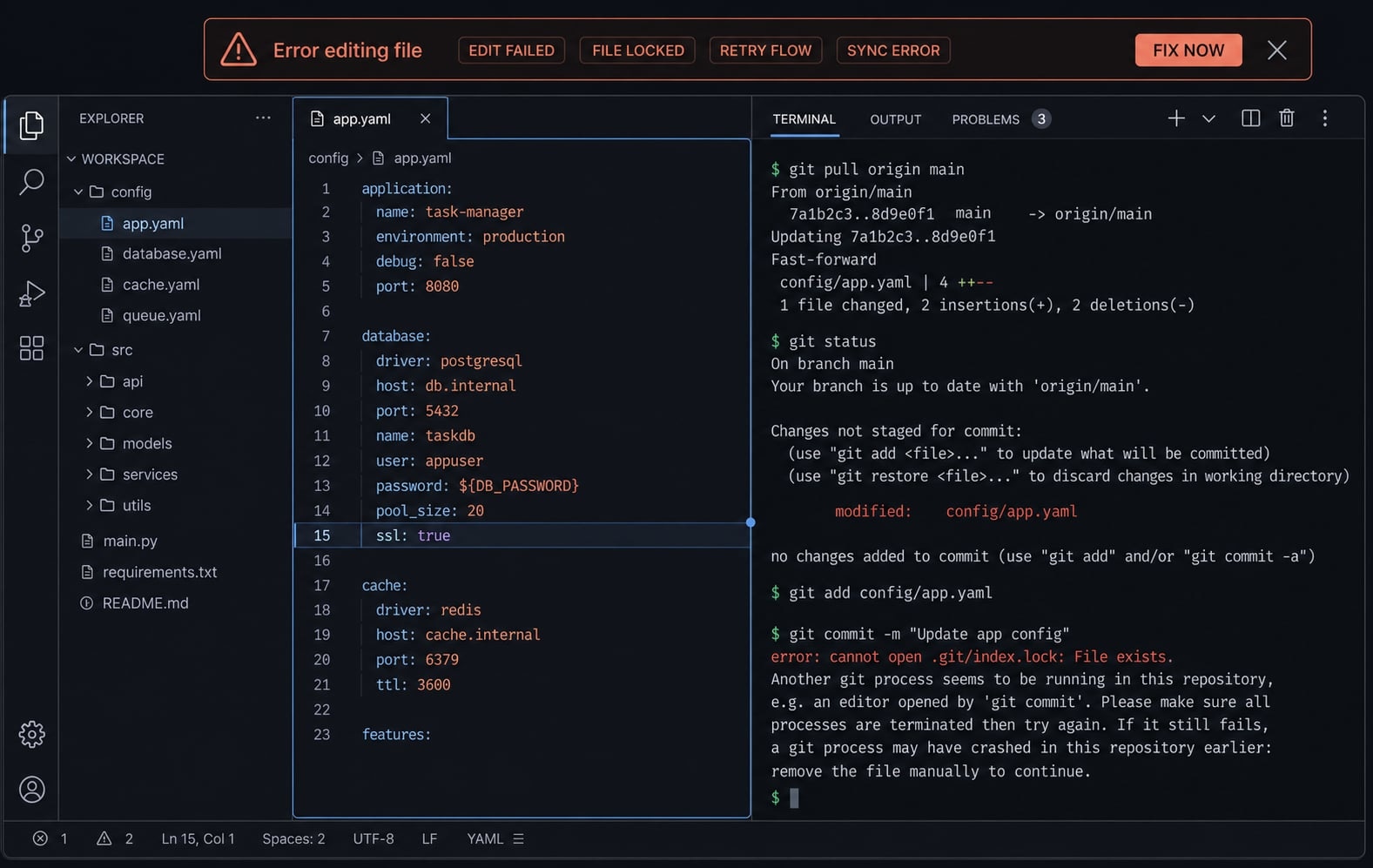
If you are seeing a Claude Code error editing file message in the middle of a coding session, the most common symptoms are “string to replace not found” and “file has been unexpectedly modified.” That usually does not mean your file is corrupted. In most cases, Claude could not apply the edit safely because the text no longer matched exactly or the file changed after it was read. This guide explains what the error means, what to try in the next two minutes, and how to fix Claude Code error editing file based on the exact message you see.
What Claude Code error editing file usually means
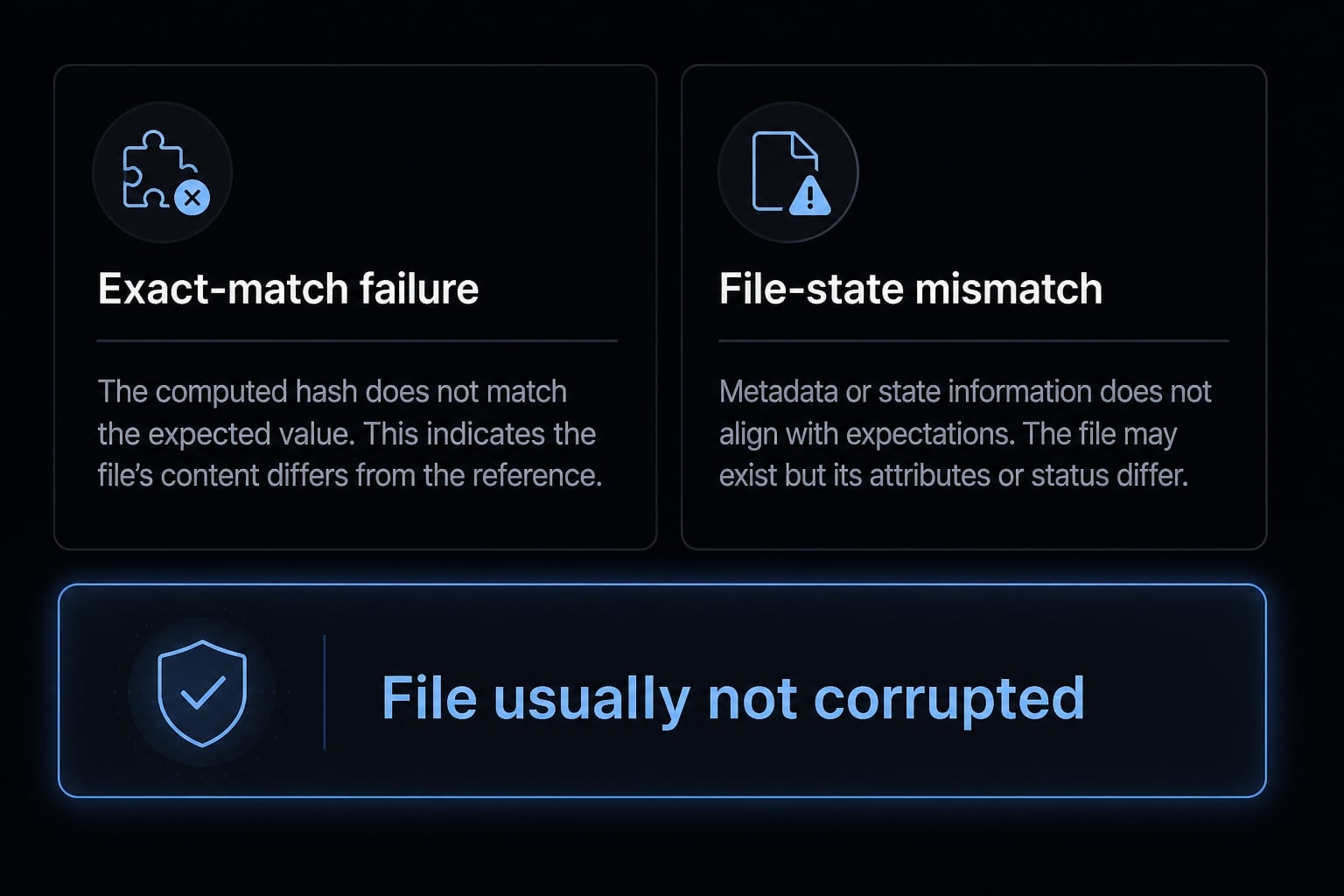
Claude Code error editing file usually means Claude tried to change a file but could not apply the edit safely. In most cases, the file is not broken. The failure usually happens because the expected text no longer matches exactly, or because the file changed after Claude last read it.
A Claude Code error editing file issue is usually an edit-application problem, not proof that your requested code change was wrong. The file often remains usable, but the tool could not complete the write step reliably.
Most Claude Code edit failure cases fall into two buckets. Either Claude could not find the exact text it expected, or the file changed between reading and editing. That is why errors such as “string to replace not found” or “file unexpectedly modified” tend to appear even when the requested change seems reasonable.
Exact-match failure vs file-state mismatch
- Exact-match failure means Claude could not find the exact text block it expected to replace in the file.
- File-state mismatch means the file changed after Claude read it, causing a file state synchronization problem.
Both issues can happen during normal coding sessions, especially in longer workflows or editor-heavy environments.
Common error messages users may see
- “String to replace not found in file” → The target text no longer matches exactly.
- “File has been unexpectedly modified” → The file changed after Claude read it.
- Repeated retries with no progress → Stale context, ambiguous target, or the same Claude Code edit failure repeating.
2-minute quick fix checklist (try these first)
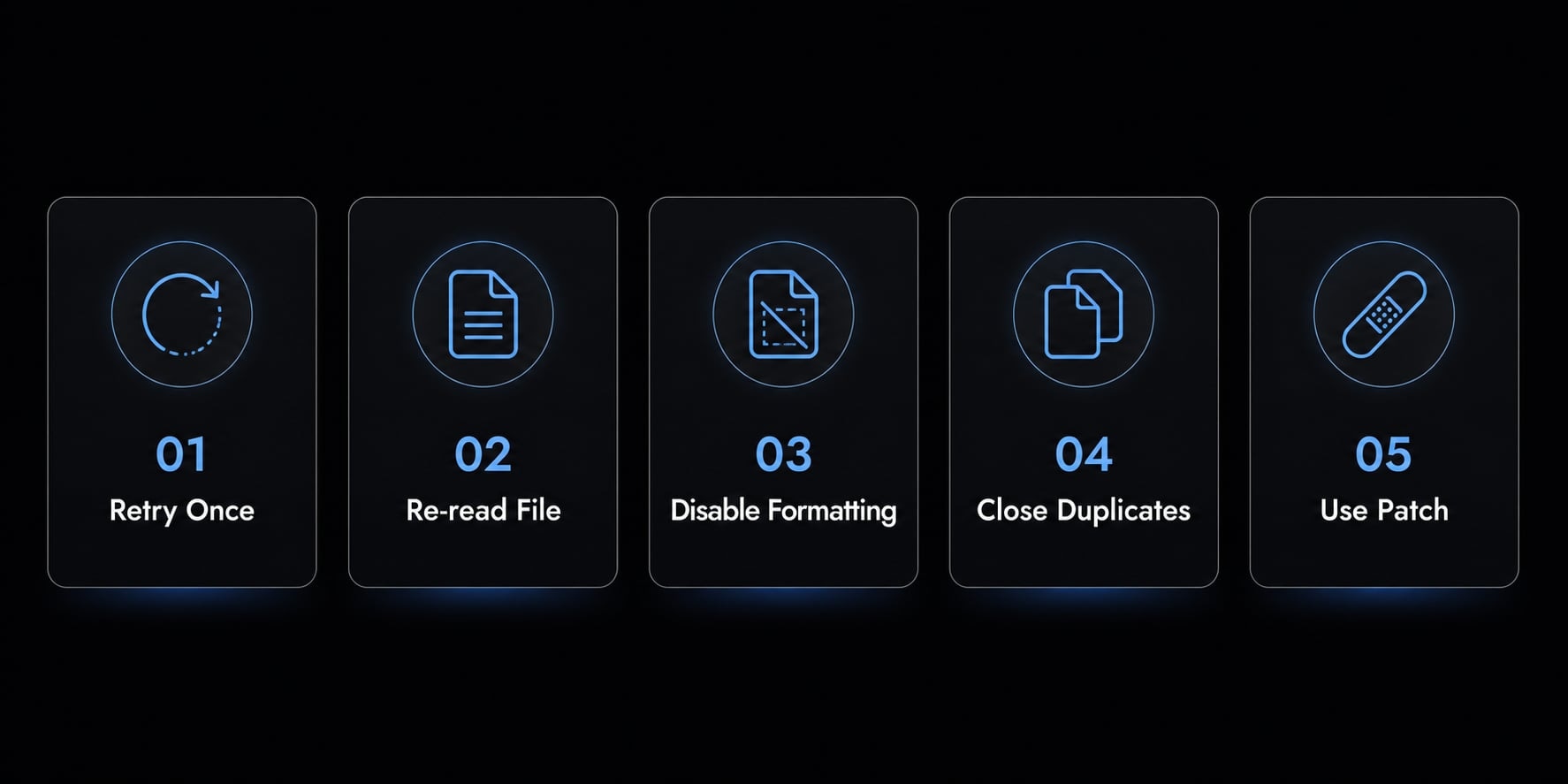
If you need a fast way to troubleshoot a Claude Code file edit error, start with these five steps before changing anything more complex.
- Retry the edit once.
- Ask Claude to re-read the file.
- Disable format-on-save and similar auto-edit tools.
- Close duplicate tabs or sessions touching the same file.
- If it still fails, ask for a patch or corrected snippet and apply it manually.
This is usually the fastest path for how to fix Claude Code error editing file without getting pulled into unnecessary debugging. In many cases, one clean retry plus a fresh read is enough.
Retry once, not endlessly
- A Claude Code retry edit can work if the failure was temporary.
- Retry a second time only if nothing else touched the file.
- Stop after that to avoid wasting prompts, time, and tokens.
Force a fresh read before editing
A re-read file step is often more useful than repeated retries because it refreshes Claude’s view of the current file state.
Use one of these prompts:
- “Please read the file again, then make the edit.”
- “Read the current file state first, then apply only the requested change.”
Disable formatting or auto-edit interference
- Temporarily disable formatOnSave.
- Watch for linters, hooks, auto-fixers, and IDE extensions.
- Reduce background file mutations before retrying.
Use a fallback if the quick fixes fail
- Ask for the exact corrected snippet
- Ask for a diff or patch
- Apply it manually instead of looping on the same Claude CLI file write error
If you are looking for how to fix Claude Code error editing file quickly, this sequence is the safest starting point.
The most common causes behind Claude Code file edit failures
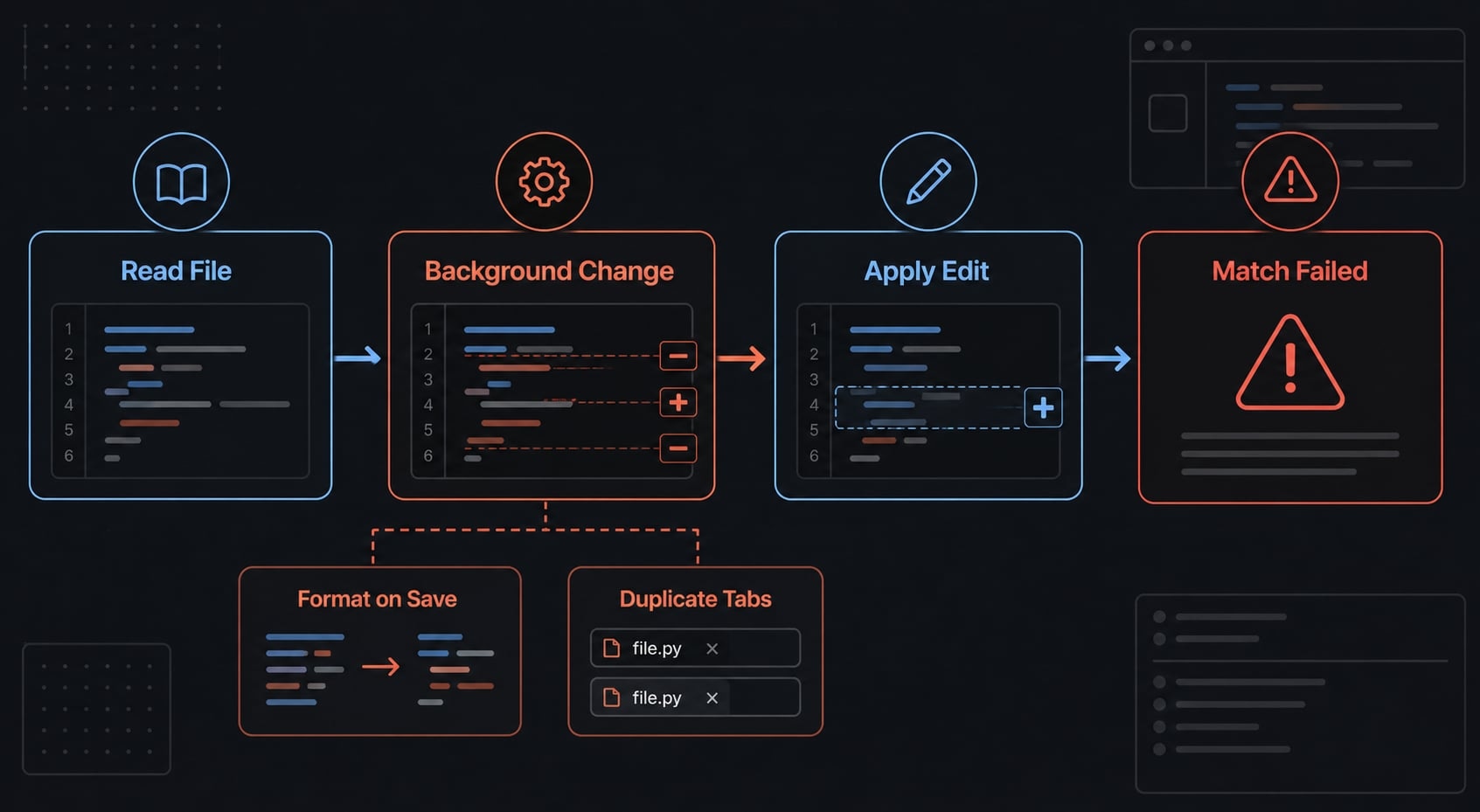
Most Claude file edit problems happen because the editing flow depends on text-based editing and current file state. In simple terms, Claude is often trying to identify the exact part of a file to change. If that text shifts, gets reformatted, or appears in more than one place, the edit can fail.
This does not require a deep architecture explanation. What matters in practice is that a search and replace algorithm is fragile when the file is moving underneath it. Even a minor str_replace mismatch can stop the edit.
Whitespace, indentation, or line-ending differences
- Tabs vs spaces can break matching.
- Trailing whitespace can change the text block unexpectedly.
- CRLF vs LF line endings can cause mismatches across environments.
- This is why high sensitivity to whitespace is a common cause of edit failures.
A change that looks visually identical in the editor may still differ enough for the edit tool to miss the target.
Duplicate or unclear match targets
Repeated text is harder to target reliably. If the same line, block, or pattern appears multiple times, Claude may not know which one to change. Common examples include:
- Duplicate function names in test fixtures.
- Repeated config blocks.
- Similar JSX or template sections.
- Boilerplate copied across files.
Broader replacements are also more fragile. Smaller, more unique targets are easier to apply than long or repetitive blocks.
The file changed after Claude read it
- Format-on-save changed the file after the read step.
- Another tab or session edited the same file.
- Background tools updated imports, formatting, or generated content.
- Long sessions increase the chance of stale state tracking.
This is one of the main reasons users see “file has been unexpectedly modified.” The edit step is trying to act on an older snapshot.
Tooling or platform-specific issues
- Some environments behave differently from others.
- Ripgrep-related matching edge cases can appear.
- Windows/WSL2 users may hit state issues sooner.
- Longer sessions can increase stale-context risk.
These are real issues, but they are usually secondary. In day-to-day use, whitespace differences, duplicate targets, and changed file state are still the primary causes.
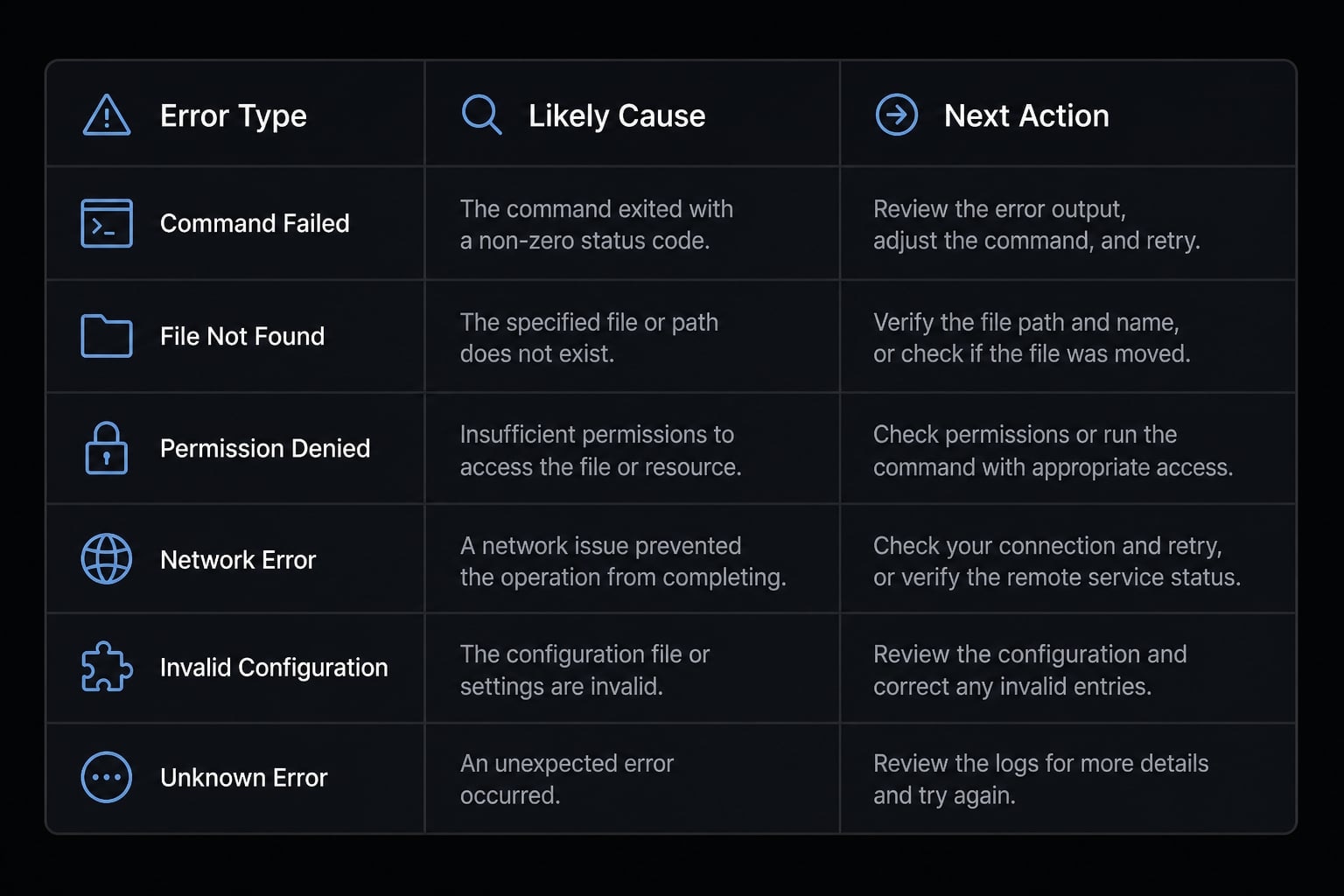
Fixes by error type: What to do based on the message you see
If you see a specific Claude Code file edit message, match it to the fix below instead of retrying blindly.
Error message | Likely cause | Best next step |
|---|---|---|
String to replace not found | Exact text mismatch | Re-read the file and shrink the edit target |
File has been unexpectedly modified | File-state change | Check interference, then re-read before trying again |
Repeated retries fail | Stale state or ambiguous target | Switch to patch, diff, or corrected snippet output |
If you see “String to replace not found in file”
This is the most common Claude Code string to replace not found solution path.
- Ask Claude to re-read the file.
- Reduce the edit to a smaller, more specific change.
- Check whether the target text appears more than once.
- Look for formatting differences such as spaces, tabs, or line endings.
- If needed, try an environment workaround such as disabling built-in matching helpers.
This message usually points to an edit tool mismatch inside a read-then-edit workflow. Claude expected one exact text pattern, but the file no longer matched it closely enough.
If you see “File has been unexpectedly modified”
Use this Claude Code file unexpectedly modified fix sequence.
- Re-read the file before trying again.
- Check whether your editor auto-formatted it.
- Close duplicate tabs or sessions touching the same file.
- Watch for background updates, generated files, or auto-fixes.
- On Windows/WSL2, switch to fallback sooner if the issue repeats.
This message usually means the edit step is operating on stale file state rather than damaged code.
If Claude keeps retrying and still fails
This is where many users lose time. For troubleshooting AI agent file editing errors, repeated retries are often the wrong move.
- Stop after 1–2 retries.
- Ask for the exact corrected code block.
- Ask for a diff or patch.
- Apply it manually and continue.
If the same message keeps coming back, the underlying issue is usually not going away on its own.
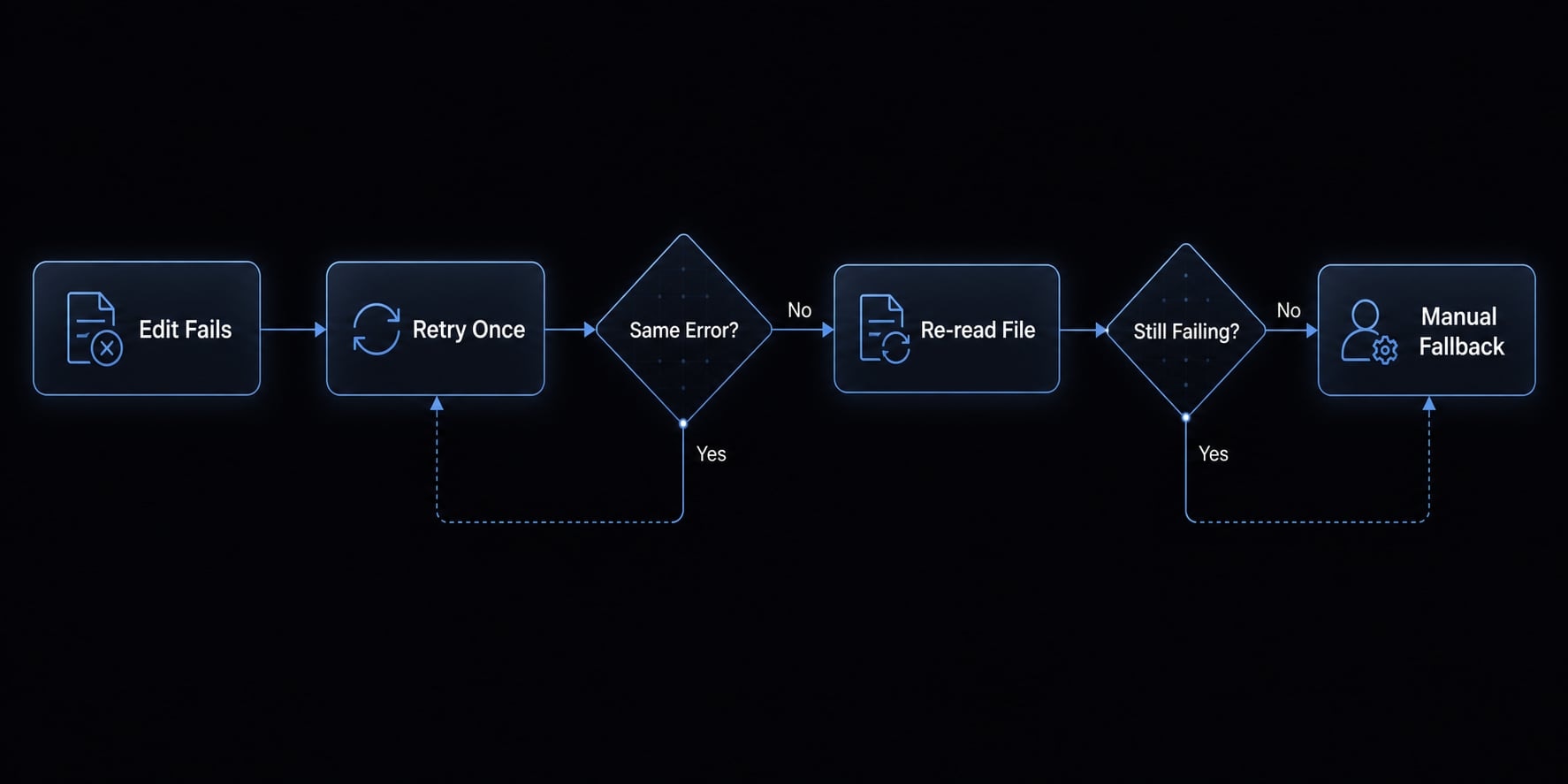
When to retry, when to re-read, and when to switch workarounds
The goal is not to keep forcing the tool. The goal is to recover the workflow quickly and stop Claude Code from failing file edits in a loop. Most automatic retry failure loops happen because the underlying file state has not changed in a useful way.
Practical threshold for action
- Retry once.
- Retry a second time only if nothing changed.
- Re-read the file.
- Switch to manual fallback if the same error repeats.
This simple ladder is usually enough. If you suspect stale file state, the re-read step should happen early, not after several failed attempts. A clear workaround threshold protects momentum and reduces wasted prompts.
Best fallback options for non-expert users
- Ask for the full corrected snippet.
- Ask for a diff or patch.
- Make the change manually.
- Save complex environment debugging for later.
Manual fallback is not a step backward. It is often the fastest way to finish the change and move on.
How to reduce future Claude Code edit failures
You cannot eliminate all failures, but you can reduce AI code edit failures with a more stable workflow. In most forms of AI-assisted programming, reliable editing depends on reducing ambiguity and keeping file state predictable.
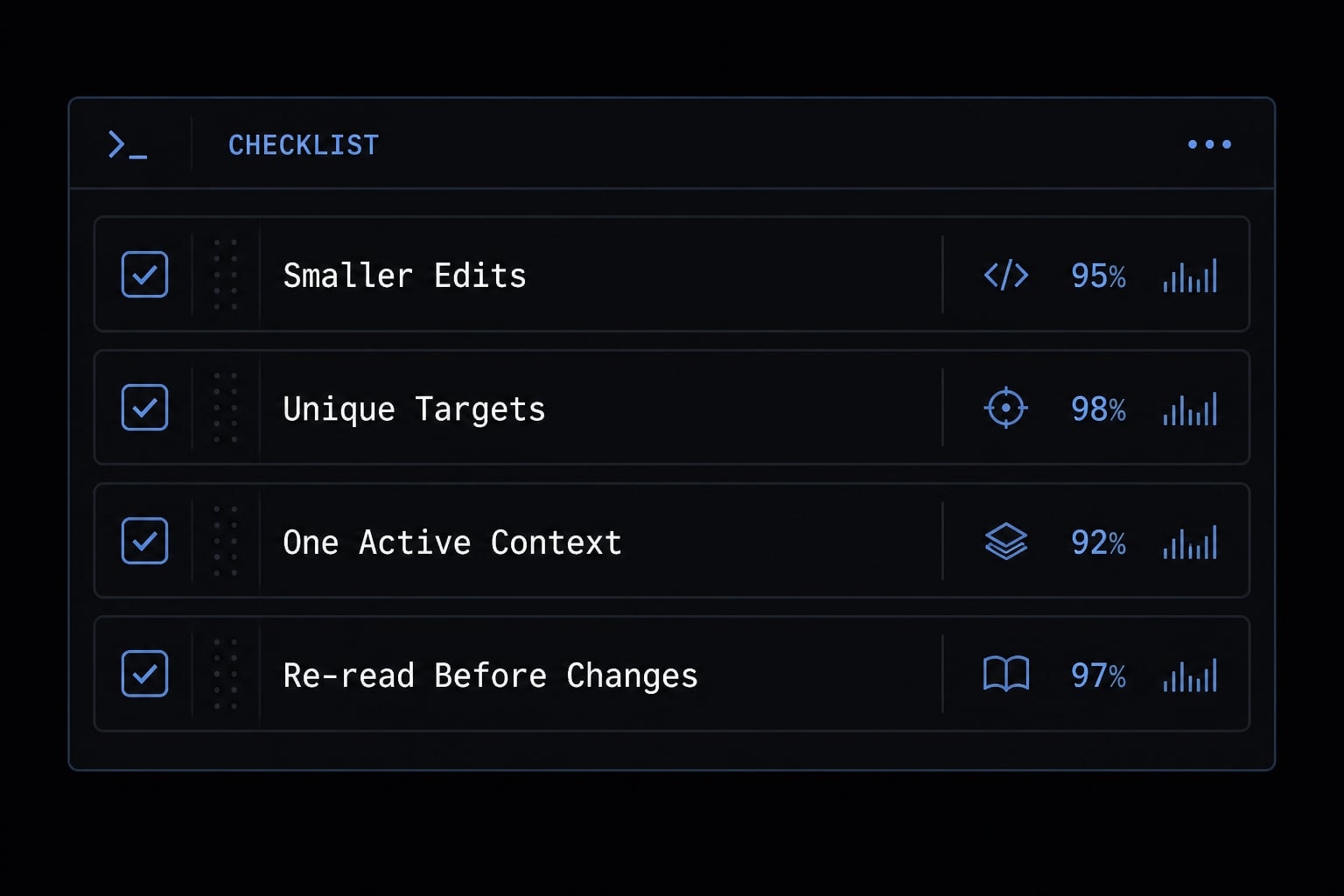
Workflow habits that improve reliability
- Make smaller edits instead of broad rewrites.
- Use more unique targets instead of repeated patterns.
- Re-read before larger or sensitive changes.
- Avoid broad rewrites when a narrow patch is enough.
These habits improve accuracy because they reduce the chance that Claude locks onto the wrong section or outdated text.
Editor and environment hygiene
- Disable formatOnSave when needed.
- Watch hooks, extensions, and background modifiers.
- Keep one active editing context per file.
- Resync Claude during long sessions to improve file state synchronization.
- Build a more reliable editing workflow around smaller, controlled changes.
These habits will not remove every Claude Code edit failure, but they do make the workflow more stable and predictable.
Practical note: When teams use more reliable AI editing workflows
If this problem keeps happening across multiple sessions or team members, the answer is often workflow design, not more retries. Some teams reduce repeat failures by using patch-based methods, external editing tools, or MCP-connected flows that provide more controlled edit application.
Low-friction upgrade paths:
- Manual patch workflow for high-confidence changes.
- External apply methods for repeated edit friction.
- MCP-connected workflows for teams needing more control.
- Systems that use semantic apply or more deterministic code merging.
The value here is not “magic” reliability. It is more predictable behavior in a busy AI coding workflow, especially when multiple tools or long sessions are involved.
Frequently asked questions
What does "Claude Code error editing file" actually mean?
A "Claude Code error editing file" notification means the AI attempted to apply a code change but could not successfully match or write to the target file. This typically happens due to an exact-match failure where the expected text has shifted, or a file-state mismatch where the content changed after Claude last read it.
Is my code corrupted when a Claude Code edit fails?
No. In nearly all cases, your code remains intact. These errors indicate that Claude’s edit application step failed to verify the file state or location, so it safely aborted the attempt rather than applying a potentially incorrect change. Your file is almost never corrupted by these failures.
Why do I keep getting the "String to replace not found" error?
This error occurs because Claude Code relies on exact string matching for edits. If your file contains minor formatting changes, different line endings, or if the target text appears in multiple places, Claude cannot locate the specific anchor point it needs to apply your requested code transformation safely.
What is the fastest way to fix a file edit failure?
First, retry the edit once. If it fails again, ask Claude to "re-read the file" to ensure its internal context is current. If failures persist, disable background tools like formatOnSave or linters that may be modifying the file, and try to request a smaller, more specific edit instead.
Should I keep retrying if Claude Code fails to edit a file?
No. You should stop retrying after one or two attempts. Repeatedly triggering the same failing edit wastes tokens and ignores the root cause. If the second attempt fails, move immediately to re-reading the file, simplifying your request, or manually applying the code snippet provided by the AI.
How can I prevent Claude Code edit errors in the future?
You can improve reliability by making smaller, more granular edits rather than broad rewrites. Additionally, ensure you are not running auto-formatters or pre-commit hooks that modify files during the edit process, and keep only one active terminal session or IDE tab editing the same file at once.
When should I switch to manual patching?
If Claude Code fails to apply an edit after re-reading the file and simplifying the scope, stop the automated edit cycle. Instead, ask Claude to output the corrected code as a full snippet, a diff, or a patch file, and apply that change manually to your editor to keep your workflow moving.
Read more:
- Claude Code invalid tool parameters: Causes and fixes
- Claude Code hooks guide: Automate and control AI workflows
- Statusline Claude Code: Fast setup for workflow productivity
Conclusion
A Claude Code error editing file message usually means one of two things: Claude could not find the exact text it expected, or the file changed after it was read. In most cases, the file itself is still fine.
The clean recovery path is simple: retry once, re-read the file, disable formatting or background interference, and switch to a patch or corrected snippet if the same failure repeats. That is the most reliable answer for how to fix Claude Code error editing file without wasting time in retry loops.
For related guidance, review your internal AI coding workflow checklist or link this page to your team’s troubleshooting notes so repeated failures are easier to resolve next time.