Claude Code revert: How to undo changes with /rewind
If you need a Claude Code revert, the main tool is /rewind. It lets you roll back code changes, conversation state, or both to an earlier point in the current session. That said, not every edit is tracked equally, so it is important to choose the right restore option and know where Claude Code rollback stops being reliable. This guide covers the exact command, which restore mode to pick, and when you should use Git instead.
What “Claude Code Revert” actually means
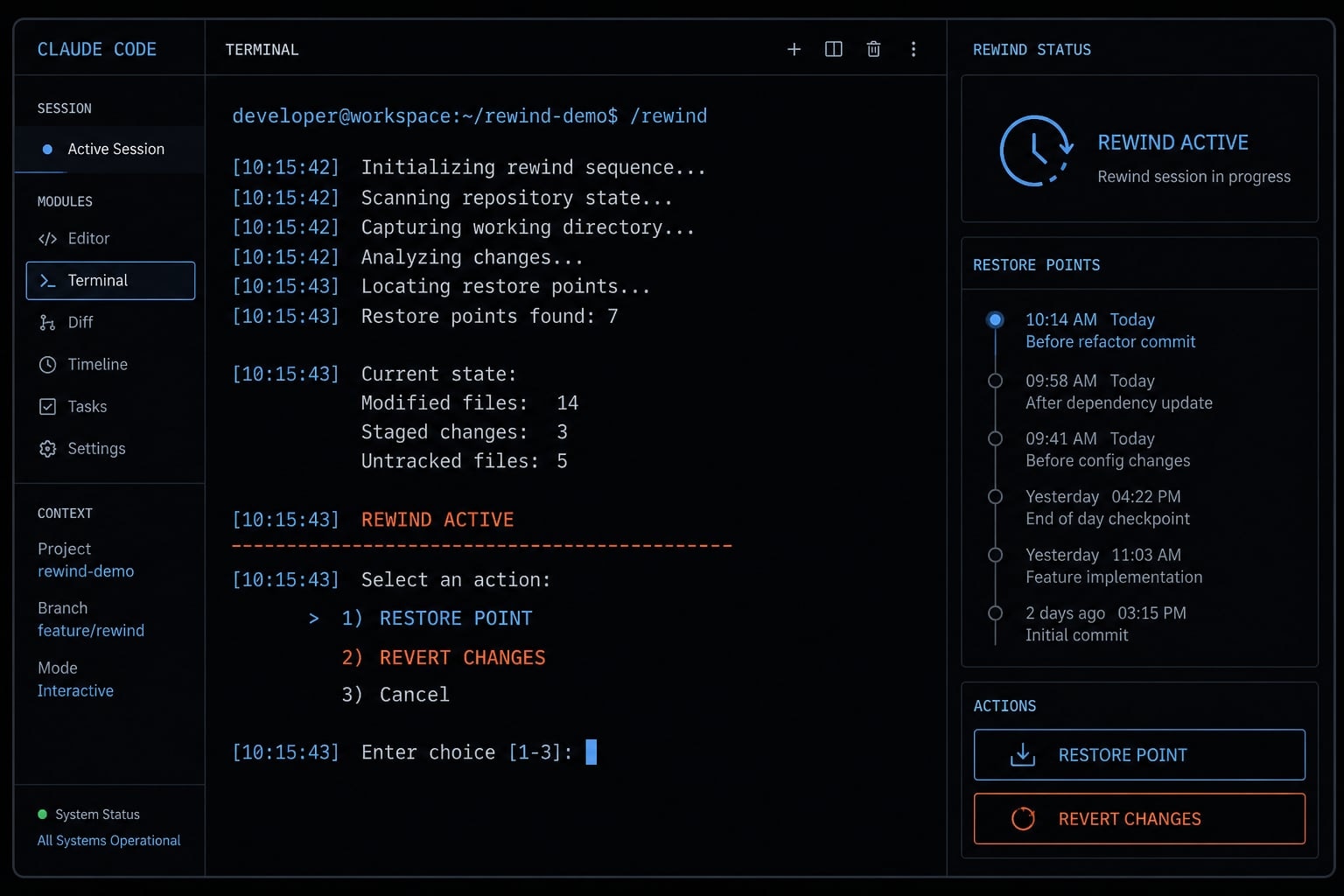
Claude Code revert usually means using /rewind to return to an earlier point in your current session. In practical terms, this is a session-level rollback, not a universal undo for everything that happened on your machine.
For most users, “revert” means one of three things:
- Undo recent AI-made file edits.
- Go back before a bad prompt or wrong implementation path.
- Restore Claude Code conversation history to a cleaner point.
Revert usually means using the rewind flow
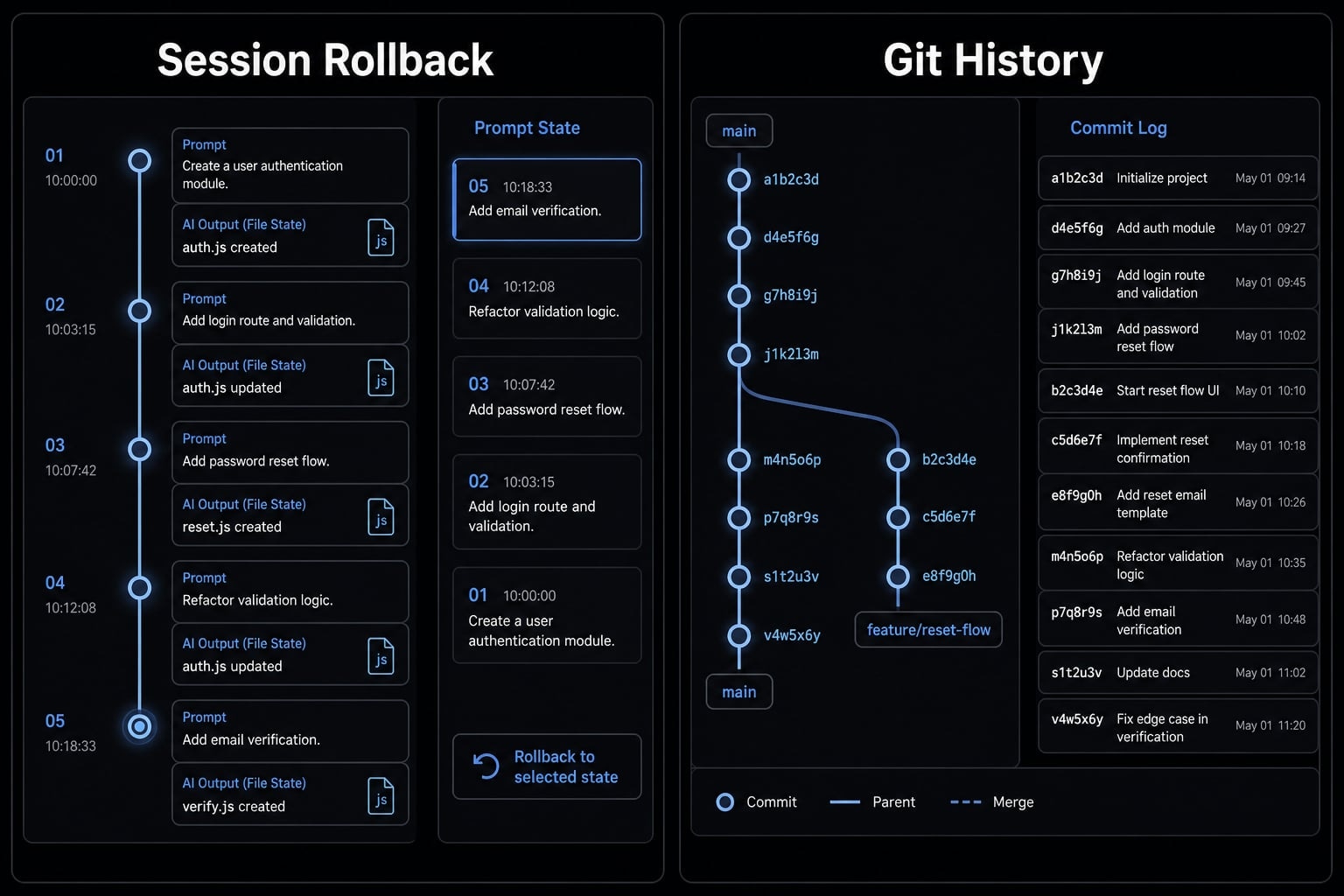
A Claude Code revert usually means opening the /rewind menu and selecting an earlier point in session history. From there, you decide whether to restore the files, the conversation, or both.
This is different from:
- Operating system undo.
- Full file-system history.
- Long-term version control.
- A guaranteed rollback of every manual or external change.
That distinction matters because Claude Code rollback is useful, but it is not a complete substitute for Git.
Why this matters in real work
In actual usage, the Claude Code undo command becomes valuable when:
- Claude edited several files in the wrong direction.
- A refactor looked promising, then broke too much at once.
- The code is fine, but the conversation drifted.
- You want to undo AI code changes faster than cleaning things up manually.
In those moments, restore Claude Code workflows can save time. But they only work well when the changes were part of Claude Code’s tracked session flow.
How to revert changes in Claude Code with /rewind
If you want to know how to undo Claude Code changes, the process is straightforward.
- Run
/rewind. - Select the earlier point in the session.
- Choose what to restore.
- Confirm the rollback.
Run the command
Use:
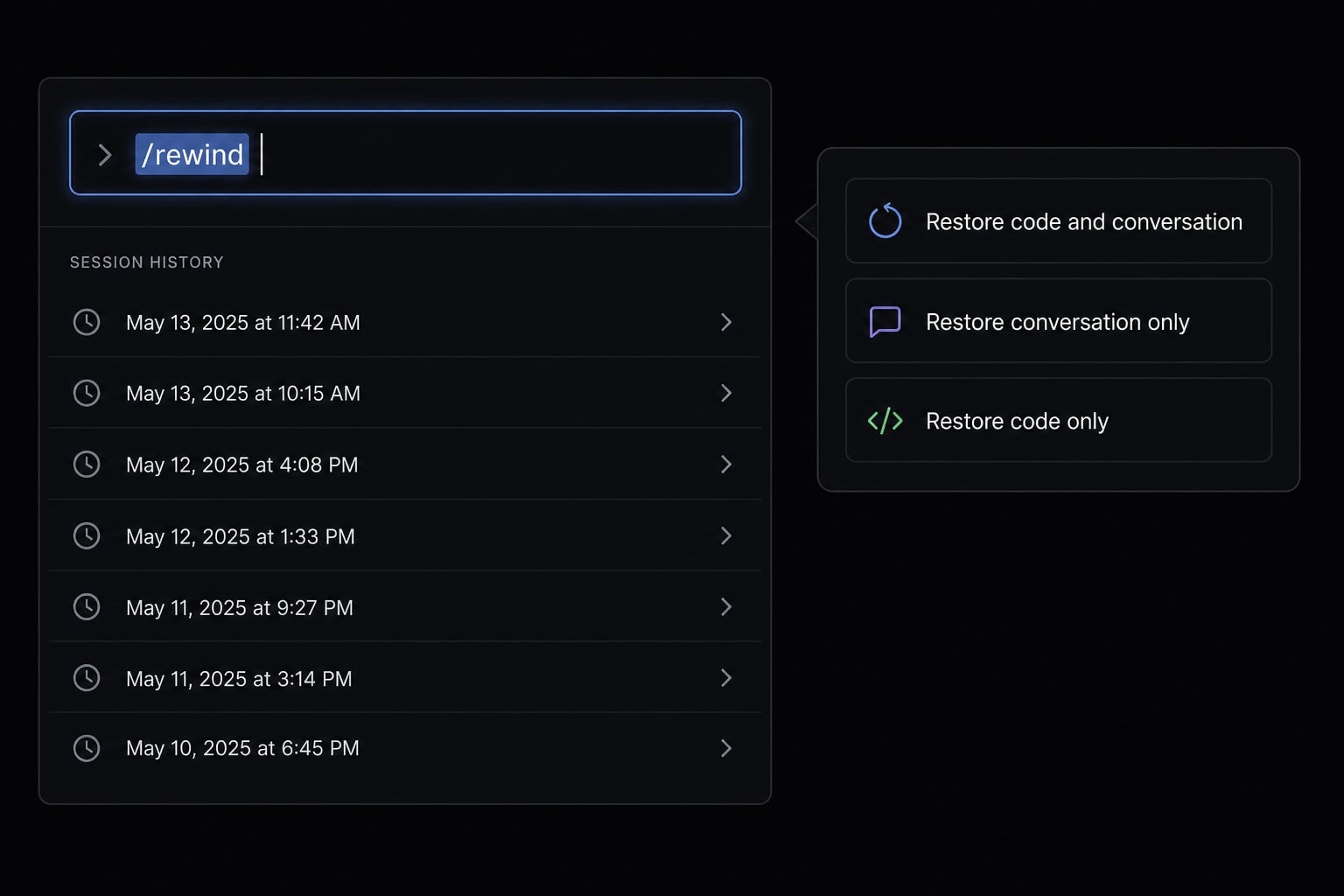
/rewind
This opens the rewind menu for the current session. Claude Code uses checkpointing to keep session-based restore points, so the menu lets you move back to a specific earlier step.
If you are looking for a practical Claude Code /rewind command guide, this is the core action. You do not need to manually compare diffs before using it.
Pick the right rollback point
Choose the point right before things went wrong. That usually means:
- The prompt before a bad refactor.
- The last clean implementation step.
- The point before the conversation started drifting.
Avoid rewinding further than necessary. A precise rollback is usually better than a broad reset, especially when some later work is still useful.
If your goal is to revert file changes in Claude Code, pause for a moment before confirming. Ask yourself:
- Do I want to undo the code?
- Do I want to undo the conversation?
- Do I need both rolled back together?
That decision determines which restore option you should choose next.
Know the Esc-twice shortcut behavior
A useful workflow detail: Pressing Esc twice can open the rewind menu when the input box is empty.
However, if text is already in the input field, the behavior may differ. In that case, Esc can clear the text first instead of opening rewind immediately. If the shortcut does not behave as expected, check whether there is draft text in the input area.
That small detail prevents a lot of confusion during fast recovery moments.
Which restore option should you choose?
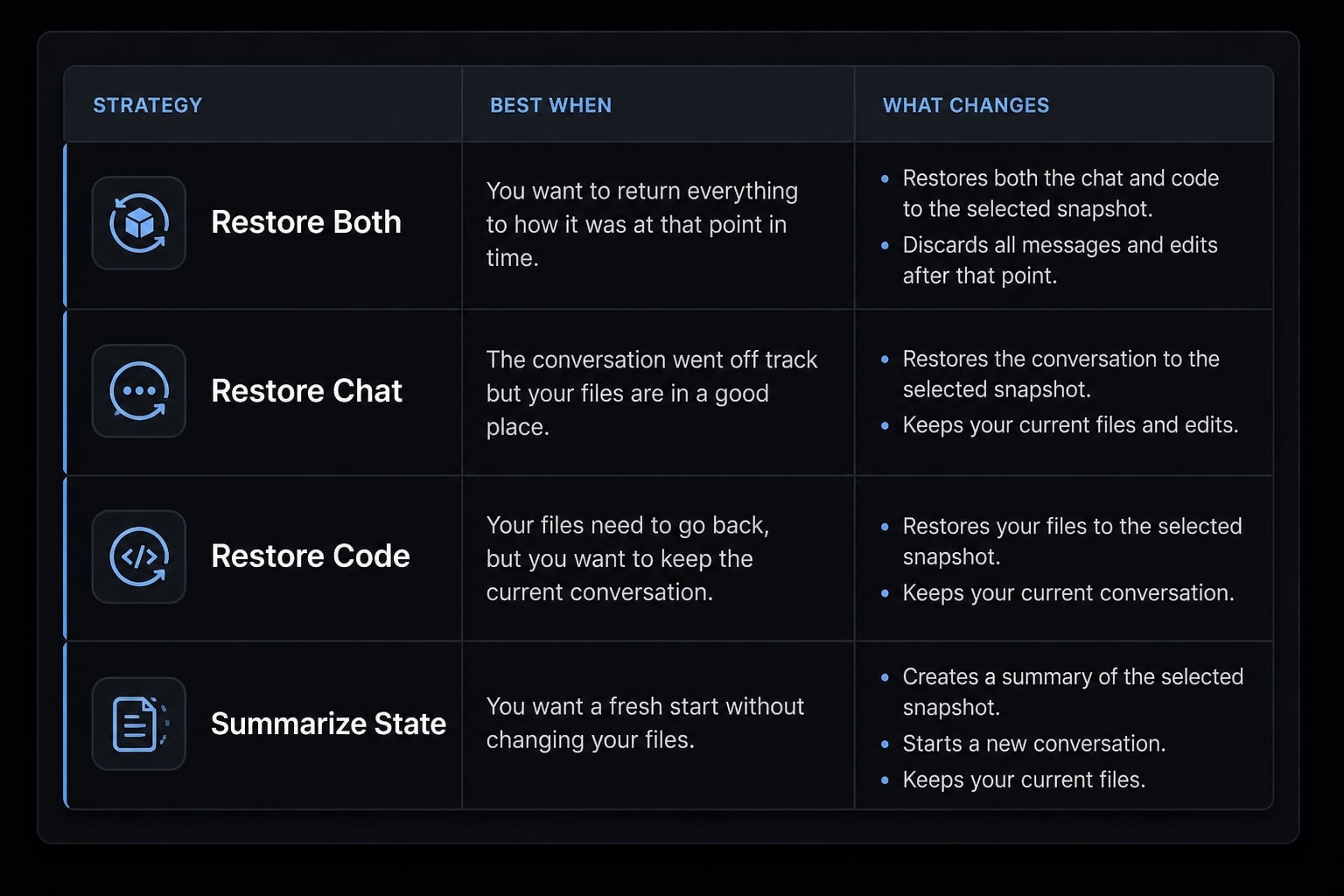
Most mistakes with Claude Code checkpointing happen after the rewind menu opens. The restore point is only half of the decision. The second half is choosing the correct action for your code state and conversation history.
Option | Best when | What changes |
|---|---|---|
Restore code and conversation | Both the code and chat direction were wrong. | Rewinds files and session state together. |
Restore conversation only | Code is okay, but later prompts went off track. | Keeps file state, rewinds chat history. |
Restore code only | Discussion is useful, but code edits should be undone. | Rewinds file changes, keeps conversation. |
Summarize from here / up to here | Session is too long, not truly wrong. | Compresses context without reverting files. |
Restore code and conversation
Choose restore code and conversation when both the implementation and the reasoning path went wrong.
This is the cleanest reset for situations like:
- Claude took a bad multi-file refactor path.
- The last few prompts pushed the project in the wrong direction.
- You want to fully restart from the last known good point.
In practice, this is often the safest option for a bad refactor rollback because it removes both the file changes and the discussion trail that created them.
Restore conversation only
Choose restore conversation only when the files are acceptable, but the chat became noisy, repetitive, or off-target. Typical cases include:
- Claude misunderstood later instructions, but the generated code is still useful.
- You want to retry prompts without deleting the current implementation.
- The conversation got too messy to continue productively.
This mode preserves file state while resetting the discussion path.
Restore code only
Choose restore code only when the discussion still contains useful context, but the implementation should be undone.
This is helpful when:
- Claude understood the task correctly.
- The reasoning in the conversation is still valuable.
- The actual code output was poor, risky, or incomplete.
This is often the right move when you want to undo AI code changes without losing the prompt history that led to a better next attempt.
Summarize from here / up to here
These are not true revert options. Use summarize when:
- The session is too long.
- You want to reduce context usage.
- The discussion is still useful, just too large.
Summarizing can improve working flow, but it does not restore files. If your goal is a real Claude Code rollback, do not confuse summarize with restore.
If your team is documenting AI-assisted workflows, create a simple internal decision rule for restore modes. It reduces recovery mistakes and makes session-based coding more predictable.
What Claude Code can and cannot revert
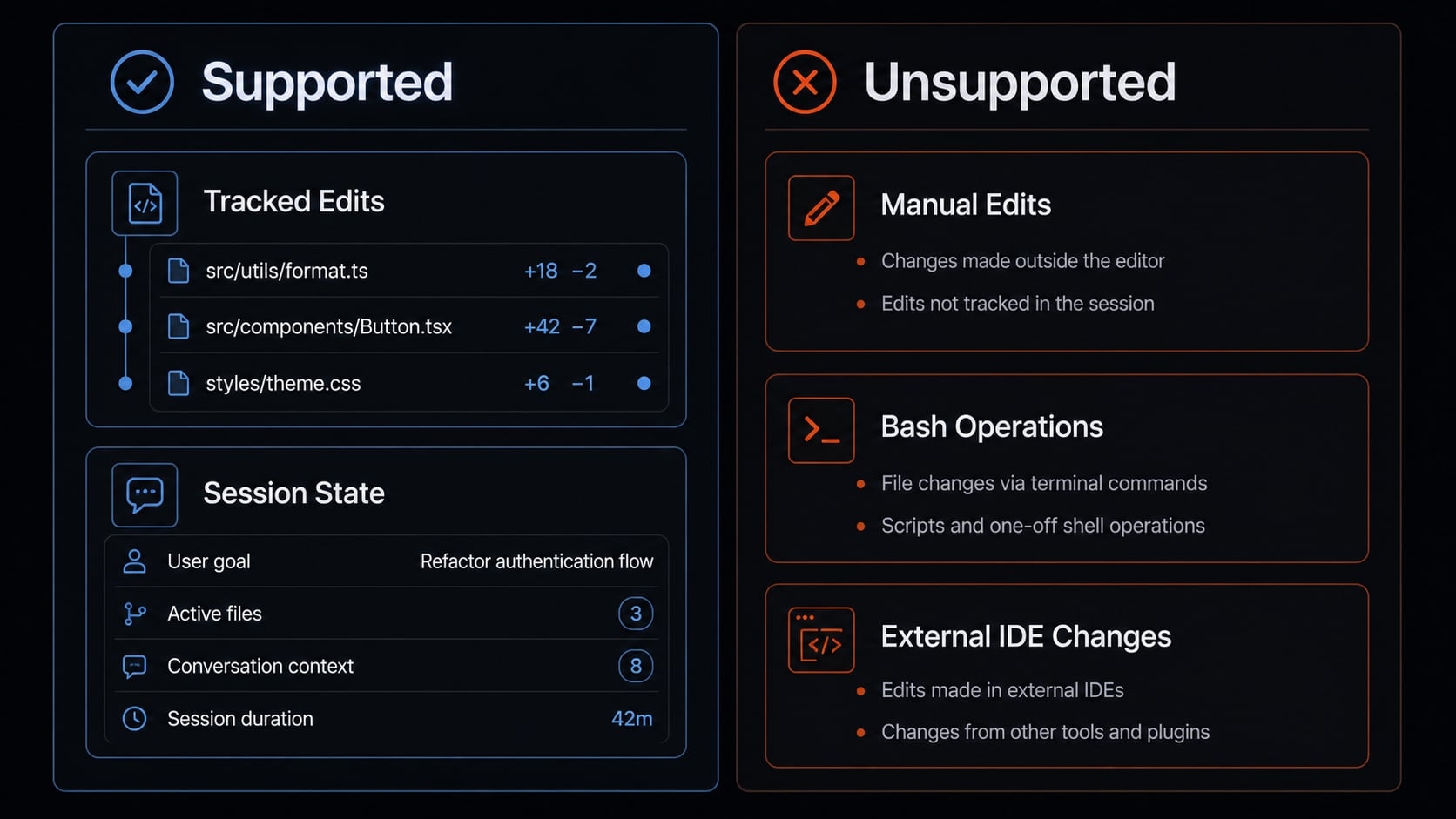
This is where many users get tripped up. Claude Code limitations matter because rollback only works reliably for changes that were actually tracked.
Can often revert | May not reliably revert |
|---|---|
Claude-made tracked file edits | Manual edits outside Claude Code |
Created/deleted files in tracked flow | Bash-based file operations |
Conversation/session state | External IDE/tool changes |
Recent session-based changes | Some subagent or edge-case file behaviors |
What “tracked changes” means
In plain English, tracked changes are edits Claude Code made through its own editing flow and saved into session history through file snapshots.
That usually includes:
- Files Claude edited directly.
- Files Claude created in the tracked flow.
- Files Claude deleted in the tracked flow.
- The current session’s conversation state.
What it does not mean is “every change on disk is safely reversible.” That assumption is where many recovery attempts fail.
Quick checklist: When /rewind may not help
/rewind may not be enough if the issue involves:
- Manual edits outside Claude Code.
- Bash-based file operations.
- External IDE or tool changes.
- Some subagent changes.
- Edge cases involving symlinks or hard links.
Conversation state and file state should also be treated separately. Claude may be able to restore the chat path even when some file changes were not fully captured.
If your rollback result looks incomplete, the first question should be: Was this change actually part of Claude Code’s tracked editing flow?
Claude Code revert vs git: When to use each
The right comparison is not Claude Code /rewind versus Git as if one replaces the other. In healthy workflows, you use both. A Claude Code revert with /rewind is best for quick session-based rollback. Git is still the durable system for long-term version control, team history, and manual edits.
Criteria | Claude Code | Git | Best Choice |
|---|---|---|---|
Primary use | Session-level undo | Long-term version control | Depends on task |
Roll back recent AI edits | Yes, if tracked | Limited unless committed/staged |
|
Roll back conversation state | Yes | No |
|
Track manual edits | Limited | Yes | Git |
Track Bash/file-system operations | Not reliably | Yes, if in repo workflow | Git |
Best for “last prompt went wrong” | Very fast | Slower |
|
Best for team history | Weak | Strong | Git |
Recommended use | Quick session recovery | Durable source of truth | Use both |
Use /rewind when:
- The last AI turn went wrong
- You need fast recovery inside the current session
- You want to restore conversation history as well as code
Use Git when:
- You are saving milestones
- You need durable project history
- Manual edits matter
- Bash or external tool changes are involved
- Multiple contributors need a shared source of truth
The strongest workflow is simple: commit important milestones in Git, then use Claude Code rollback for fine-grained recovery between those milestones.
Common revert scenarios and the fastest fix
This is the shortest way to choose correctly.
- Several files changed in the wrong direction → Choose restore code and conversation.
- Code is okay, but chat drifted → Choose restore conversation only.
- Keep the discussion, remove the implementation → Choose restore code only.
- Session is too long → Choose summarize from here or summarize up to here.
You can think of it this way:
- If the implementation and reasoning are both wrong, reset both.
- If only the reasoning path is wrong, keep the files.
- If only the code output is wrong, keep the conversation.
- If nothing is wrong and the session is just heavy, summarize instead of reverting.
This simple mapping is the fastest way to revert AI session state without overthinking the menu.
A few practical tips to avoid revert problems
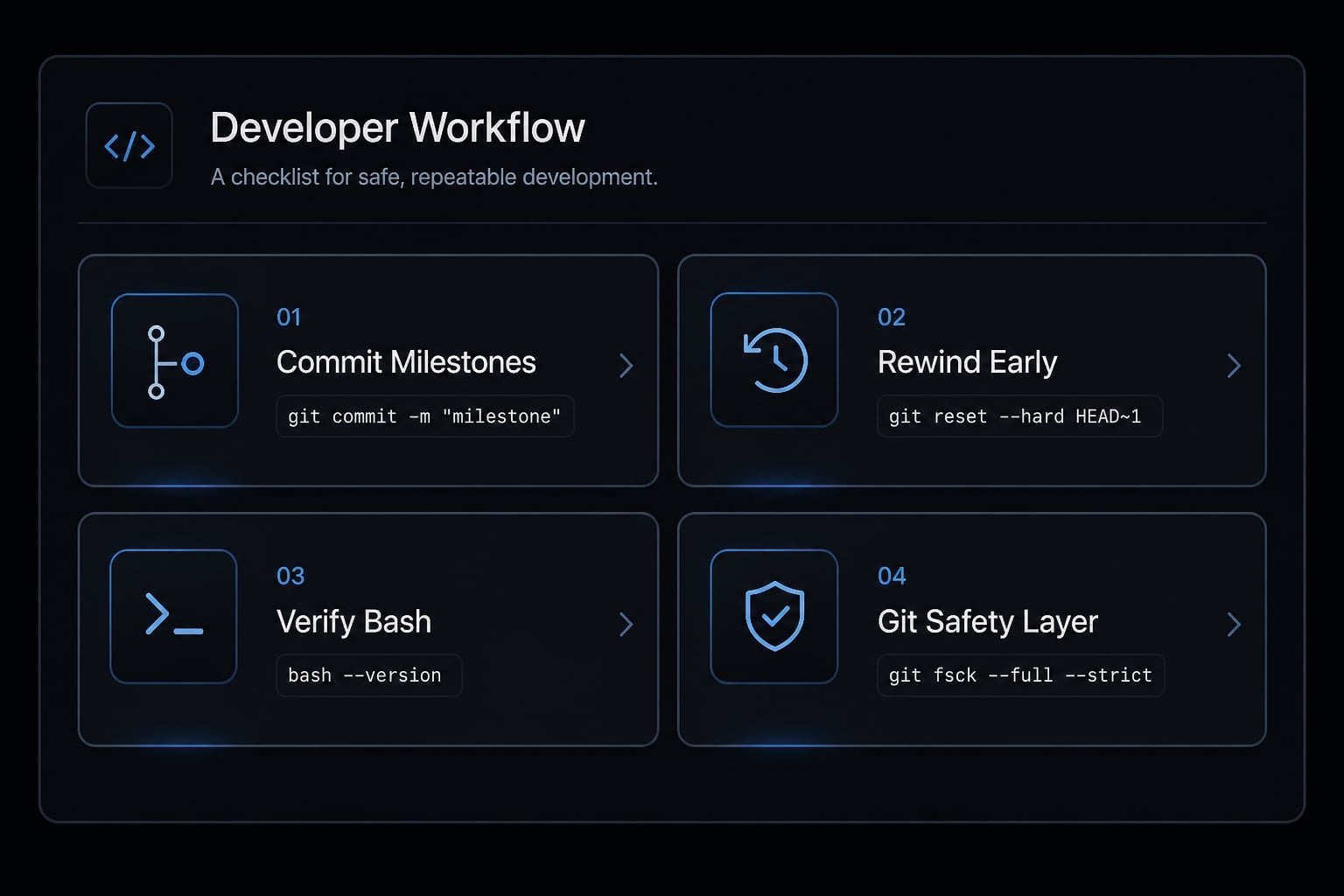
A cleaner Claude Code workflow usually prevents messy recovery later.
- Commit milestones in Git before risky refactors or broad AI-generated changes.
- Use
/rewindearly instead of manually patching a bad turn across multiple files. - Do not assume Bash edits are covered by checkpointing.
- Treat Claude Code checkpoints as a convenience layer, not your only safety net in a safe AI coding workflow.
These are small habits, but they make developer productivity much more consistent when you are iterating quickly with AI.
Frequently asked questions
How do I revert changes in Claude Code?
To revert changes, run the /rewind command in your Claude Code terminal. This opens an interactive menu that lets you select a previous point in your session history to roll back your file state, conversation history, or both.
What does "Claude Code revert" actually mean?
Reverting in Claude Code refers to using the /rewind command to roll back your session to a previous checkpoint. It is a session-level undo mechanism designed to restore files and conversation history to a specific prior state, rather than a system-wide file backup.
Which restore option should I choose in the /rewind menu?
Choose your option based on what went wrong:
- Restore code and conversation: Use if both implementation and chat direction were incorrect.
- Restore conversation only: Use if the code is correct but the chat drifted.
- Restore code only: Use if the discussion is useful but the code edits are flawed.
Can I revert changes made manually or via Bash?
No, /rewind is not a universal undo button. Claude Code primarily tracks changes made through its own internal file-editing tools. Manual edits, operations performed via Bash commands, or external changes made in your IDE are generally not captured by session checkpoints.
Should I use /rewind or Git to undo changes?
Use /rewind for quick, fine-grained recovery during a single coding session. Use Git for long-term version control, team collaboration, and as your primary source of truth. It is best practice to commit milestones in Git and use /rewind for rapid iteration errors.
Does "Summarize" count as a revert command?
No. Summarizing (e.g., "Summarize from here") is a context management tool used to compress history and free up tokens in your conversation window. It does not undo, revert, or modify any files on your disk.
Does /rewind track changes across different sessions?
No, /rewind is specific to the current session. Once a session is cleared or closed, the associated file history is subject to local cleanup policies (defaulting to 30 days). For persistent versioning across sessions, you must use a standard version control system like Git.
Read more:
- Claude Code Plan Mode: Optimize your AI coding workflow
- Claude Code memory guide: How to organize persistent context
- Claude Code privacy: A guide for technical teams and developers
Conclusion
For most users, Claude Code revert means using /rewind to go back to an earlier session point. The key decision is whether you want to restore code and conversation together, conversation only, or code only. The main caution is simple: Not all changes are tracked equally. Claude Code is strong for fast session recovery, but it is not a full replacement for Git, especially when manual edits, Bash operations, or external tool changes are involved.
If you are building a repeatable AI coding workflow, keep /rewind for short-range recovery and Git as your durable system of record. For related safe-workflow references, review Claude Code checkpointing guidance and your team’s Git rollback conventions.