ClaudeKit AgentKit migration: How to safely upgrade to ak CLI
ClaudeKit AgentKit migration: How to move safely from ck to ak
A ClaudeKit AgentKit migration usually fails for predictable reasons: A stale ck binary still wins on PATH, authentication is skipped, or the install succeeds but the workflow no longer behaves like the old command-heavy setup. That is why treating this as a simple binary swap is not enough. ClaudeKit (ck) is now legacy, and AgentKit (ak) is the supported path going forward. This guide covers what changed, how to migrate step by step, how to verify success, and how to fix the most common issues without overcomplicating the process.
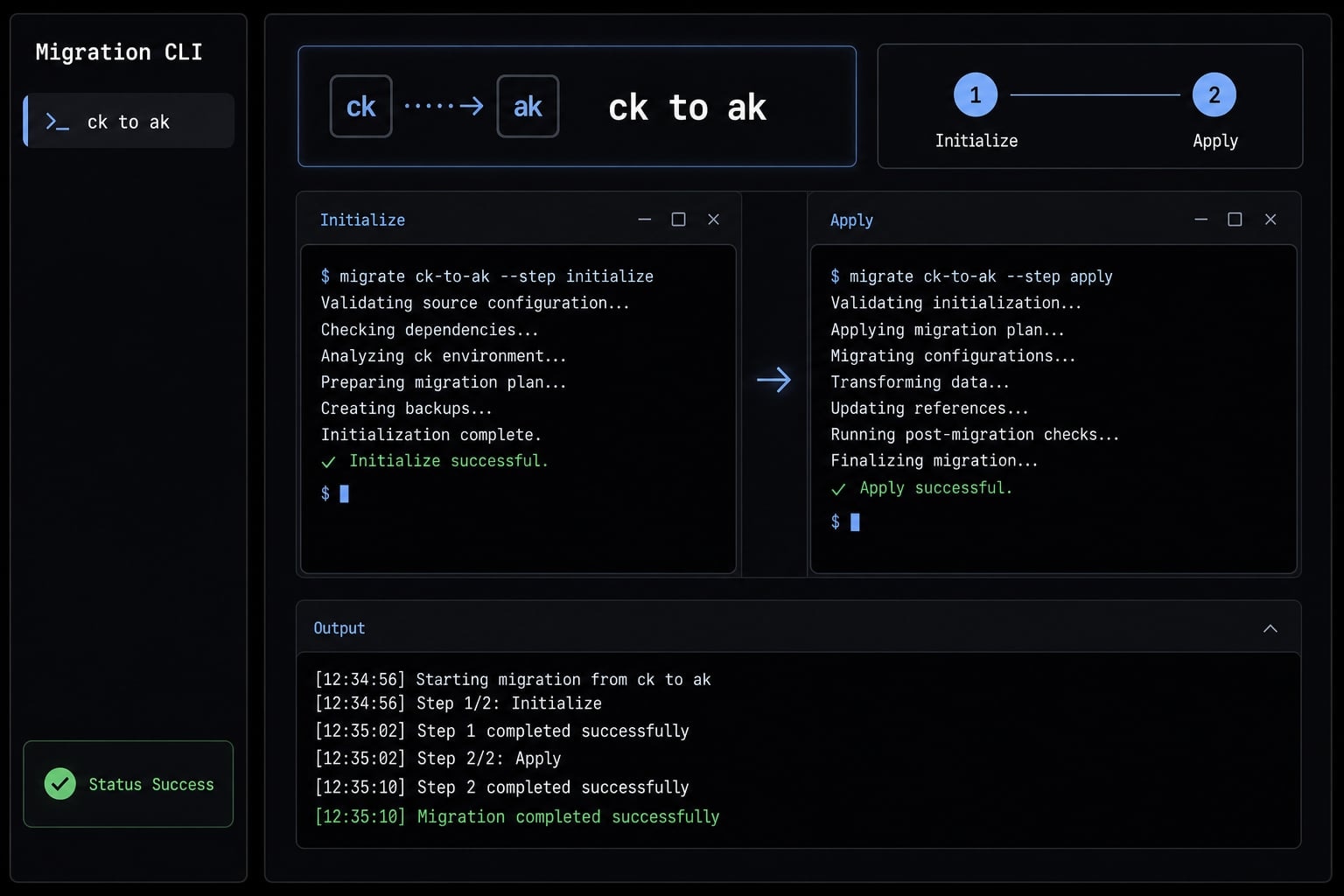
What changed from ClaudeKit to AgentKit?
ClaudeKit to AgentKit migration means moving from the legacy ck CLI to the supported ak CLI, then validating authentication, kit setup, and updated daily workflow behavior. In practice, this is both a CLI replacement and a workflow adjustment, not just a rename.
Most users don’t need to manually rebuild their entire setup. The installation process itself is typically straightforward. Issues usually arise from PATH conflicts, outdated executables, or assumptions that old ClaudeKit command habits will work the same way in AgentKit.
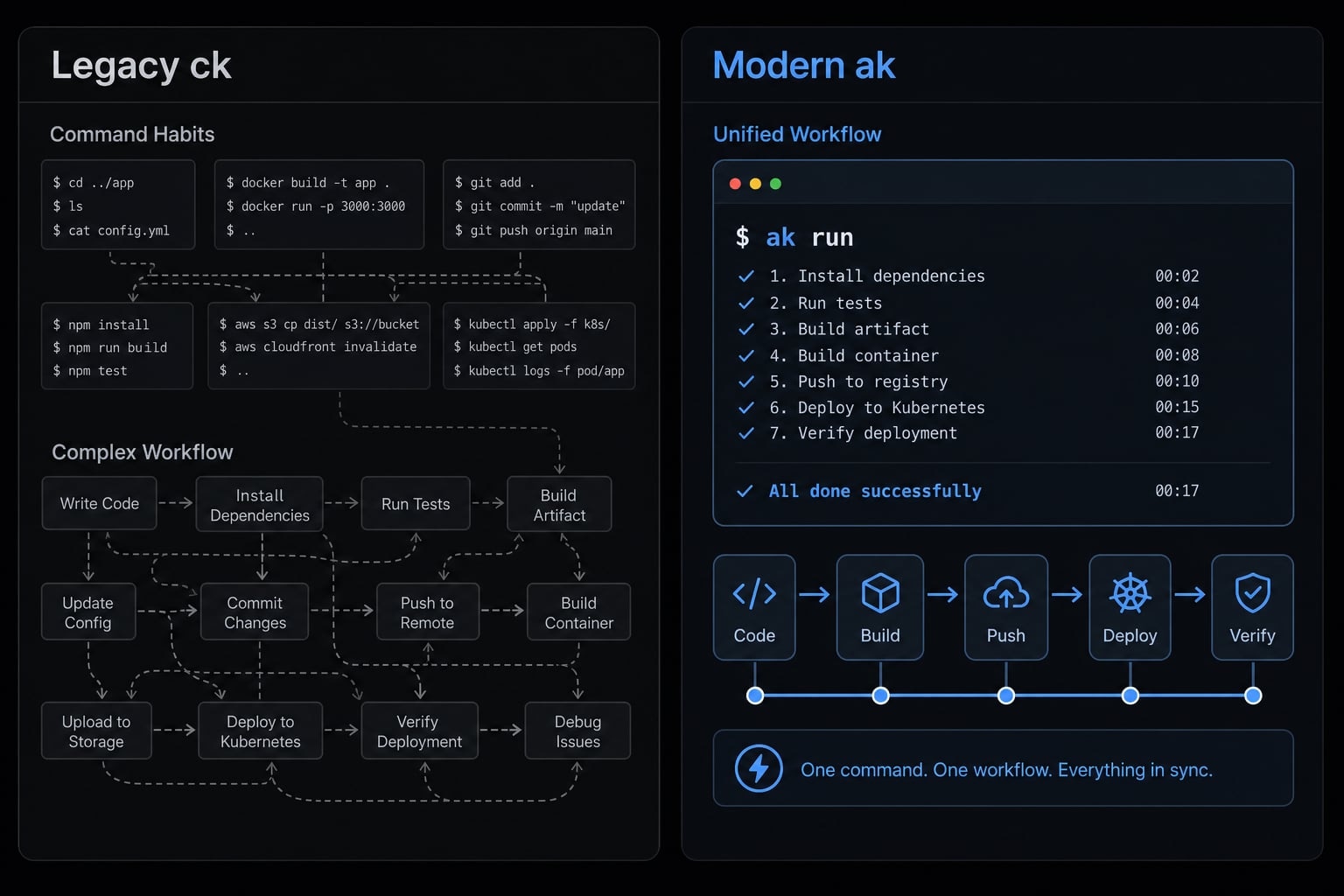
ClaudeKit vs AgentKit at a glance
- ClaudeKit (
ck): Legacy/deprecated CLI. - AgentKit (
ak): Supported successor CLI. - ClaudeKit usage: More command-centric habits.
- AgentKit usage: More kits and skills in daily workflow.
- AgentKit delivery model: Single native cross-platform CLI for macOS, Linux, and Windows.
- Target support: Works with Claude Code and Codex.
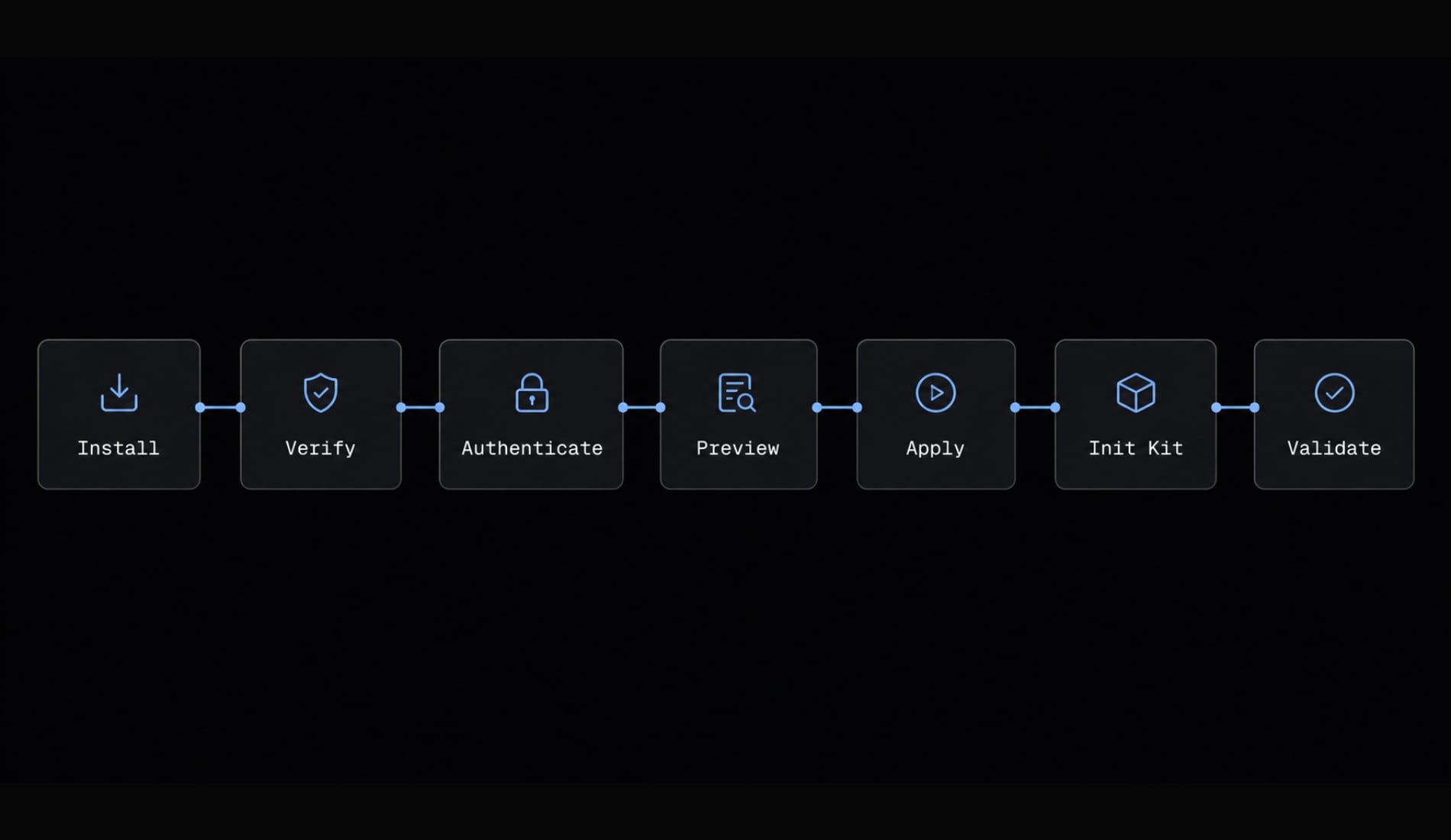
- Migration scope: Install, authenticate, preview, apply, initialize kit, then validate workflow.
What users usually misunderstand
- Installing AgentKit is only one part of the migration.
ak migrate --from=ckhelps, but verification still matters.- A successful install does not automatically mean the migration is complete.
- If post-migration behavior feels different, that does not always mean the install failed.
- The most common issue after install is workflow habit mismatch, not a broken binary.
Step-by-step ClaudeKit to AgentKit migration
The safest migration path is simple: install the supported CLI, verify it, authenticate, preview first, apply the migration, initialize the right kit, then remove legacy friction.
- Install the AgentKit CLI.
- Verify the installation.
- Authenticate your session.
- Preview the migration first.
- Apply the migration safely.
- Install or refresh the right kit.
- Remove legacy friction and validate daily usage.
Step 1: Install the AgentKit CLI (ak)
Run the supported installer for your operating system.
macOS / Linux
curl -fsSL https://agentkit.best/install.sh | sh
If your network blocks the product domain, use the trusted release alias:
curl -fsSL https://releases.agentkit.best/install.sh | sh
Windows PowerShell
irm https://agentkit.best/install.ps1 | iex
If needed, use the trusted release alias:
irm https://releases.agentkit.best/install.ps1 | iex
What this does:
- Installs the
akbinary. - Gives you the supported CLI path going forward.
What success looks like:
- The installer completes without errors.
- The
akbinary becomes available in your shell.
Step 2: Verify the installation
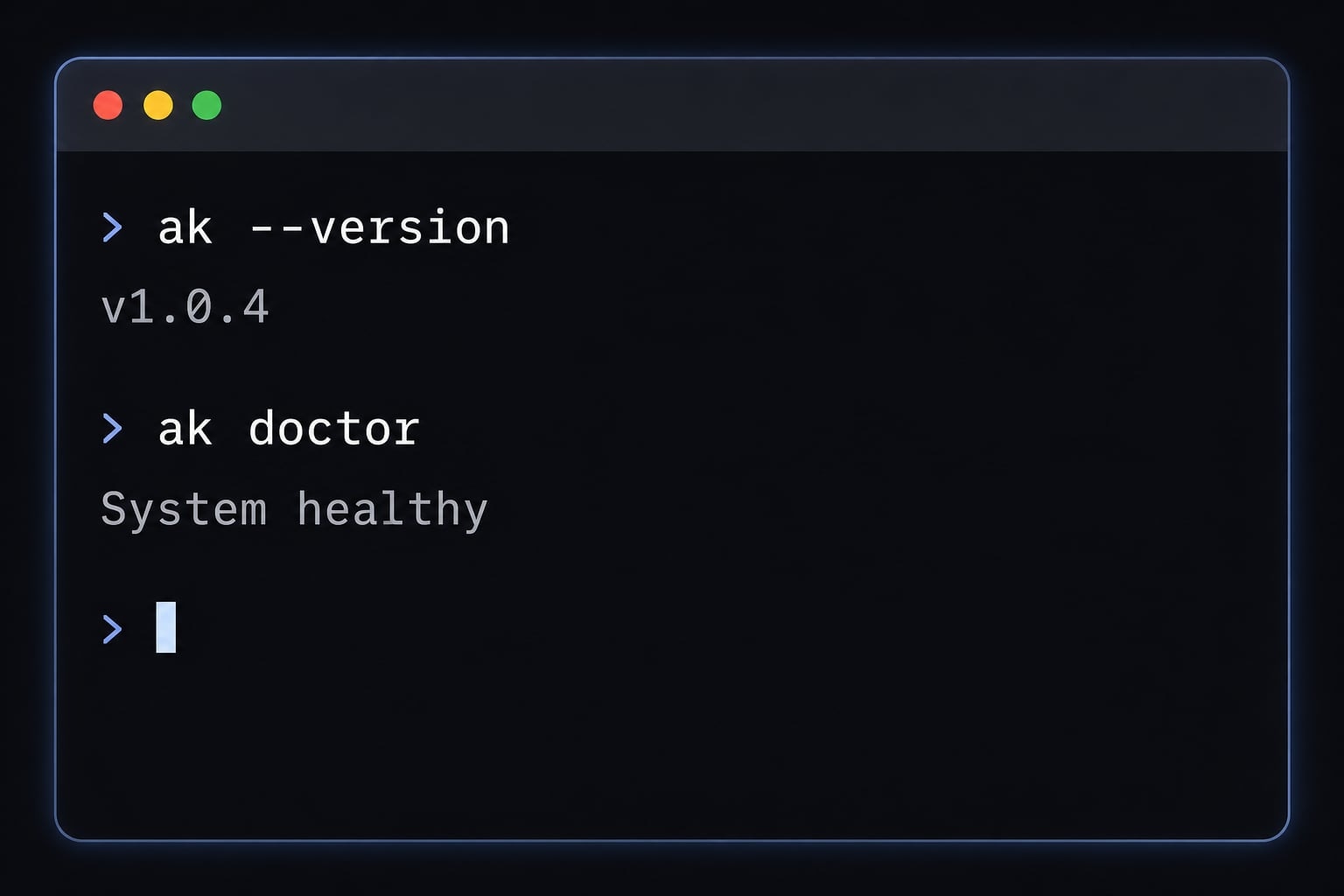
Before migrating anything, confirm that the new CLI is healthy.
ak --versionak doctor
Why this matters:
- Verification now prevents confusion later.
- It separates install issues from migration issues.
What success looks like:
ak --versionreturns a valid version.ak doctorcompletes without critical problems.
Step 3: Authenticate your session
An installed CLI without a valid session is not a completed setup.
Authenticate with email or API key:
ak login --email you@example.com
Or, for CI or scripted environments:
ak login --api-key ak_live_... --no-interactive
Then verify the session:
ak whoamiak licenses
Why this matters:
- Migration is incomplete if the CLI cannot access your account.
- This confirms both identity and available entitlements.
What success looks like:
ak whoamireturns your account.ak licensesshows expected access.
Step 4: Preview the migration first
Treat preview as a safety check, not an optional extra.
ak migrate --from=ck
Why this matters:
- It lets you inspect expected changes before applying them.
- It reduces the risk of surprises in active environments.
- It is especially useful if you have older local setups or multiple shells.
What success looks like:
- The preview completes cleanly.
- The proposed changes match your environment expectations.
Important: In practice, preview before apply is one of the easiest ways to catch stale paths, unexpected references, or outdated assumptions early.
Step 5: Apply the migration safely
Once the preview looks correct, apply the migration.
ak migrate --from=ck --dry-run=false --yes --no-interactive
Why this matters:
- This performs the actual transition from legacy ClaudeKit configuration paths.
- Non-interactive mode is useful for repeatable setups, CI, or team rollout scripts.
When interactive is safer:
- Personal workstation.
- First-time migration.
- Environment with older customizations.
When non-interactive is better:
- Repeated environment setup.
- Internal rollout playbooks.
- Scripted migration across team machines.
What success looks like:
- The migration finishes without fatal errors.
- AgentKit becomes the active path for supported usage.
Step 6: Install or refresh the right kit
Migration is not complete if the correct kit is not initialized or refreshed. AgentKit uses kits to package workflows, skills, and reusable setup for your target environment.
For the engineer kit on Claude Code:
ak kit init engineer --target claude-code --global
If you use Codex:
ak kit init engineer --target codex --global
If you need the marketing kit:
ak kit init marketing --target claude-code --global
To refresh an existing kit:
ak kit refresh engineer --global --yes
Why this matters:
- The CLI migration and the workflow setup are related, but separate.
- Daily usage will still feel incomplete if the right kit is missing.
What success looks like:
- The expected kit installs or refreshes cleanly.
- Your target workflow is available in the new environment.
Step 7: Remove legacy friction
This is the step many users skip. In practice, it is often where the remaining confusion lives.
Check for:
- Old
ckconflicts onPATH. - Stale executable precedence.
- Shell aliases or habits that still assume the old workflow.
- Expecting older slash-command behavior to remain unchanged.
Typical cleanup actions:
- Remove or deprioritize old
ckbinaries. - Reopen the terminal or reload your shell profile.
- Stop testing migration success using outdated command assumptions.
What success looks like:
akresolves correctly every time- No stale
ckexecutable interferes - Your current workflow reflects AgentKit behavior, not old ClaudeKit habits
If you are comparing multiple options or need a standardized rollout path, review the official docs at agentkit.best/docs before migrating more than one machine.
Old ClaudeKit commands and workflows vs new AgentKit usage
After migration, the biggest change is usually not installation. It is the shift from older command-heavy habits to a workflow that leans more on skills and kit-based usage. That is normal.
Key workflow shift: Commands to skills
In AgentKit, skills are reusable capabilities that activate automatically, through natural language, or by direct reference depending on the workflow. The practical benefit is simple: you spend less time memorizing many slash commands and more time describing the task you want completed.
This does not mean every command disappears. Core commands still matter for planning, testing, review, and utilities. The real change is that implementation behavior often becomes more skill-oriented.
Before vs after workflow example
Before
/ck:plan "Add authentication"/code @plans/260129-auth.md/ck:test/ck:code-review
After
/ck:plan "Add authentication"/clear/ck:cook plans/260129-auth.md/ck:test/ck:code-review
Why /clear matters:
- Planning can consume valuable context.
- Clearing before implementation helps avoid context carryover.
- If the workflow feels different here, that is often expected behavior, not a failed migration.
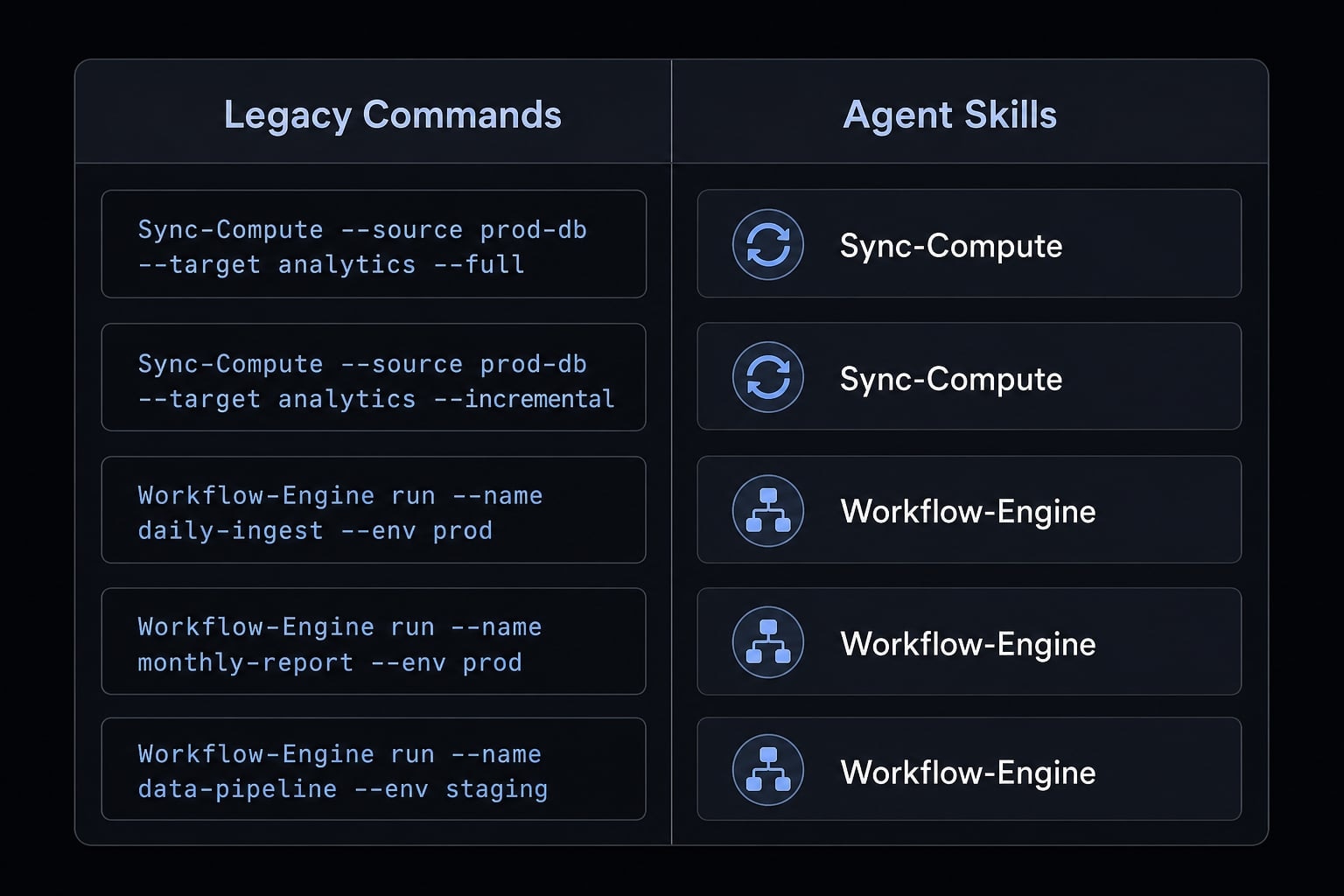
Migration reference table
Legacy ClaudeKit usage | New AgentKit usage | What changed | Practical note |
|---|---|---|---|
|
| Implementation flow shifts to | Use after planning and context reset |
|
| Planning command remains | Still part of the workflow |
Plan → code | Plan → clear → cook | Workflow sequence changed | Add |
|
| Skill-oriented activation | Often triggered by relevant task context |
|
| Less command memorization | Use natural task phrasing when appropriate |
|
| Core review command remains | Review behavior stays explicit |
|
| Command becomes skill-based | Use by name or natural language |
|
| More passive invocation style | Often triggered by natural language |
Post-migration verification checklist
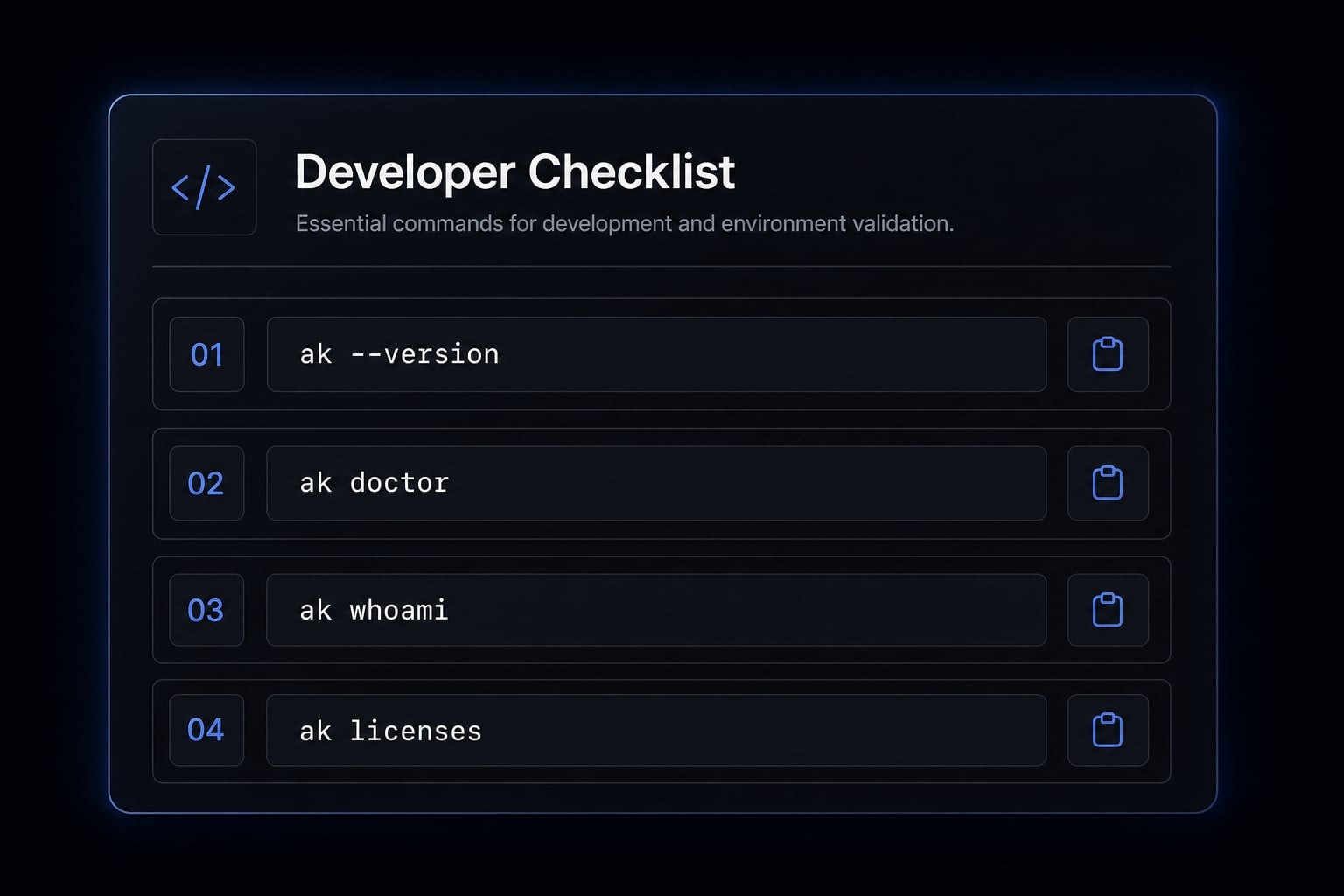
A reliable migration verification checklist is better than assuming success based on install output alone. The goal is to confirm the environment, the account session, the kit, and one real workflow.
Functional Checks to Run
- Run
ak --version: Confirms the AgentKit binary is installed and callable. - Run
ak doctor: Confirms the environment passes core health checks. - Run
ak whoami: Confirms your authenticated account session is active. - Run
ak licenses: Confirms your account has the expected access. - Confirm the intended kit is installed or refreshed.
Example:
ak kit init engineer --target claude-code --global
Workflow validation test
Run one small smoke test after setup:
- Initialize or refresh the engineer kit.
- Start a simple planning task.
- Follow the updated flow, such as plan → clear → cook.
- Confirm no stale
ckconflict appears.
A migration is effectively working when:
akresolves correctly.- Authentication works.
- The right kit is available.
- One expected workflow runs without falling back to old habits.
Common ClaudeKit to AgentKit migration problems and fixes
Most migration failures fall into a small number of predictable categories: PATH, stale binaries, authentication, installer validation, or workflow expectation mismatch.
Problem: ak: command not found
Symptom: ak: command not found
Likely cause: The install directory is not on PATH, or your shell has not reloaded.
Fix: Reload your shell, reopen the terminal, and confirm the install location is included in PATH.
Practical checks:
- Restart the terminal session.
- Reload the shell profile.
- Re-run:
ak --version
Problem: Old ck binary still runs
Symptom: Commands still resolve to old ClaudeKit behavior.
Likely cause: A stale ck binary appears earlier on PATH.
Fix: Remove or deprioritize the old executable, then test again.
What to do:
- Inspect which executable is resolving first.
- Remove old local copies if no longer needed.
- Reopen the terminal after cleanup.
In practice, this is one of the most common post-install issues.
Problem: ak login fails
Symptom: Authentication does not complete or the session is not retained.
Likely cause: Invalid one-time code, expired session, incorrect API key, or account mismatch.
Fix: Retry login carefully and validate the account state.
Useful commands:
ak login --email you@example.comak whoamiak licenses
Problem: Installer is blocked or verification fails
Symptom: The installer cannot be fetched, or checksum/signature validation fails.
Likely cause: Network restrictions or a verification mismatch.
Fix: Use the trusted release alias if officially supported, then retry.
Do not bypass checksum or signature validation. If verification fails, stop and retry rather than forcing the install.
Trusted fallback:
curl -fsSL https://releases.agentkit.best/install.sh | sh
Or on Windows:
irm https://releases.agentkit.best/install.ps1 | iex
Problem: Workflow feels “broken” after migration
Symptom: The install succeeded, but daily usage feels wrong.
Likely cause: Old command assumptions no longer match the current skill-oriented workflow.
Fix: Re-test using the updated flow and command mapping instead of older habits.
Common example:
- Old expectation: plan → code
- Current pattern: plan → clear → cook
If the behavior has changed but ak, authentication, and kit setup are all working correctly, the problem usually lies in adapting to the new workflow - not in a failed installation.
A simple migration approach for solo users vs small teams
Solo users can usually migrate directly: Install, authenticate, preview, apply, initialize the kit, and run one smoke test. The main risk is local friction, especially stale ck references or PATH precedence. Small teams should be more deliberate. Test the migration on one environment first, confirm the workflow pattern, then roll it out with a shared internal checklist.
Recommended checklist for teams:
- Install
ak - Verify with
ak --versionandak doctor - Authenticate with
ak login - Run
ak migrate --from=ck - Apply once preview looks correct
- Initialize or refresh the standard kit
- Run one shared verification test
This reduces inconsistency across machines and makes support easier if issues appear later.
Frequently asked questions
What is the main difference between ClaudeKit and AgentKit?
AgentKit is the direct, fully supported successor to ClaudeKit, which is no longer under active development. The change goes beyond replacing the ck CLI with ak; it also represents a shift from a command-based workflow to a more flexible operating model built around Skills and Kits.
Why should I migrate from ClaudeKit to AgentKit?
ClaudeKit is now legacy software and is no longer supported. Migrating to AgentKit gives you access to a modern agent system, the latest security updates, stable cross-platform integrations, and standardized workflows designed to improve development productivity.
How can I verify that my migration was successful?
Follow these steps:
- Run
ak --versionto verify the CLI installation. - Run
ak doctorto scan your system configuration. - Use
ak whoamiandak licensesto verify your signed-in account. - Complete a small test task using
planorcookto confirm that the workflow functions correctly.
What should I do if the ck command still appears after installing AgentKit?
This indicates a PATH conflict caused by an old ClaudeKit entry that remains on your system. Locate and remove the legacy ck binary from the relevant system directory, or remove its entry from the PATH environment variable. Then restart the terminal to ensure the system prioritizes the new ak command.
Do I need to rebuild my entire project configuration when migrating?
No. Run ak migrate --from=ck to convert your existing configuration automatically. After the migration, use ak kit refresh to update your kits to the latest AgentKit structure without disrupting your project’s progress.
Why does the workflow feel different after migration?
AgentKit prioritizes natural-language activation of Skills rather than relying primarily on slash commands. Instead of memorizing numerous commands, you can describe the task, and AgentKit will automatically activate the relevant Skills.
Where should I seek help if I encounter an AgentKit installation error?
If standard troubleshooting steps do not resolve the migration issue, join the AgentKit Discord community or email support@agentkit.best for direct assistance from the technical team. Have the logs from ak doctor ready to help the team diagnose the problem more quickly.
Read more:
- Claude Code subagents documentation: Setup and usage guide
- Claude Code vs Cline: Which AI coding workflow suits you?
- Connect GitHub MCP to Claude Code: Step-by-step guide
Conclusion
A successful ClaudeKit AgentKit migration is not just about replacing the ck command with ak. It means moving to the supported CLI, validating authentication, initializing the correct kit, and adjusting to the newer workflow where skills play a larger role. The safest path is consistent: Install → authenticate → preview → apply → init kit → verify. If something still feels off after that, check for PATH conflicts, stale ck binaries, or old workflow assumptions before assuming the migration failed.