Claude Code remote control: Setup, mobile access & guide
Claude Code Remote Control: Setup, mobile access and troubleshooting
Stepping away from your workstation should not mean losing visibility into a coding task that still needs your input. Claude Code Remote Control connects a local Claude Code session to a phone or browser, letting you supervise work without moving execution to a hosted development environment.
This guide covers prerequisites, setup, command selection, device connection, security boundaries, and troubleshooting. It focuses on getting connected safely-not turning Claude Code into a generic remote desktop. Your host machine still runs the development session and must remain available. Start with the requirements below, then complete a read-only connection check before leaving your workstation.
What Claude Code Remote Control is and what you need
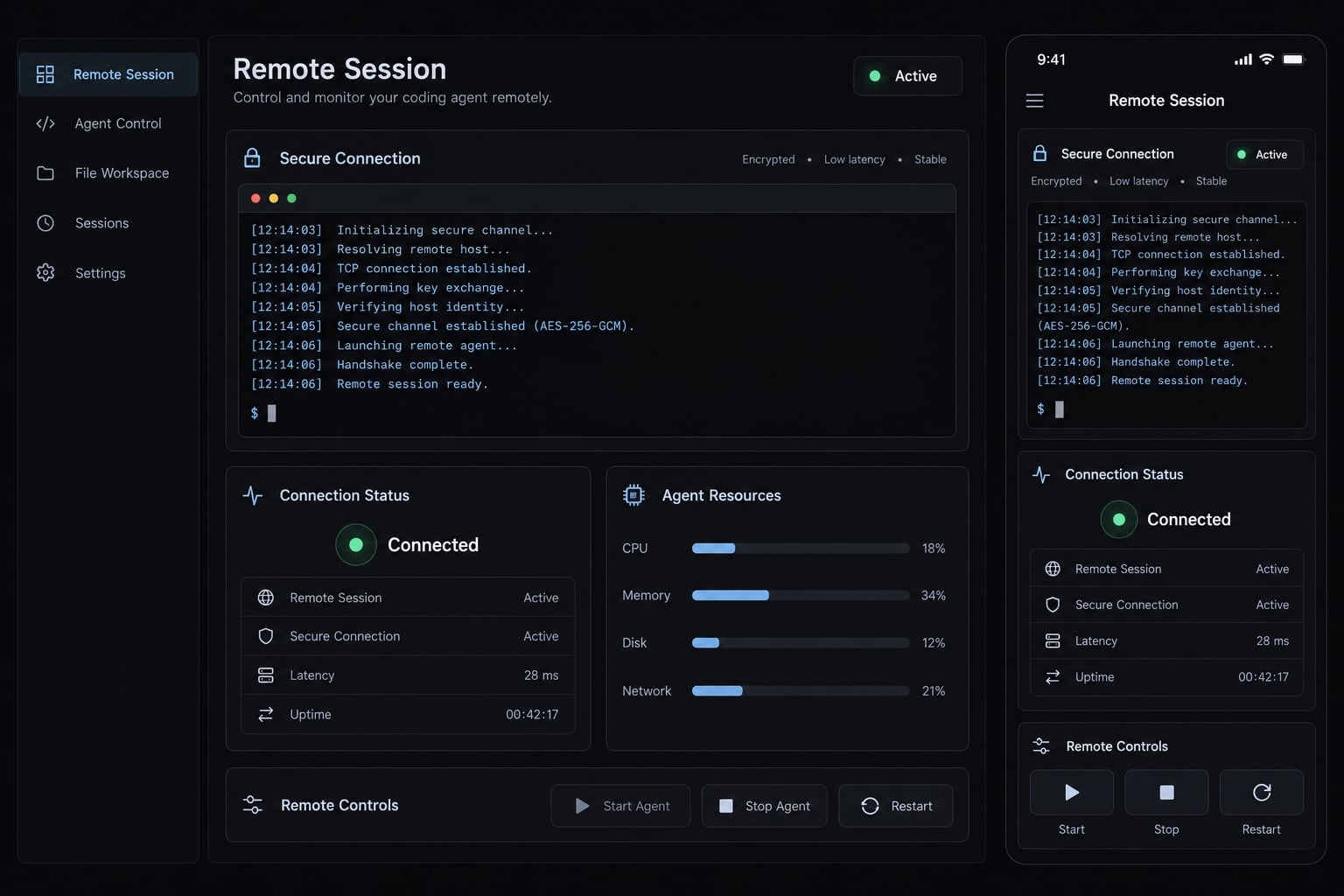
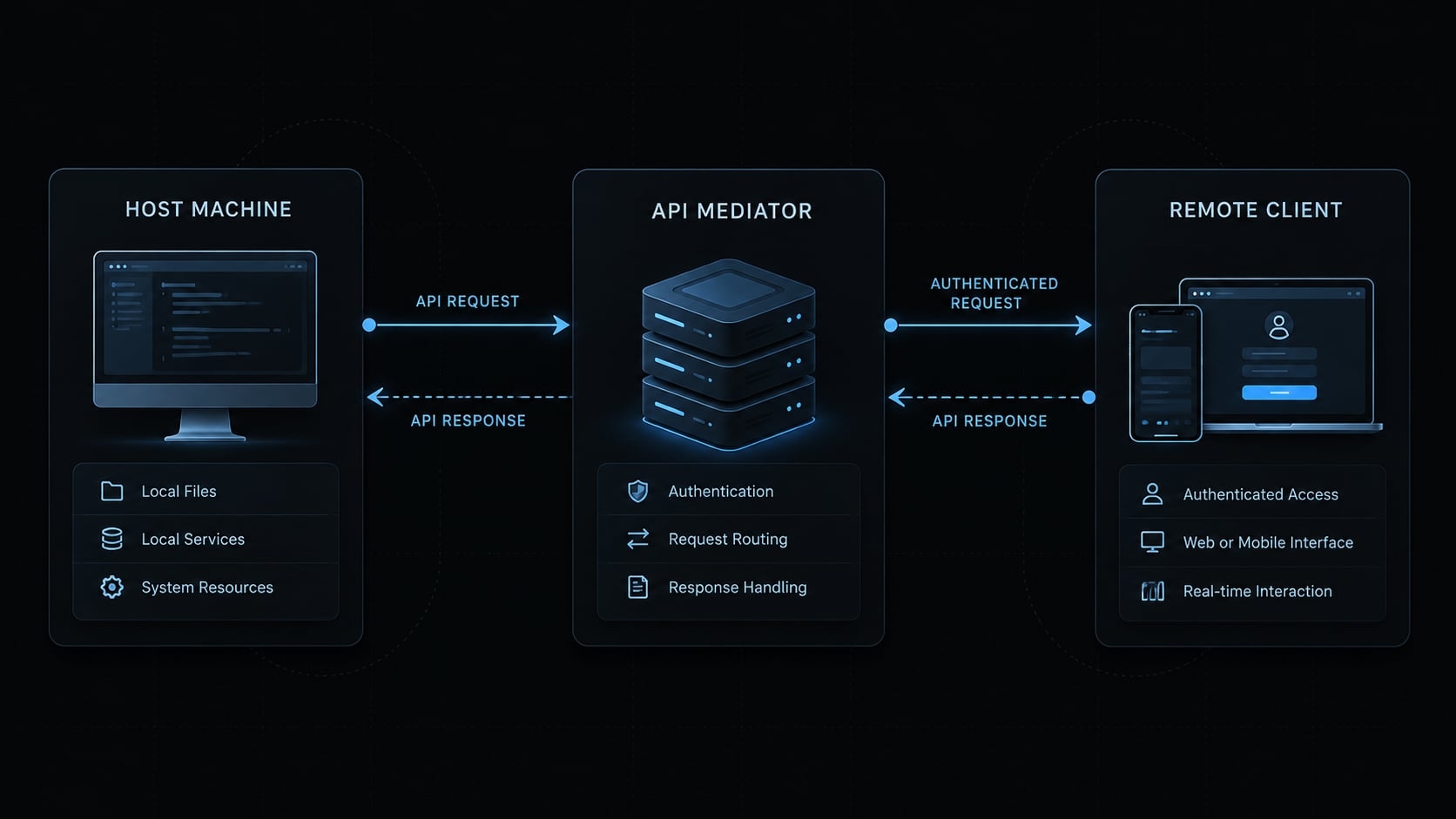
Claude Code Remote Control lets an authenticated remote interface interact with a Claude Code session running on your host machine. Repository operations and development commands use that host environment. It provides remote access to the coding conversation and its tools-not unrestricted desktop control or a newly provisioned cloud workstation.
Preflight requirements checklist
Before starting, confirm:
- Installation: The Claude Code CLI (command-line interface) recognizes Remote Control.
- Authentication: You are signed into an eligible Claude account, not assuming an API key alone provides access.
- Workspace: You have opened the intended project and reviewed its trust prompt.
- Configuration: Your provider and endpoint setup support the feature.
- Network: Required outbound connections are permitted.
- Policy: Your organization allows this use.
- Host availability: The machine will remain awake, connected, and running the process.
Remote Control vs. cloud-hosted execution
Area | Remote Control | Cloud-hosted session |
|---|---|---|
Execution environment | Your host environment | A separately provisioned hosted environment |
Files and tools | Those available to the local session | Those configured in the hosted environment |
MCP integrations | Host-session configuration | Hosted-environment configuration |
Local host dependency | Host must remain available | Execution does not depend on your laptop staying awake |
Best fit | Supervising existing local work | Delegating work in a separately configured environment |
Quick start: Set up Claude Code Remote Control
Start from the correct project, authenticate locally, and verify a harmless remote interaction. Do not begin with deployment, dependency installation, or unrestricted editing.
Update and sign in
- Check CLI installation and update:
claude --versionclaude --help
- Enter your project directory and launch Claude Code:
cd /path/to/projectclaude
Replace /path/to/project with your actual project directory.
- Authenticate inside Claude Code:
/login
Use the account you intend to use on your phone or browser. API billing access and Remote Control eligibility are separate questions.
Trust the project workspace
Review the displayed directory before accepting workspace trust. Workspace trust means allowing Claude Code to operate in that project; it does not establish that every file or instruction is safe.
Finish authentication and trust setup, then exit the interactive session with /exit. The next commands belong in your normal shell.
Start Remote Control
Check the installed command’s options, then launch it from the project directory:
claude remote-control --helpclaude remote-control
The documented connection flow provides a session link. Follow the terminal’s instructions for displaying a QR code; do not assume every release displays it automatically.
Keep the terminal process running. Starting Remote Control is not evidence that it has installed a persistent background service.
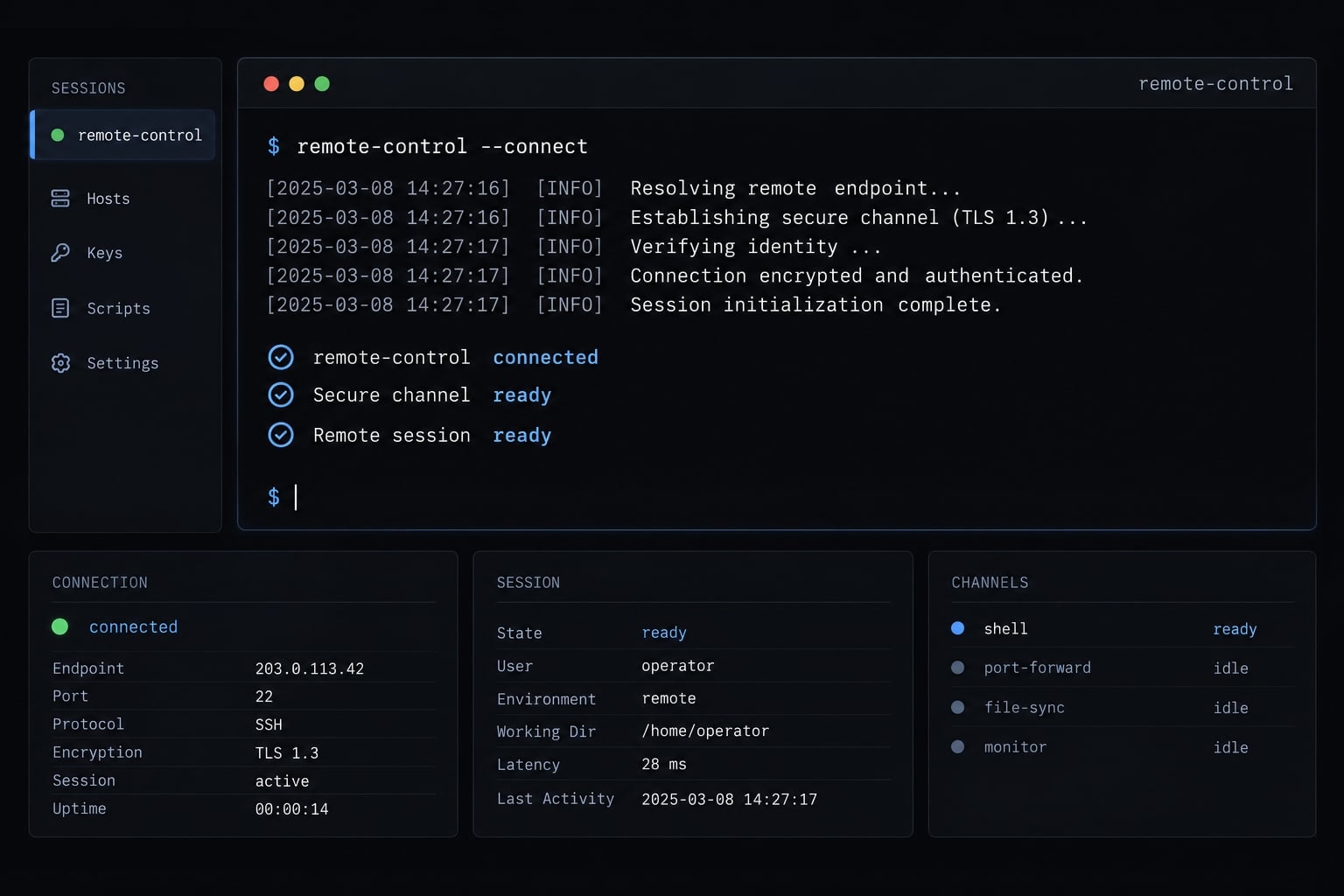
Open the provided session link using the matching account on your phone or browser, then send a read-only request:
Without running commands or editing files, acknowledge this message and summarize the conversation context currently available.
Confirm the response belongs to the intended session before authorizing further actions.
Quick setup checklist
- Check the CLI version.
- Update through the appropriate installation method.
- Enter the intended project.
- Sign in and review workspace trust.
- Return to the shell and start Remote Control.
- Open the session link with the matching account.
- Confirm a read-only response and keep the host awake.
Which Remote Control command should you use?
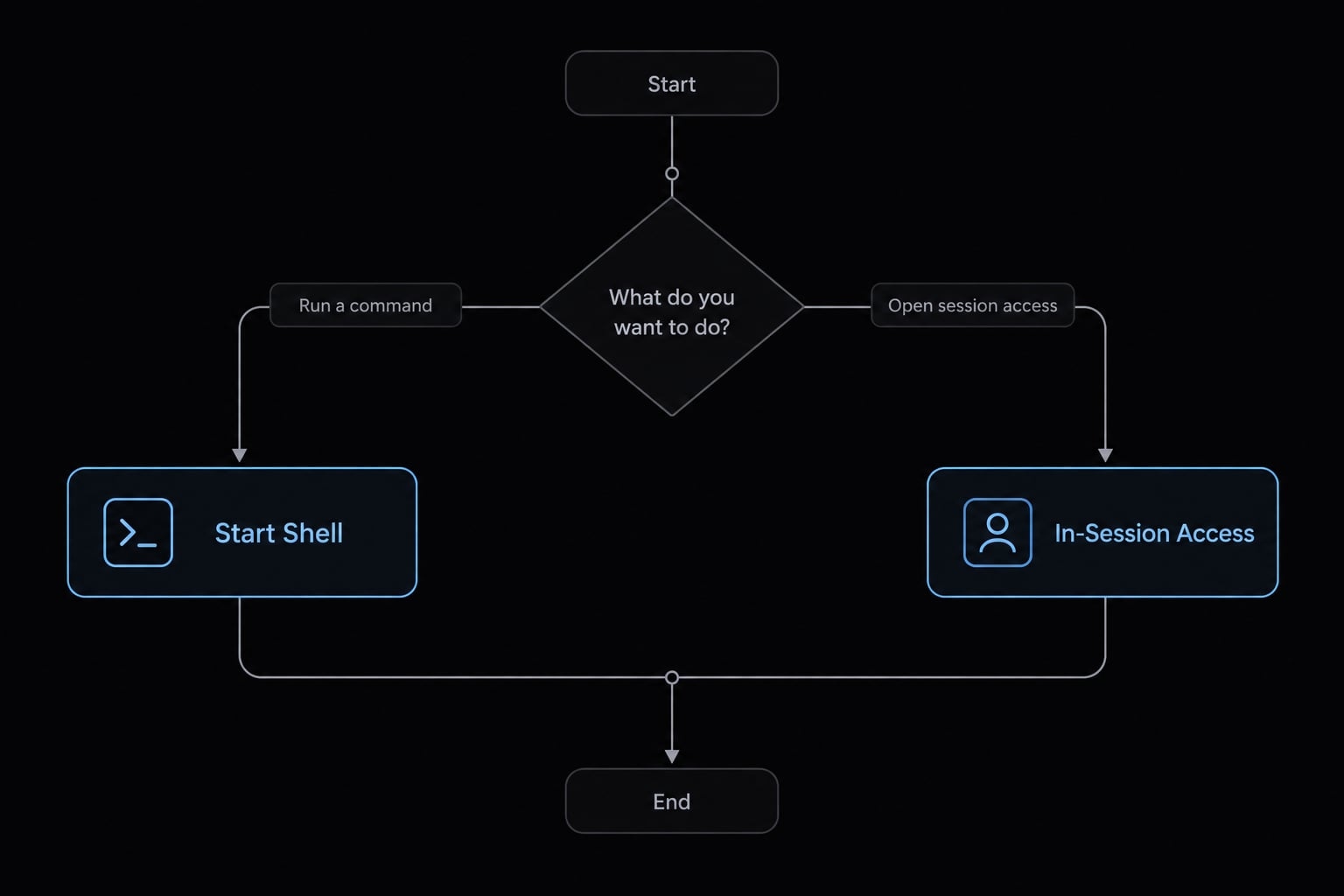
Choose according to whether you are starting remote access or extending an existing conversation. Shell commands and in-session commands are not interchangeable.
The table separates the two principal entry points. Confirm availability through your installed CLI help and interactive command menu.
Situation | Command | Expected behavior |
|---|---|---|
Starting from a normal shell |
| Starts the Remote Control connection process from the current directory |
Already inside an interactive conversation |
| Enables remote access to that conversation when listed by the installed version |
Waiting connection mode
The shell entry point establishes the host-side connection that a remote client uses. Treat it as a running foreground process unless your installed documentation explicitly describes another lifecycle.
Do not infer support for multiple independent sessions, automatic restarts, or unlimited persistence from the word “server.”
Local and remote interaction
If you need to keep working at the terminal, enabling access from the existing interactive session is the clearer starting point.
Avoid sending competing instructions from two devices. Wait for the current action to finish, inspect the result, and then give the next instruction.
The startup flag claude --remote-control and shorthand /rc are version-sensitive alternatives that are not independently verified here. Use them only if your installed help explicitly lists their behavior.
Existing conversation
Enabling remote access is different from resuming an older conversation. An engineer already investigating a failed test should enable access within that investigation rather than assume a fresh shell launch restores its context.
Optional continuation, naming, spawning, and capacity flags are omitted because they are unnecessary for basic pairing and require separate verification.
Connect from a Phone or Browser
Use the terminal-provided session link and the same account used locally. Confirm the conversation before sending instructions.
Open the session link
Open the link in a browser profile authenticated to the intended account. If the destination appears empty or inaccessible, check the account before restarting the host.
A browser may open links in a personal profile even when your development account is signed in elsewhere. Also check the active organization if your account belongs to multiple workspaces.
Use the Claude mobile app
Use the official Claude mobile app when current documentation confirms support for your platform and account.
If the terminal offers a QR code, use your phone’s normal QR-opening capability. Follow the supported app or browser route that opens. This guide does not assume an in-app scanner or identical behavior across iOS and Android.
Find the session in Claude’s Code interface
The direct link is the simplest starting point. If navigating through Claude’s Code interface instead, confirm the session’s conversation context and recent activity.
An offline indication is a reason to inspect the host-not proof that the repository or conversation has disappeared. Check power, connectivity, and the terminal process.
Treat notifications as a convenience
Push notifications depend on product support, account settings, and operating-system permissions. Notification settings are not interchangeable with Claude Code’s tool permissions.
Do not rely on alerts as your only supervision mechanism. Check the session explicitly before assuming a task finished or an approval was delivered.
Native desktop-app access is not established here; a desktop browser remains a distinct access method.
Security and data flow: What stays local?
Local execution does not mean local-only information. File operations, tests, and shell commands use the host environment, but prompts, responses, and relevant tool output can pass through Anthropic’s systems. Remote access therefore requires both host-level safeguards and a review of the data-handling terms that apply to your account.
What remains local
Repository edits, local builds, and development services run in the host environment rather than moving automatically into a hosted workspace.
However, a tool can still contact external systems. Package installation, database access and MCP integrations may create additional network traffic according to their configuration.
What can be transmitted
Treat the following as potentially transmitted session content:
- Prompts and assistant responses.
- Tool results, including command output.
- Relevant file content provided to the model.
- Information needed to connect and synchronize the session.
Transmission, storage, retention, and model-training treatment are separate questions. A statement about where commands execute does not answer how a session transcript is retained.
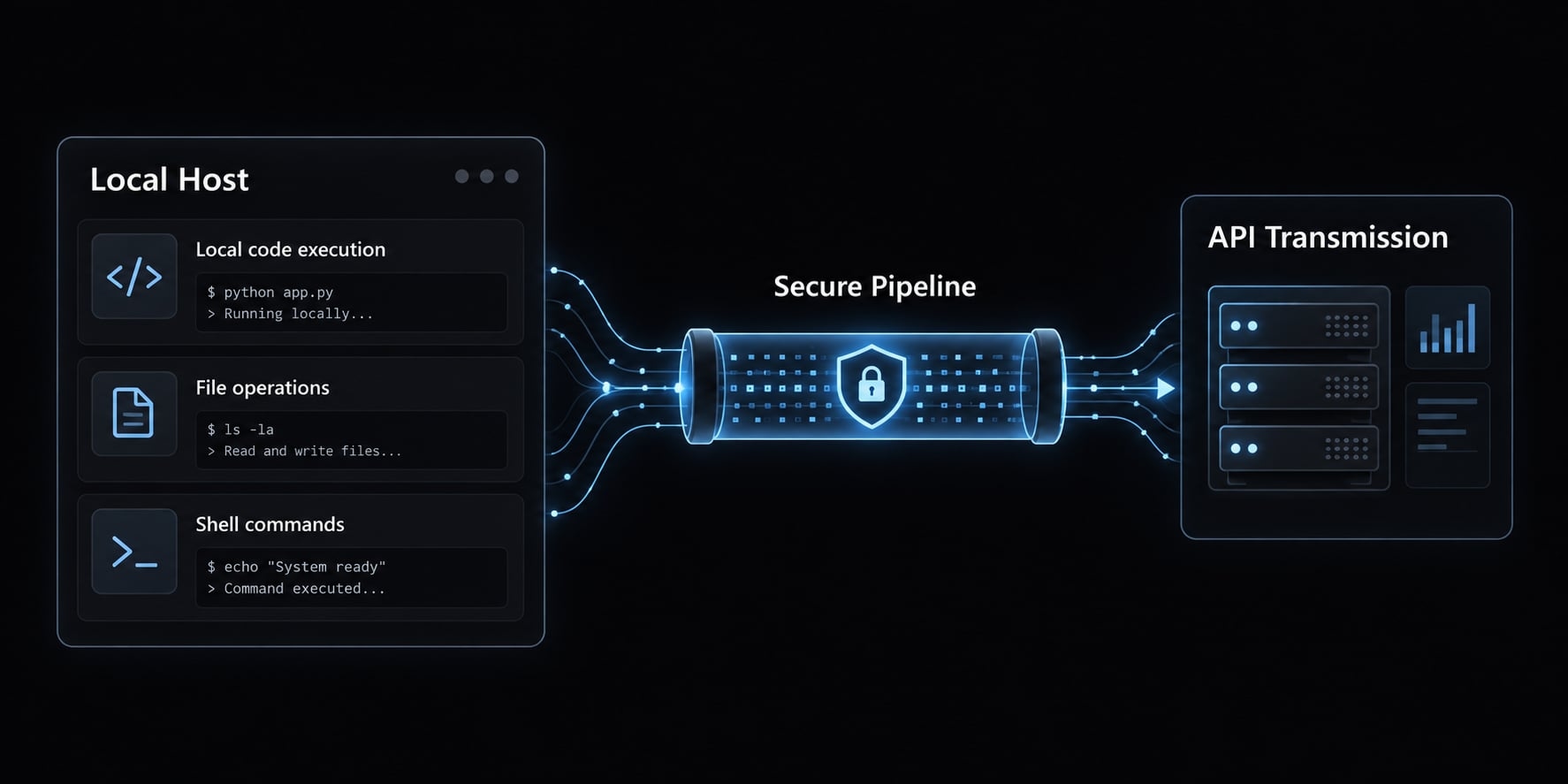
Security architecture summary
Security area | Practical meaning |
|---|---|
Outbound connection model | The documented design uses outbound connectivity; do not open inbound ports as a generic fix |
TLS | Transport Layer Security protects traffic in transit; it does not establish end-to-end encryption |
Local execution | Commands use host resources and the session’s available permissions |
Authenticated access | Account and organization access still govern connection eligibility |
Workspace trust | Trusting a project is not a substitute for reviewing requested actions |
Transcript handling | Check applicable account terms rather than assuming local-only retention |
Safe operating practices
Use trusted devices with screen locks, least-privilege tools, and development credentials. Keep secrets out of prompts and command output.
Require deliberate review for destructive commands, production access, and credential changes. Do not weaken permission controls simply because mobile approvals are inconvenient.
A Git worktree separates working copies; it is not a security sandbox. It does not independently isolate credentials, network access, or the host filesystem.
Claude Code Remote Control not working: Troubleshooting by symptom
Begin with the visible error and make one reversible change at a time. Claude Code Remote Control troubleshooting should distinguish authentication, eligibility, configuration, networking, and host availability.
Diagnostic sequence
- Check the CLI version and applicable update method.
- Confirm local and remote accounts match.
- Verify current account eligibility.
- Review project trust.
- Check organization policy.
- Confirm provider and endpoint compatibility.
- Inspect documented configuration conflicts.
- Check required outbound connectivity.
- Preserve work before starting a fresh test session.
- Confirm host power, network, and process state.
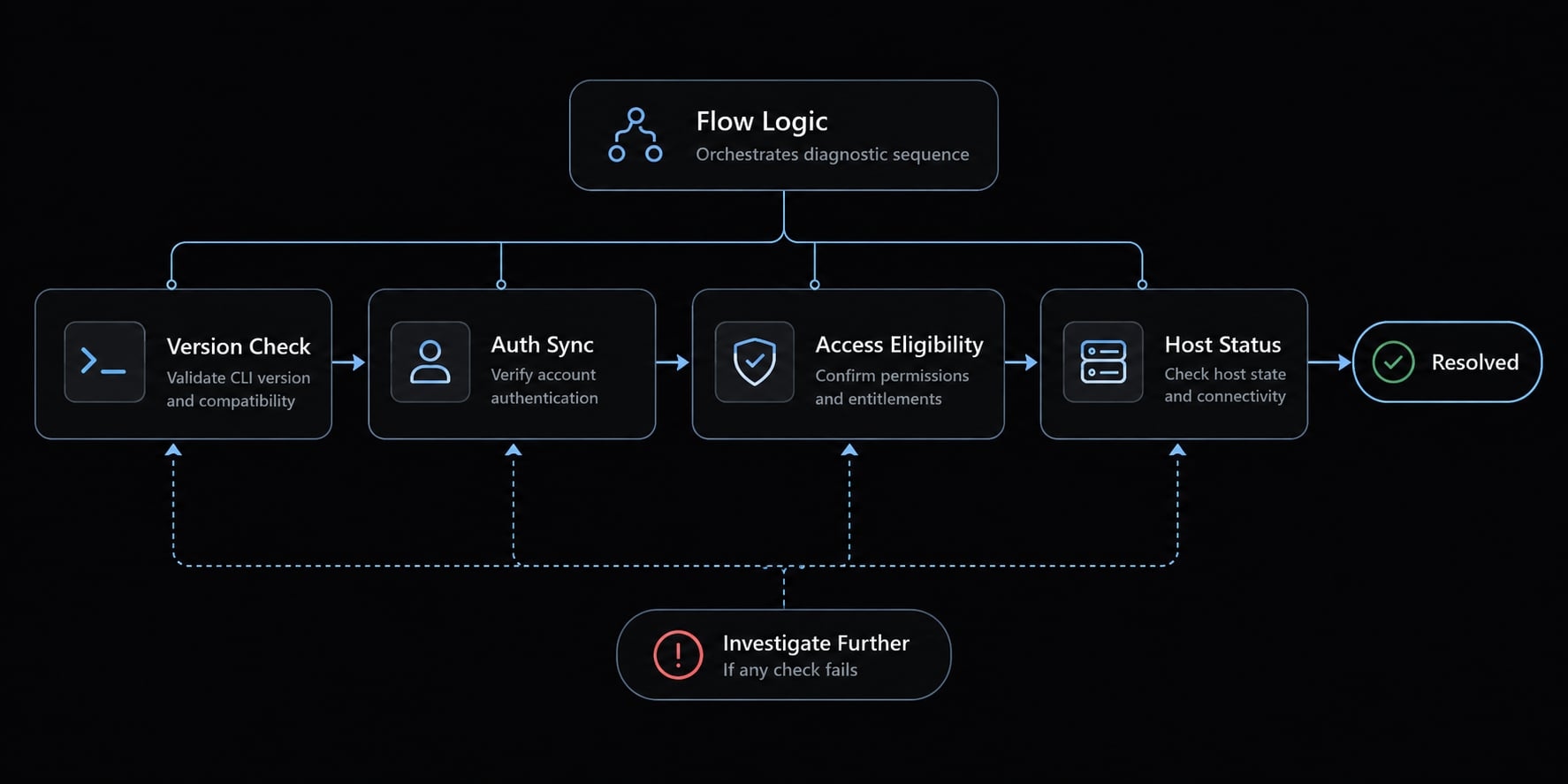
Troubleshooting matrix
Symptom | Possible cause | Safe next action |
|---|---|---|
Unrecognized command | Older CLI or different executable on the shell path | Check version, installation location, and command help |
Eligibility error | Account or rollout restriction | Compare the account with current official requirements |
Authentication error or empty destination | Wrong browser profile or account | Open the original link using the matching account |
Policy error | Organization restriction | Ask the administrator to confirm availability |
Project cannot proceed | Unresolved workspace trust | Review the intended directory locally |
Session missing on mobile | Account mismatch, client availability, or inactive host | Check the original link, account, and terminal process |
Corporate-network failure | Firewall, proxy, or outbound-access restriction | Have the network team review official connectivity requirements |
Unsupported provider or endpoint | Configuration incompatible with Remote Control | Check documented support before changing the API endpoint |
Unexpected configuration error | Conflicting environment or managed settings | Compare relevant settings with current documentation |
Offline after sleep | Host suspended execution or connectivity | Wake the host and inspect the running process |
Repeated disconnections | Unstable network, process exit, or unresolved product issue | Record timestamps and errors; escalate after controlled retesting |
Environment and endpoint checks
Inspect configuration selectively. Do not print your entire environment or share credential-bearing proxy addresses.
A custom ANTHROPIC_BASE_URL is relevant when investigating endpoint routing, but its presence alone does not establish the cause. This guide does not assert feature-specific effects for CLAUDE_CODE_DISABLE_NONESSENTIAL_TRAFFIC or DISABLE_GROWTHBOOK; verify their current documented behavior before changing them.
Distinguish an unsupported configuration from a supported configuration containing an error. Any temporary test should be authorized, record the original settings, and restore them afterward.
Never disable a corporate firewall, remove a managed proxy, or bypass organization controls as a troubleshooting shortcut.
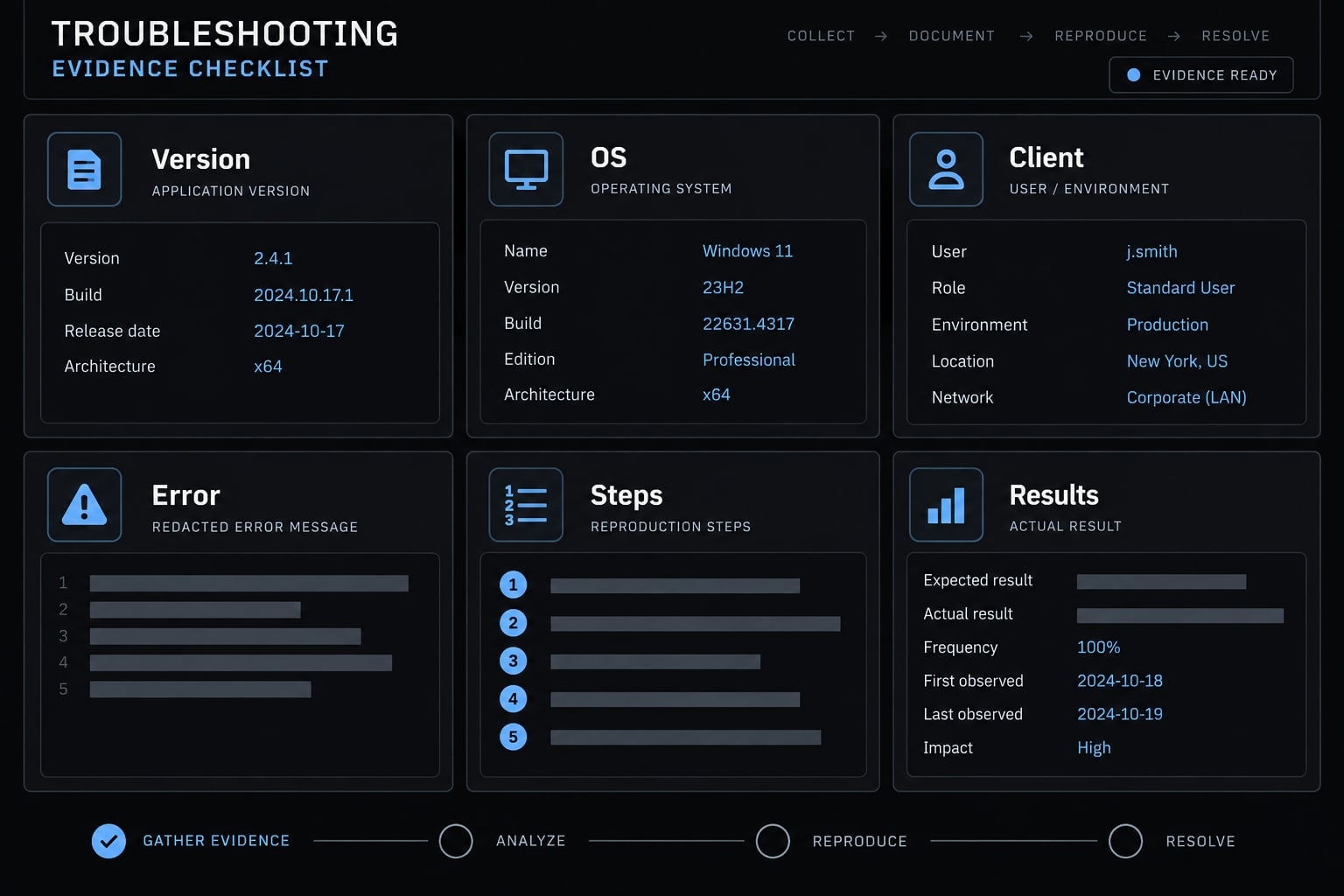
Escalate with useful evidence
Route access-policy problems to the workspace administrator and connectivity problems to the network or security team. Send unresolved product behavior to Anthropic support.
Include:
- CLI version and installation method.
- Host operating system and remote client.
- Authentication method-not credentials.
- Exact redacted error and timestamp.
- Reproduction steps and completed checks.
Practical remote workflows and an AgentKit operating pattern
Remote supervision works best for bounded tasks with explicit stopping points — monitoring tests, answering permission prompts, and clarifying blockers — not replacing full code review.
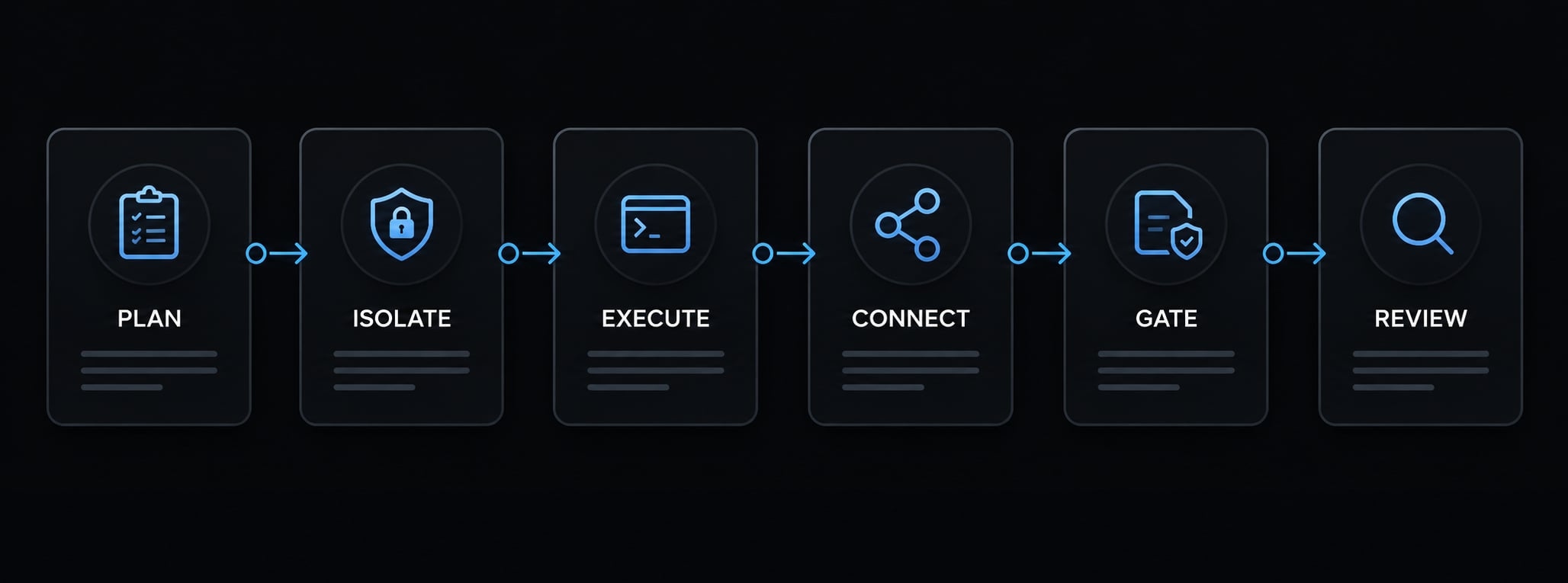
AgentKit adds a reusable workflow layer on top of Claude Code: subagents, skills, and chained commands such as /ak:plan, /ak:cook, and /ak:code-review. A simple pattern:
- Plan locally: run /ak:plan to define scope, acceptance criteria, and prohibited actions before you leave.
- Isolate: work on a branch, or start the server with claude remote-control --spawn worktree so each new session gets its own worktree.
- Execute and connect: run /ak:cook in a session with Remote Control enabled, and turn on "Push when actions required" in /config so permission prompts reach your phone.
- Gate remotely: answer prompts, check test output, and use the device's diff pane — but don't approve destructive or production actions from your phone.
- Review locally: run /ak:code-review and inspect the final diff at your workstation before merging or deploying.
AgentKit's pre-tool hooks prompt for approval before risky operations; those prompts reach you through Remote Control like any other permission request.
Frequently asked questions
What are the main requirements for using Remote Control?
To use this feature, you must have an eligible Claude account, be signed in via the Claude CLI, approve workspace trust for your project directory, and ensure your host machine remains powered on with active network connectivity.
How does Remote Control differ from a cloud-hosted session?
A cloud-hosted session runs entirely on remote cloud infrastructure, while Remote Control runs on your local workstation. This allows you to utilize your specific local configurations, private MCP servers, and local database connections.
Which command should I use to enable Remote Control?
- Use
/remote-control(or/rc) to enable access for an already active session. - Use
claude --remote-controlto start a new interactive session with remote access enabled. - Use
claude remote-controlto initiate a background server mode without requiring an active terminal window.
Is my code data secure when using Remote Control?
Execution and filesystem access remain strictly on your local machine. The remote bridge uses outbound HTTPS/TLS connections to transmit chat messages, tool results, and synchronization data between your host and the API. No inbound ports are opened on your workstation.
What should I do if my session fails to connect?
First, verify that your host machine has an active internet connection and that you are signed in to the same account on both the CLI and your remote client. Check that your organization policy permits Remote Control and ensure your firewall allows outbound HTTPS traffic to the Anthropic API.
Read more:
- Claude Code Astro: A practical workflow to build or migrate
- Claude Code session handoff: Continue Work Without context loss
- Claude Code Plan Mode: Optimize your AI coding workflow
Conclusion
Claude Code Remote Control is most useful when you establish a reliable connection before depending on it. Confirm account eligibility, review workspace trust, choose the entry point that matches your current session, and connect with the same account. Use a read-only request to verify that the remote interface reaches the intended local development session. If something fails, diagnose the visible symptom before changing configuration.
Keep the host awake and the process running. Remember that local execution does not mean prompts, tool results, or session information remain exclusively on your machine. Preserve permission boundaries, review consequential actions, and treat mobile summaries as supervision aids rather than complete evidence. Once the basic connection works, explore AgentKit to evaluate an optional AgentKit workflow for repeatable tasks, validation checks, and clearer human handoffs.