Claude Code keyboard shortcuts: The ultimate cheat sheet
Claude Code keyboard shortcuts: Quick reference cheat sheet
You can take better control of your workflow with essential Claude Code keyboard shortcuts like Ctrl+C to cancel input, Ctrl+R to search history, and Ctrl+O to inspect the transcript. Use Shift+Tab to cycle permission modes and Ctrl+B to background a supported running task. This cheat sheet groups controls by session management, prompt editing, background work, and input modes. Read the context column before using a shortcut: an editing field, permission dialog, and running operation do not necessarily interpret keys identically.
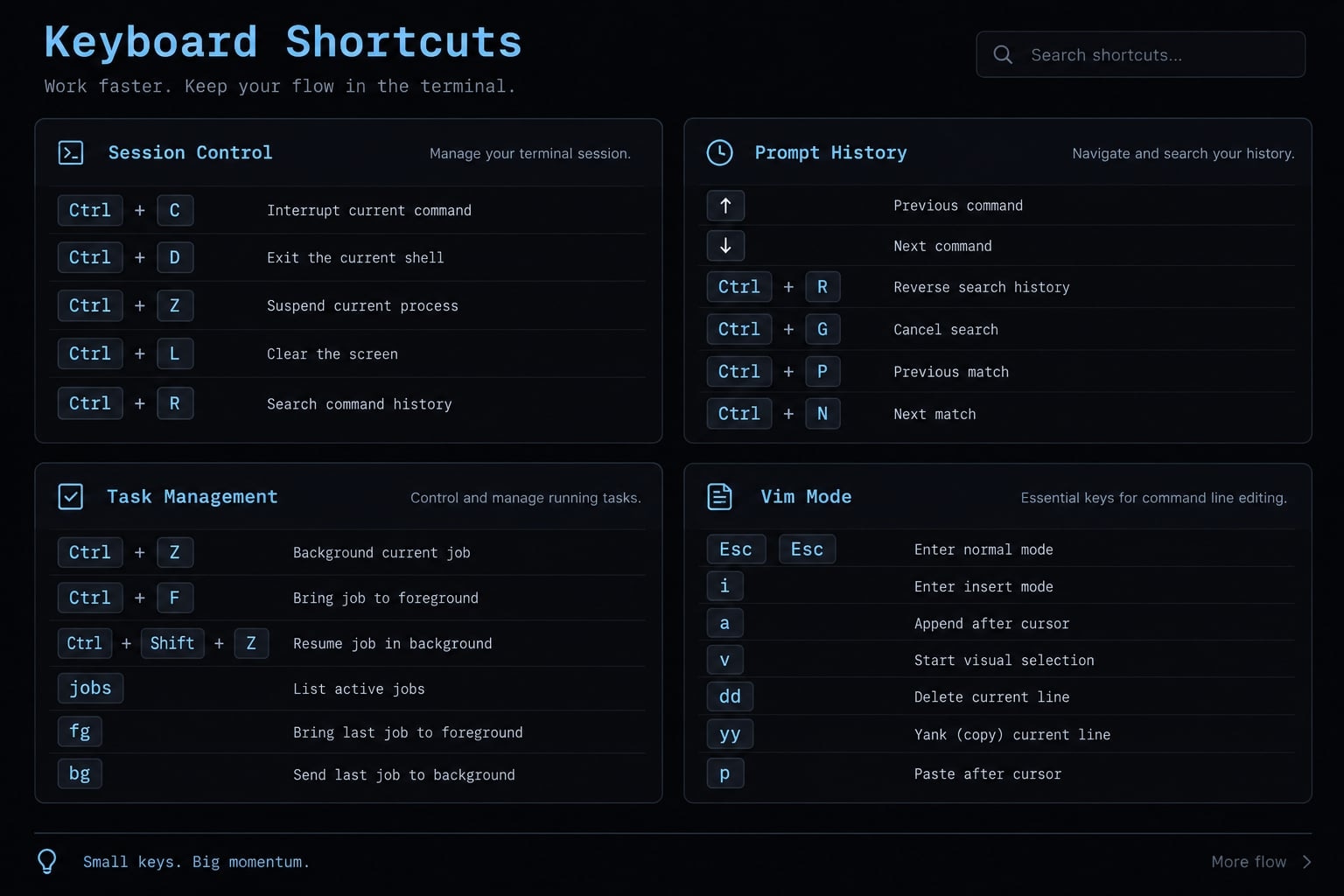
Claude Code keyboard shortcuts: Quick reference
The Ctrl+C combination requires pressing both keys together, whereas Esc, then Esc means pressing the Esc key twice in a row. On macOS, keep using Ctrl unless a binding explicitly specifies another modifier.
Shortcut | Action | Best used for | Context or limitation |
|---|---|---|---|
| Cancel input or generation | Stop an unwanted response | Does not undo completed actions |
| Exit Claude Code | End an interactive session | Use at an empty prompt |
| Search prompt history | Retrieve a previous instruction | Searches submitted prompts |
| Browse prompt history | Reuse recent input | In the prompt editor |
| Toggle transcript view | Inspect messages and tool output | Not hidden chain-of-thought |
| Stash or restore a draft | Temporarily set input aside | Terminal flow control can intercept it |
| Cycle permission modes | Change approval behavior | Available modes depend on configuration |
| Background supported work | Continue during a long operation | Not a universal process control |
| Open rewind | Revisit an earlier checkpoint | Start with empty input |
| Clear the visible screen | Reduce terminal clutter | Keeps conversation context |
| Open an external editor | Revise a long prompt | Requires a configured editor |
| Insert a newline | Write multiline input | Type the backslash immediately before Enter |
Session control, interruption and recovery shortcuts
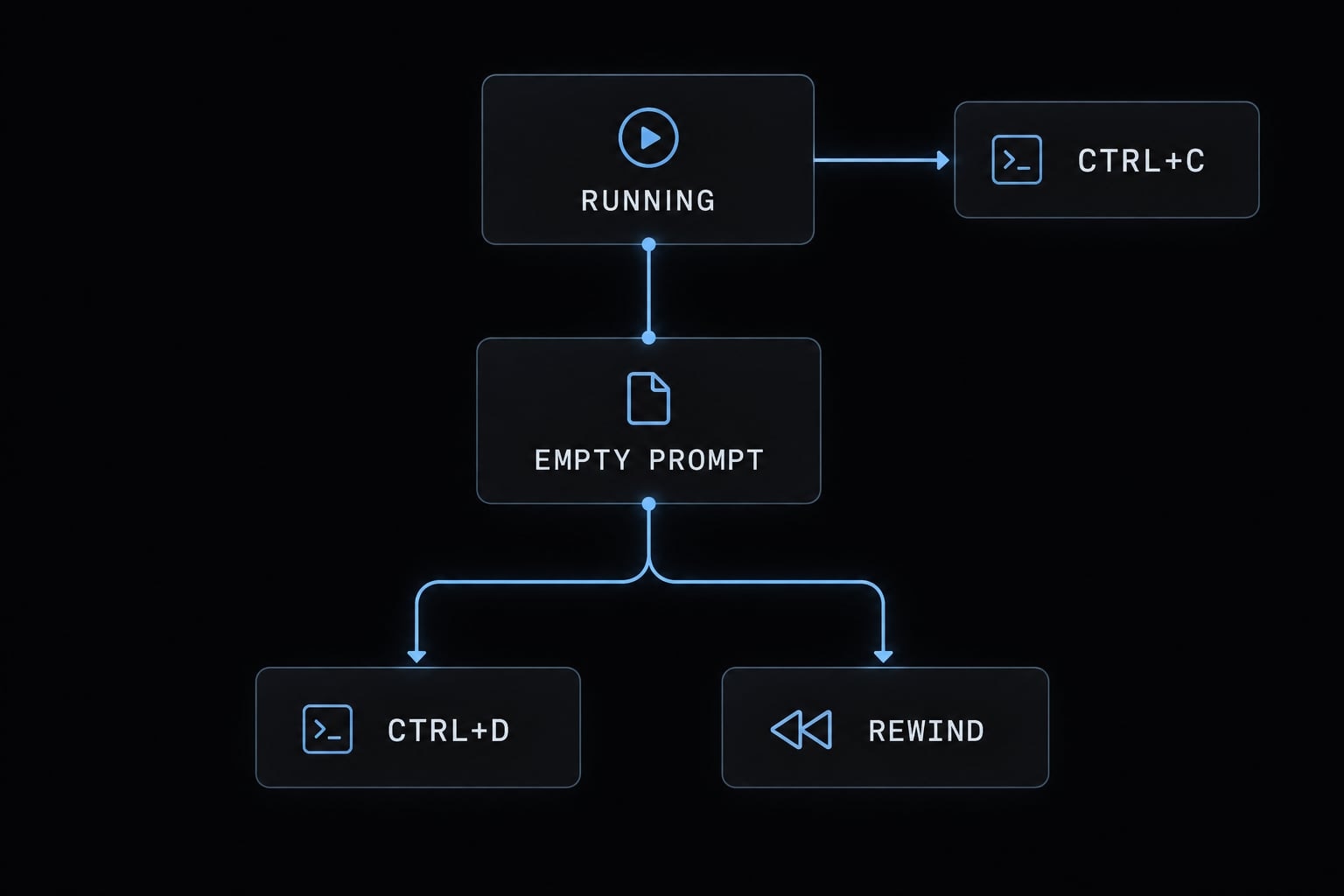
Stopping work, leaving the application, and restoring a checkpoint are separate actions. Choose based on the current interface state.
Ctrl+C vs. Esc vs. Ctrl+D
Key | Action and relevant state | What it does not guarantee |
|---|---|---|
| Cancel current input or generation in the interactive interface | Reversal of completed commands or external changes |
| Dismiss applicable interface elements; leave INSERT mode in Vim editing | A universal stop action across every interface state |
| Exit from an empty input prompt | Rollback or cancellation of every independently running process |
For example, cancel an unintended test invocation with Ctrl+C, then inspect its output before deciding whether further cleanup is necessary.
- Redraw:
Ctrl+Lclears the visible screen without deleting the conversation or current project files. - Suspend: Suspension
Ctrl+Zpauses an application through operating-system job control; it is not the same as backgrounding a Claude Code task.
How rewind works with Esc Esc
With empty input, press Esc, then Esc to open rewind menu. Review the checkpoint before choosing whether to restore conversation state, supported file changes, or both.
A checkpoint is a restoration point, not a complete snapshot of every external system. Shell commands, database writes, and API calls may require separate manual recovery.
Rewind is not universal rollback. Shell commands, deployments, database writes, and external API calls may require separate recovery. Interruption can also arrive after an operation has already changed something.
Prompt history, draft management and text editing
Claude Code prompt history retrieves submitted input; draft management preserves unfinished input. Neither operation restores an earlier conversation checkpoint.
Search and Restore previous prompts
Control | Function | When to use it |
|---|---|---|
| Search submitted prompt history | Find a previous code-review instruction |
| Browse historical prompts sequentially | Retrieve something recently submitted |
| Stash the current draft, or restore a stashed draft | Temporarily set aside unfinished input |
Review recalled input before submitting it. A previous instruction may contain an outdated branch name, file path, or deployment target.
Cursor movement and deletion shortcuts
Readline-style editing controls operate on the current input buffer:
Category | Shortcut | Effect |
|---|---|---|
Cursor movement |
| Move to the beginning or end of the line |
Word movement |
| Move backward or forward by a word |
Deletion |
| Remove text back to the beginning of the line |
Deletion |
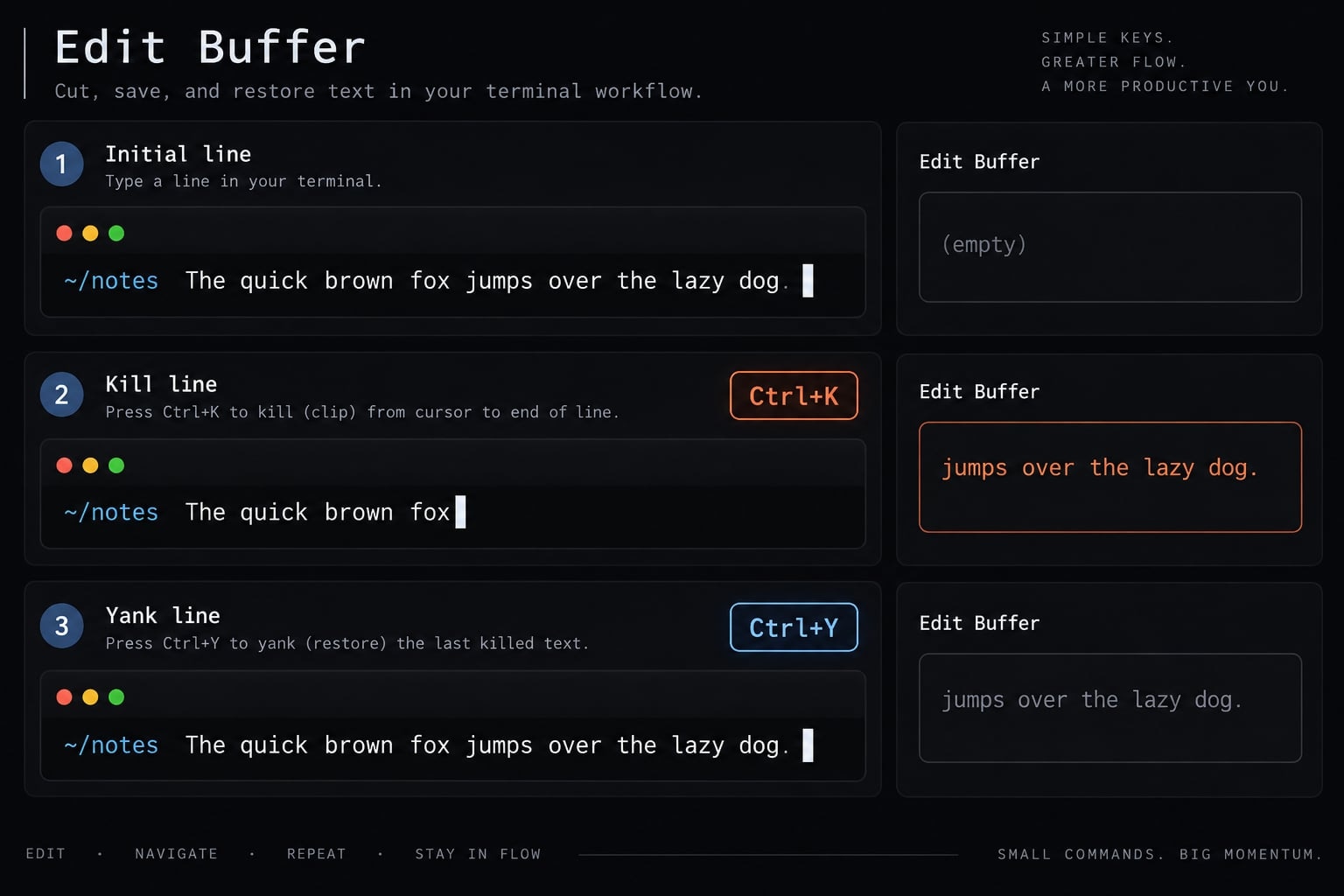
| Remove text through the end of the line |
Deletion |
| Remove the preceding word |
Restore removed text |
| Insert text from the editing buffer |
On macOS, word movement may require configuring Option as Meta. Meta is the modifier signal sent by the terminal to execute Alt-style commands.
Kill means remove text into an editing buffer where supported. Yank means insert text from that buffer. This buffer is not the system clipboard.
Readline-style resemblance does not mean Claude Code implements every GNU Readline binding.
Edit a long prompt in your default editor
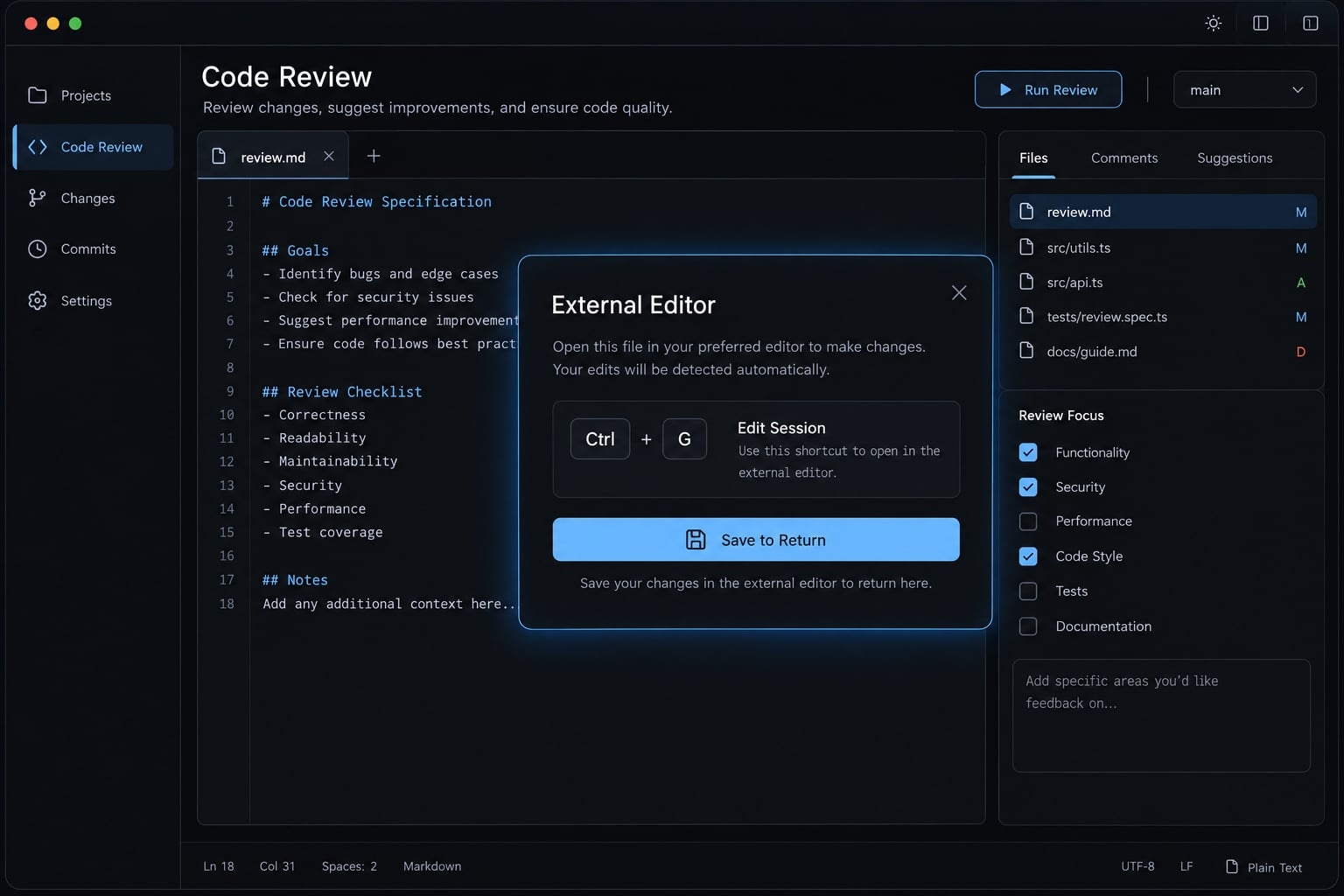
Use Ctrl+G when revising a multiline code-review specification becomes awkward inside the terminal.
Configure your preferred editor through the supported VISUAL or EDITOR environment setting. Then:
- Open the external editor with
Ctrl+G. - Edit the specification.
- Save and close the editing session to return.
- Review the returned prompt before submitting.
Graphical editors may need a wait option so Claude Code knows when editing has finished. Merely launching an editor window does not guarantee that edited text will return correctly.
Tasks, subagents, background work, and transcript controls
Backgrounding keeps supported work running; stopping ends execution. A task list or transcript view provides visibility, not equivalent execution control.
Control | Action | Scope |
|---|---|---|
| Background supported running work | Applicable foreground task, not every process |
| Toggle the task list | Task visibility; does not itself stop execution |
| Toggle transcript view | Available session messages and tool output |
Task interfaces have evolved across releases. Check the available controls in your installation before depending on a task-management binding.
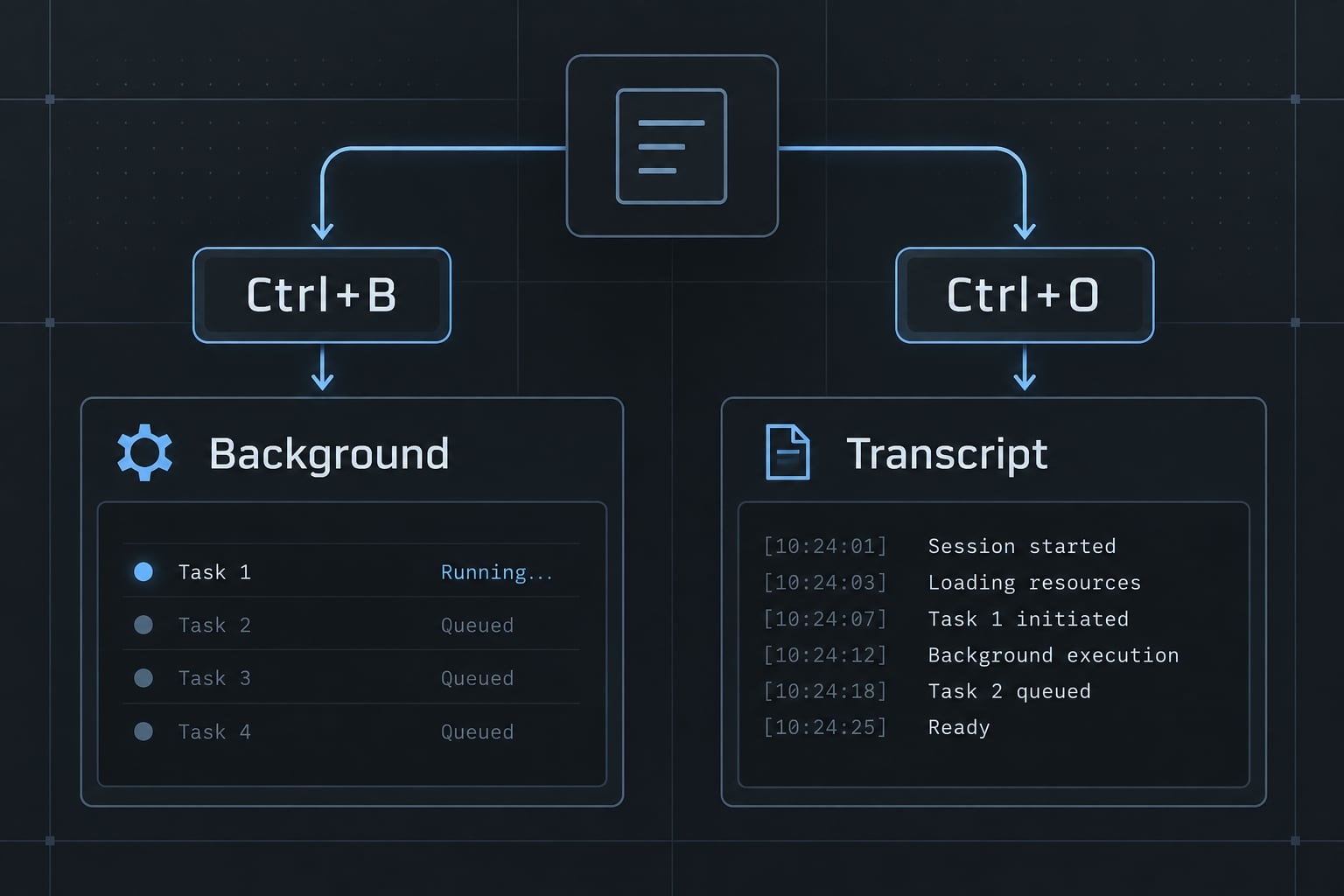
Backgrounding a Task is not the same as stopping subagents
Scenario: Long-running tests. When Claude Code offers background execution for the current task, Ctrl+B lets supported work continue while you return to interaction. Monitor the task rather than assuming success.
Scenario: Unnecessary delegated research. A subagent - a delegated assistant handling a specific task - may no longer be needed. Use the installed task-management interface to select and stop the relevant work. Backgrounding it would leave it running.
Keep in mind that canceling an operation does not automatically undo previous actions. Partial output or file modifications may still persist.
Using the transcript viewer
- Press
Ctrl+Oto open the transcript view. - Locate the relevant conversation message or tool invocation.
- Inspect available output and error details.
- Press
Ctrl+Oagain to return to the normal view.
The transcript viewer exposes available session output, not hidden chain-of-thought. Search and navigation features can change with the viewer implementation; use its displayed controls rather than assuming /, n, or N behave like another terminal application.
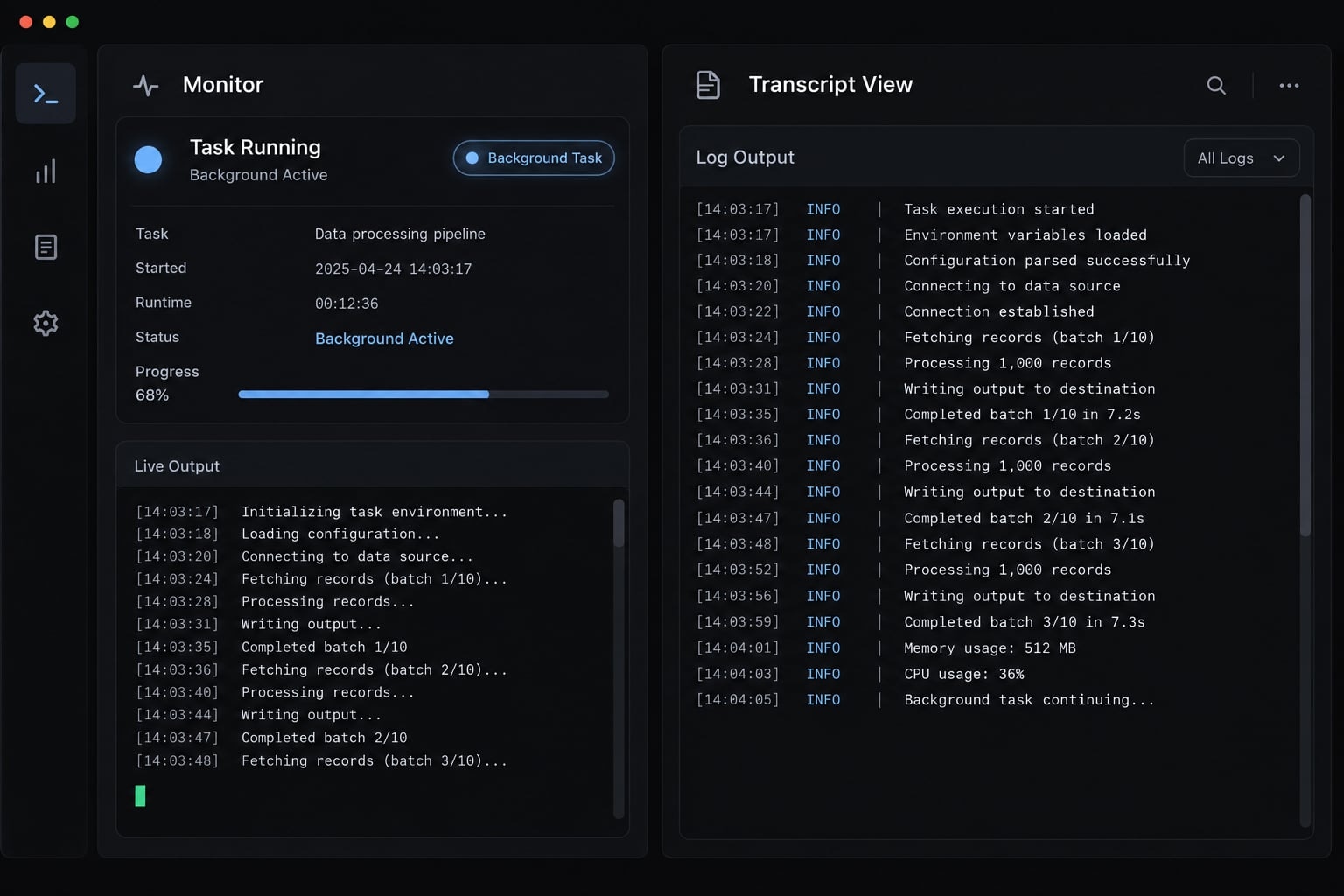
Permission modes, quick-input keys and multiline input
Permission modes affect approval behavior. They do not change how prompt-editor keys work, and they are not interchangeable with security isolation.
Cycle permission modes with Shift+Tab
Use Shift+Tab to cycle available permission modes. Confirm the displayed mode before submitting the next instruction.
Mode | Approval behavior | Appropriate use or limitation |
|---|---|---|
Default | Uses standard permission checks and applicable rules | Routine work with explicit approval where required |
Accept Edits | Automatically accepts supported file-edit operations | Does not grant unrestricted command execution |
Plan Mode | Supports analysis and planning without normal implementation edits | Not a universal security sandbox |
Configuration, organizational policy, and release differences can affect availability. Do not assume an identical cycling order everywhere.
Quick-input keys
These are typed characters entered at specific positions:
Input | Function | Context |
|---|---|---|
| Open command selection | At the beginning of input |
| Enter shell-command input | At the beginning of input |
| Reference files or directories | Within prompt input |
| Show shortcut help | At an empty prompt |
Shell commands can affect files, processes, and the environment. Entering shell mode does not make a command harmless.
Add new lines and paste images
Multiline input: Type \, then press Enter to insert a newline rather than submit. Option+Enter is another option on supported macOS terminal configurations.
Image input: Ctrl+V is Claude Code’s image-paste control in supported environments. Terminal interception and clipboard-image support still matter; do not assume macOS requires substituting Cmd+V.
Pasting an image’s actual clipboard content is different from pasting its file path. Confirm that an attachment appears before sending an instruction that depends on it.
Claude Code Vim mode shortcuts
Claude Code Vim mode changes prompt editing, not permission policy. It provides a subset of Vim-style modal editing rather than a complete Vim environment.
Enable Vim editor mode
Use /vim to toggle Vim-style editing. Watch the mode indicator: ordinary letters become editing commands in NORMAL mode and text input in INSERT mode.
Vim mode quick reference
Category | Keys | Action |
|---|---|---|
Mode switching |
| Leave INSERT mode for NORMAL mode |
Insert |
| Insert before or after the cursor |
Insert at boundary |
| Insert at line beginning or end |
Character movement |
| Move left or right |
Vertical movement |
| Move down or up |
Word movement |
| Next word, previous word, word end |
Line movement |
| Start, first nonblank character, end |
Delete character |
| Delete at the cursor |
Delete line text |
| Delete the line or through line end |
Here, Esc has an editor-mode meaning. Do not interpret an INSERT-to-NORMAL transition as confirmation that a running operation stopped.
Avoid importing unsupported copying, VISUAL-mode, or undo commands from a general Vim cheat sheet.
Platform compatibility, custom keybindings and shortcut troubleshooting
Claude Code can respond only to key sequences that reach the application. The operating system, IDE, terminal, or multiplexer may intercept them first.
macOS option/Alt key setup
The macOS Option key may produce special characters instead of the Meta signal expected by Alt-style shortcuts.
Terminal.app and iTerm2 offer Option/Meta configuration. Check your terminal’s documentation and active profile before changing it. The setting can also affect how you type symbols.
Do not replace all Ctrl combinations with Cmd; those modifiers are not interchangeable.
Customizing Claude Code Keybindings
Where supported, use /keybindings to access customization and consult Anthropic’s Keybindings documentation.
Remapping is context-sensitive: a binding for prompt input may not apply in a dialog or transcript view. Keep changes minimal, retain a copy of working configuration, and use documented action identifiers.
Avoid copying an unverified configuration example. An incorrect mapping can disable a familiar action without providing a usable replacement.
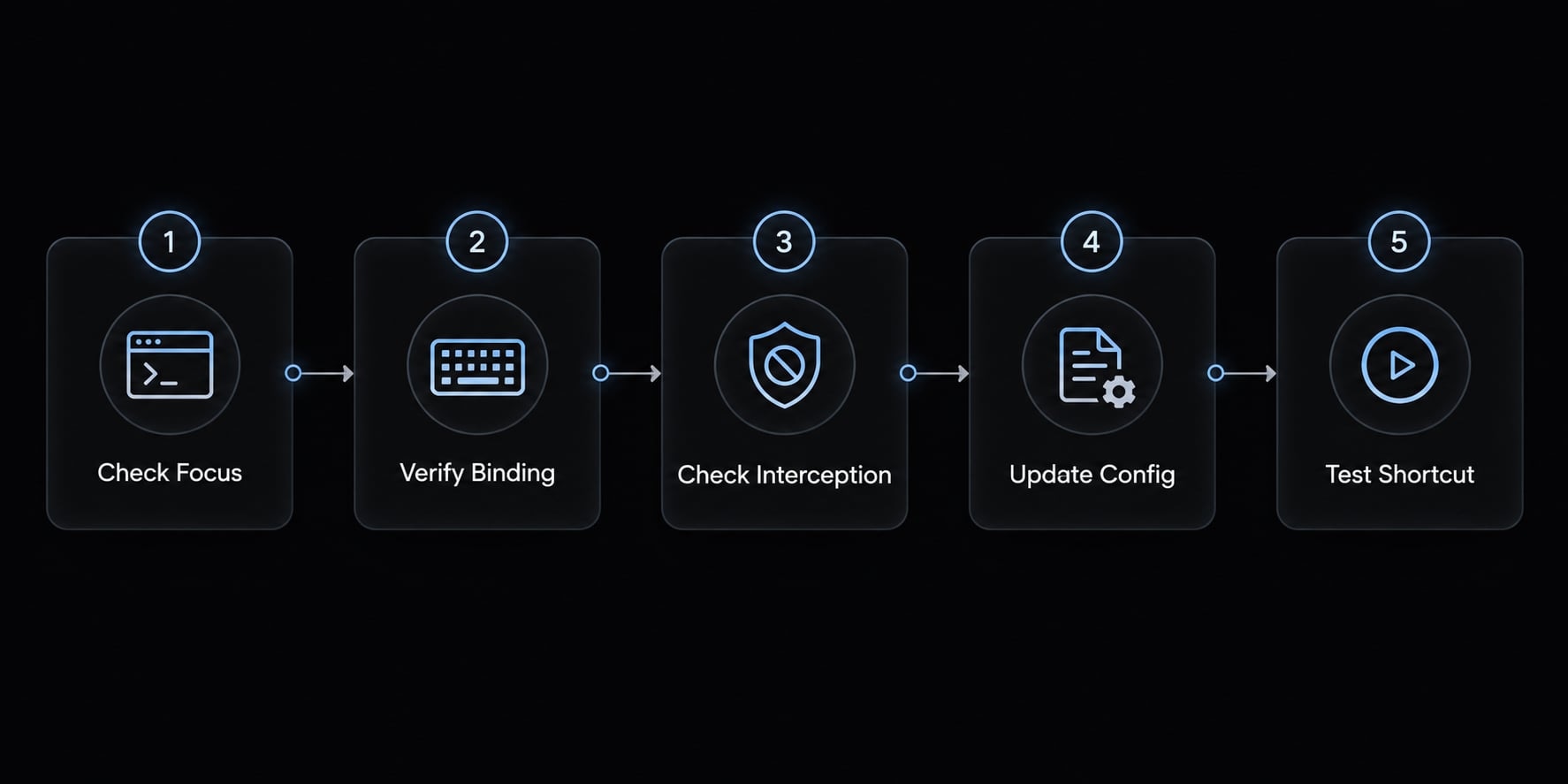
Shortcut not working? Check these five things
- Check interface state: Determine whether focus is in prompt input, a dialog, running work, or the transcript. Return to the relevant state before retrying.
- Check current in-product help: Type
?at an empty prompt. Compare the displayed controls with your intended action rather than relying on an older cheat sheet. - Check interception: Review OS, IDE, terminal, and tmux bindings. Compare with a standalone terminal when practical.
Ctrl+Scan be intercepted by terminal flow control rather than stashing input. - Check editor mode and mappings: Confirm default versus Vim editing, custom keybindings, and Option/Meta behavior. Test one change at a time so the cause remains identifiable.
- Check version alignment: Run
claude --version, compare with the documentation, and follow the supported update process for your installation method when appropriate.
Frequently asked questions
What are the essential keyboard shortcuts for Claude Code?
The most critical shortcuts are Shift + Tab to cycle permission modes, Esc Esc to rewind to a previous checkpoint, Ctrl + B to background long-running tasks, Ctrl + C or Esc to interrupt operations, and Ctrl + D to exit your active session.
Can I customize the default Claude Code keybindings?
Yes. You can create or edit a keybindings.json file located in ~/.claude/ to remap controls, disable specific defaults by setting them to null, and define context-specific sequences. Changes made to this configuration file take effect immediately via hot-reloading.
What should I do if my keyboard shortcuts are not working?
First, verify your current interface state (prompt mode vs. transcript viewer). Then, ensure your terminal emulator (iTerm2 or Terminal.app) has Option mapped to Meta. Finally, check that terminal multiplexers like tmux aren't intercepting key combinations.
What is the difference between interrupting and rewinding in Claude Code?
Ctrl + C or Esc performs an immediate interruption, which stops the current agent response or subprocess. In contrast, Esc Esc opens the rewind menu, which allows you to roll back conversation history or file changes to a specific, verified checkpoint in your session.
Read more:
- Everything Claude Code: A guide to streamlined AI coding
- Claude Code skills best practices: Build reusable AI workflows
- Claude Code tutorial: Set up and master your AI coding agent
Conclusion
Mastering Claude Code's native keyboard shortcuts drastically accelerates AI-assisted development workflows. Start by memorizing the core five: Ctrl+C, Ctrl+R, Ctrl+O, Ctrl+S and Shift+Tab. For broader AI engineering systems, including skill graphs, subagents, and safety hooks, AgentKit provides scaffolding that supports Claude Code and Codex, with Cursor and DeepSeek Harness in beta. It works alongside, not instead of, Claude Code’s native shortcuts.