[VC-02] Everything About Claude Code’s Toolkit
Introduction
Claude Code (CC) is a CLI agent that supports coding, which I consider to be the best at the moment.
One of CC’s strengths is its ability to use tools effectively.
Thanks for reading ✍️ Goon’s Solo Playbook! Subscribe for free to receive new posts and support my work.
Default Tools
Browse files: Ls, Grep, Glob
Create & edit: Write, Edit, MultiEdit
Execute commands: Bash
Search the internet: WebSearch, WebFetch
Task management: TodoWrite, TodoRead
Task: summon sub-agents
Claude Code already has a complete set of tools to start “getting to work”!
Permissions
When using the claude command to start, CC will run with default permissions, which means it will ask for permission for each tool it wants to use.
This approach ensures absolute safety, because AI is not perfect and can make mistakes. Who knows if one day it feels like “deleting all French directories” on our computer? (rm -fr /*)
Notes: It’s a joke, please don’t do that, it will terminate your computer.
It’s safe, yes, but I find it quite annoying because every time I start a different project, I have to accept permissions for those tools all over again 🤪
YOLO MODE! (Still safe)
If you run CC with the --dangerously-skip-permissions flag, you’ll skip that annoying permission acceptance process.
However... “With great power comes great responsibility.”
Remember what I just said above? It’s not “delete the French directory” but delete the entire file system.
Solution to Ensure Safety When Using YOLO MODE:
Deny Commands: In CC’s settings (
~/.claude/settings.json) there’s a “commands.deny” section - put commands here that you don’t allow CC to execute on its own (likermor commands that write/update database records likeprisma db push).
See more: Claude Code Settings
Dev Container: Run a docker container with Claude Code pre-installed with volume mount to the project, then exec into the container’s shell and use “yolo” mode freely 😌
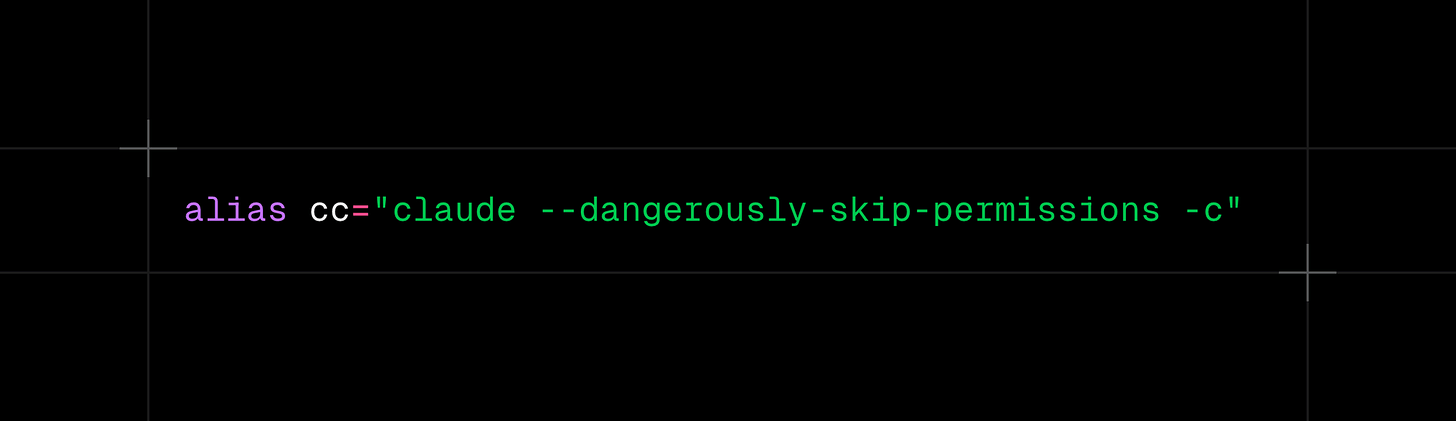
TIPS: I created aliasescc=”claude”andccd=”claude --dangerously-skip-permissions”in~/.zshrcto start CC faster.
MCP Servers
I think I don’t need to explain what MCP is anymore because it becomes popular already.
Installation Methods
There are 2 ways to install, one is command-based and the other is json-based:
Command-based:
claude mcp add --transport http github -s user https://api.githubcopilot.com/mcp/JSON-based:
claude mcp add-json weather-api ‘{”type”:”stdio”,”command”:”/path/to/weather-cli”,”args”:[”--api-key”,”abc123”],”env”:{”CACHE_DIR”:”/tmp”}}’Installing MCP in CC is quite easy; most MCPs have dedicated installation instructions for CC in their README.
If not available, you can install by giving the MCP repo link to ChatGPT or Claude to generate the command.
MCP Management Scope
CC manages MCPs according to 3 scope types:
Local (default): MCP configuration is saved in
~/.claude/settings.json. This is a single JSON file that can become very large when many projects develop.Project (shared via repo): Create or update at
/path/to/project/.mcp.json, convenient for sharing MCPs among teams. Be careful with API Keys because committing to a public repo can expose keys.User (Global): MCPs installed with this scope can be used across all projects, also saved in
~/.claude/settings.json. Use the-s userflag when installing.
TIPS: Don’t install too many MCPs. Each MCP server contains many tools; installing just 5 MCP servers is enough to cause dispersion and consume tokens.
Some Common MCPs I Use Context7
Very famous, CC calls Context7 tools to read latest docs, helping avoid confusion between breaking changes like Tailwind 3 vs 4.
Context 7
https://github.com/upstash/context7
Serena MCP
Uses Symbol-based Analysis for semantic search, improving CC’s source code understanding ability.
Introduction article: Serena MCP
PostgreSQL MCP
Suitable for projects using Postgres. I block Write commands, only allow Read for stable debugging.
https://github.com/crystaldba/postgres-mcp
MongoDB MCP (project-specific)
Used for old projects still on Mongo.
I use the open source alternative version because the original is hard to install.
Playwright MCP
Can use Puppeteer MCP, but I find Playwright better.
Should add instructions to CLAUDE.md so CC knows how to use it.
Example: Take screenshots of desktop and mobile, or read developer console logs.
https://github.com/microsoft/playwright-mcp
Github MCP
Used to create Pull Requests and request CC to read Github Actions logs to fix.
https://github.com/github/github-mcp-server
Figma MCP
Rarely used, mainly just reading layer structure.
I saw Figma has an official Dev Mode MCP but haven’t tried it yet.
Repomix
Has MCP, but I find it unnecessary because you just need to run 1 very simple command: repomix
This is the best solution for AI to grasp the entire code base, better than Serena or memory MCP.
Need clear instructions in CLAUDE.md to only activate when needed (refactor, implement, fix major bugs).
Website: https://repomix.com/
Some Other MCPs (I don’t use but others do)
FileSystem: CC can already read filesystem, don’t understand the purpose of this MCP.
Memory: CC also has it, can use Knowledge Graph Memory or Serena. There’s OpenMemory from the Mem0 team which is said to be quite good.
Security (reminder)
Running CC in “yolo” mode means CC has full authority to use MCP server tools.
AI or MCP is new technology; security still has many points that need deep research.
If you encounter prompt injection from any MCP, all data on your computer could be stolen by hackers.
That’s why I created DevPocket.app - a development environment in the form of a separate container on mobile:
Use CC “yolo” mode freely without worrying about security.
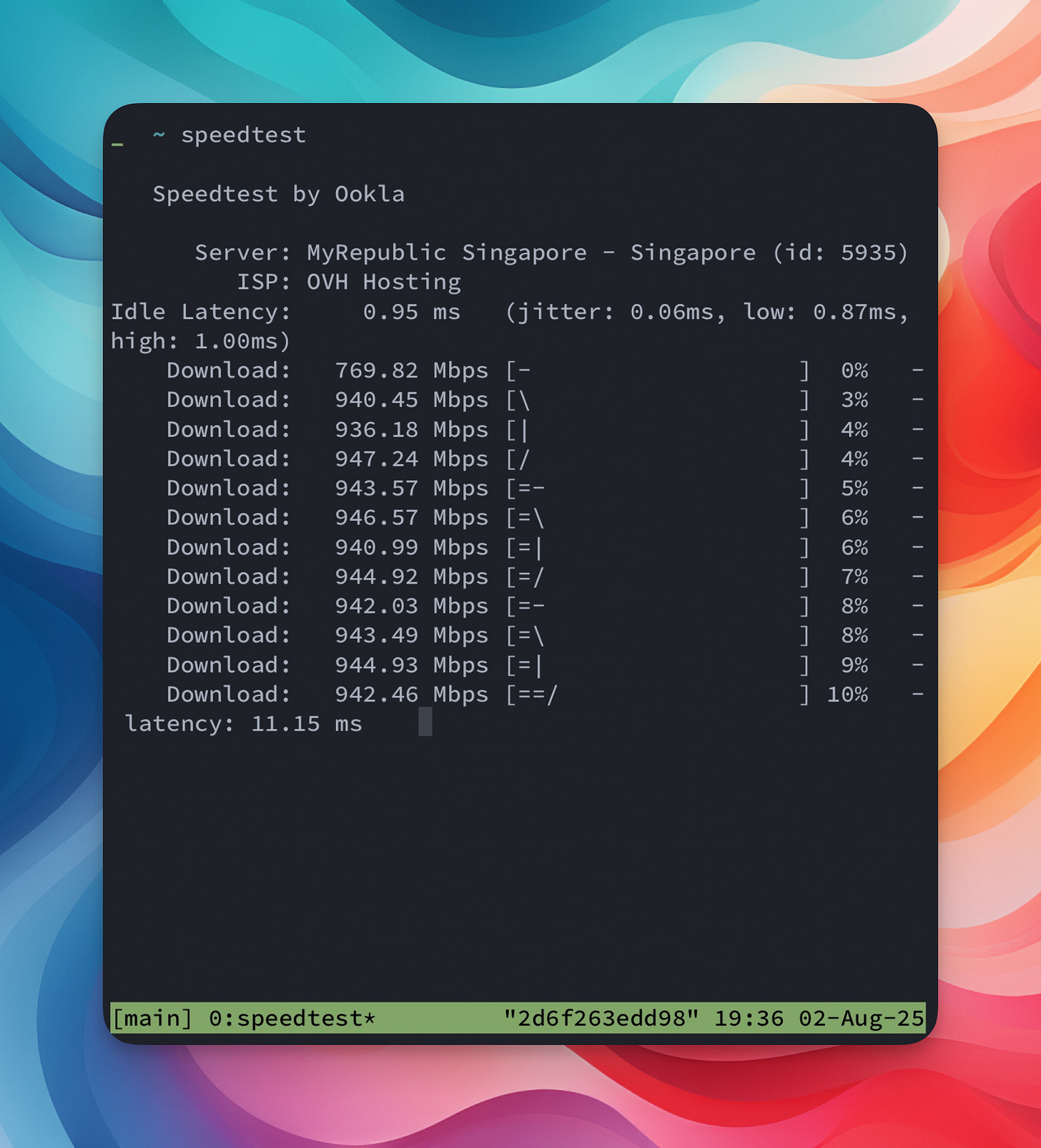
Take advantage of the fast internet speed of cloud data center systems.